Use scratch to make a musical instrument
Use Scratch to build a digital musical instrument by designing interactive keys, programming notes and pitch, and exploring rhythm, sequencing, and sound effects.


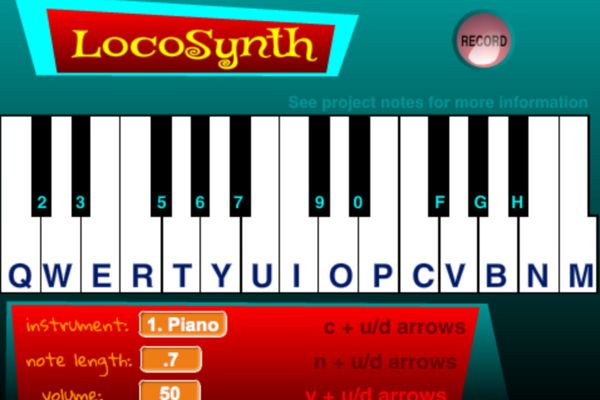
Step-by-step guide to use Scratch to make a musical instrument
How To Make A Piano in Scratch | Scratch Tutorial | Piano Project
Step 1
Open Scratch and start a new project.
Step 2
Remove the cat sprite by clicking it and choosing delete.
Step 3
Paint a new sprite that looks like one key by clicking Paint New Sprite and drawing a rectangle with a label (for example C).
Step 4
Duplicate that key sprite several times to make a row of keys and rename each copy so you can tell them apart.
Step 5
Add code to one key so it plays a note when clicked by dragging a "when this sprite clicked" block and a "play note 60 for 0.5 beats" block into its Code area.
Step 6
Change the note number in each key's play block so each key plays a different pitch.
Step 7
Add keyboard controls by putting a "when [key] key pressed" block in each key and attaching the same play note block so the keyboard can trigger the keys.
Step 8
Make each key flash when played by adding a color effect or switching costume inside the same click and key-press scripts and then clearing the effect after a short wait.
Step 9
Paint a new sprite to be your Play Button for a sequencer and give it a clear "Play" label.
Step 10
Create a list named pattern and add a simple sequence of note numbers into the list (for example 60 62 64 65).
Step 11
Program the Play Button so that when clicked it loops through the pattern list and broadcasts or directly plays each note with a short wait between notes.
Step 12
Test your instrument by clicking keys and the Play Button and tweak note numbers and wait times until the sound and rhythm feel great.
Step 13
Share your finished digital musical instrument project on DIY.org.
Help!?
I can't find the "play note 60" block or can't use Scratch online — what can I substitute?
If the 'play note 60' block is missing, add the Music extension in Scratch or instead import/record individual sound files into each painted key and replace the play-note blocks in the click and key-press scripts with 'start sound' blocks (and if you can't share on DIY.org export the .sb3 file or share a project link).
One or more keys don't make sound or the wrong key responds when I click — what should I check?
If a key won't play, confirm the 'when this sprite clicked' (and 'when [key] key pressed') block and its 'play note' block are inside that specific key's Code area, make sure no other sprite overlaps the key (or use 'go to front'), and verify each key's note number was correctly changed so notes don't conflict.
How can I change this activity to suit different ages or skill levels?
For younger children use fewer, bigger painted keys, only click-trigger scripts, and a tiny 'pattern' list (e.g., 60 62), while older kids can add a tempo variable, 'set instrument to' blocks, keyboard octave shifts, and a Play Button that broadcasts and reads more complex pattern lists.
What are easy ways to extend or personalize our Scratch instrument after finishing the basic steps?
Extend the Play Button script to read note-duration pairs from the 'pattern' list, add a tempo variable and 'set instrument to' dropdown so keys use different sounds, and personalize each key sprite with unique costumes and color-effect flashes to match the sequencer visually.
Watch videos on how to use Scratch to make a musical instrument
How to Make Music in Scratch! (Including Famous Piano Songs)
4 Videos
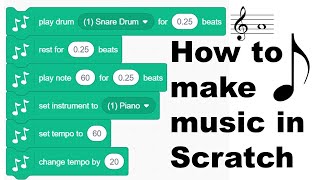
How to Make Music in Scratch! (Including Famous Piano Songs)
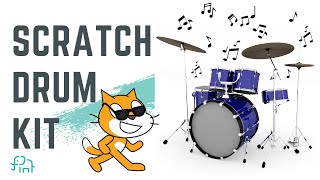
Build a Interactive Drum Kit on Scratch | Beginner Scratch Tutorial
How to make your own piano using Scratch | Beginner Scratch Tutorial | Easy Scratch Project
How to Create Custom Instruments on Scratch! (For Beginners)
Facts about coding and digital music for kids
🐱 Scratch was developed at the MIT Media Lab and features the friendly Scratch Cat as its mascot.
🎹 The theremin, invented by Léon Theremin in the 1920s, is played without touching its antennas.
🎧 Scratch includes sound blocks that let you record, import, play, and change the pitch of sounds.
⏱️ Digital instruments and sequencers can loop rhythms with perfect timing, great for practicing beats.
🔁 MIDI, introduced in 1983, is a digital language that lets instruments and computers send note and control messages to each other.
How do I use Scratch to make a digital musical instrument?
What materials and tools do I need to build a musical instrument in Scratch?
What ages is making a musical instrument in Scratch suitable for?
What are the benefits and safety tips for kids building musical instruments in Scratch?
