Use scratch to animate a music video
Use Scratch to create and animate a short music video, designing characters, choreographing movements, syncing visuals to music, and exporting your finished project.


Step-by-step guide to use Scratch to animate a music video
How to Create Animated Videos in Scratch | Easy Animation Tutorial for Beginners
Step 1
Open Scratch and click Create to start a new project.
Step 2
Add your song to the project by opening the Sounds tab and uploading your music file or picking one from the Scratch sound library.
Step 3
Plan your music video on paper by listing the characters scenes and the big beats where things should change.
Step 4
Create or upload a sprite for each character you want in the video.
Step 5
Add two or more costumes to each sprite so they can change poses or dance.
Step 6
Script a simple dance loop for each sprite using costume changes movement blocks and wait blocks.
Step 7
Add a script on the Stage to start the music when the green flag is clicked using a sound block.
Step 8
Add broadcast messages from the Stage at the right wait times to cue each sprite when to start its choreography.
Step 9
Click the green flag to test the whole project and watch how the music and movement line up.
Step 10
Tweak the wait times costume speeds and movement lengths in each sprite until the actions match the beats.
Step 11
Add backdrops titles and simple visual effects like color or size changes to polish the video.
Step 12
Export your finished video by recording your screen while playing it or by using TurboWarp Packager to create an MP4 file.
Step 13
Share your finished music video project on DIY.org.
Help!?
What can we use if we don't have a music file or TurboWarp Packager?
If you don't have a music file, use a track from the Scratch sound library or record directly with the Sounds tab microphone, and if you can't use TurboWarp Packager to make an MP4, record your screen while playing the project with a free recorder like OBS or your device's built-in screen recorder.
My sprites aren't starting their choreography on the beat — how do I fix that?
Make sure the Stage script uses 'when green flag clicked' to start the music and sends broadcast messages at the right wait times while each sprite uses 'when I receive' to begin its dance, then tweak the wait blocks and costume change timings until the actions line up with the song's beats.
How can I adapt this activity for different age groups?
For younger kids, simplify step 3–6 by planning on paper with just one sprite and two costumes and using preset motion blocks, while older kids can add clones, more precise wait timings, and export via TurboWarp for a polished MP4.
How can we extend or personalize the music video after the basic version is working?
Add personalized touches by creating custom backdrops and titles (step 11), using color/size effects or speech-bubble sprites for lyrics, and using clones or extra costumes to build crowd scenes and more complex choreography before exporting.
Watch videos on how to use Scratch to animate a music video
How to Make a Simple Animation in Scratch | Scratch Tutorial
4 Videos
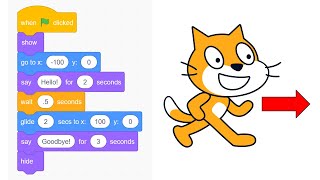
How to Make a Simple Animation in Scratch | Scratch Tutorial
How to Make Animations in Scratch! (Easy Tutorial)
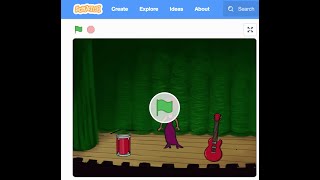
Scratch Tutorial - How to create music in scratch
Scratch Basics - A Beginners Guide to Scratch
Facts about coding and animation for kids
🎓 Scratch was developed by the MIT Media Lab to help kids create stories, games and animations using blocks of code.
🎵 Many pop songs use beats-per-minute (BPM); matching sprite movements to the song's BPM helps your animation stay perfectly in sync.
🧑🎤 In Scratch, characters are called 'sprites' and each sprite can have multiple costumes to animate dancing, expressions, or lip-sync.
📹 Scratch doesn't export video files directly — creators often screen-record their project or share it on the Scratch website as a playable project.
⏱️ Animating in Scratch usually switches costumes with short waits; trying 8–12 costume changes per second gives smooth, cartoon-like motion.
How do I use Scratch to animate a short music video?
What materials and tools do I need to create a music video in Scratch?
What ages is creating a Scratch music video suitable for?
What are the benefits of making a Scratch music video?
