Scratch: Code a Quiz Game
Use Scratch to design and code an interactive quiz game with questions, scoring, feedback, and sprites, testing logic and storytelling skills.
About this tutorial
Use Scratch to design and code an interactive quiz game with questions, scoring, feedback, and sprites, testing logic and storytelling skills.
What you need
Step by step
- 1
Step 1
Open Scratch and click "Create" to start a new project.
- 2
Step 2
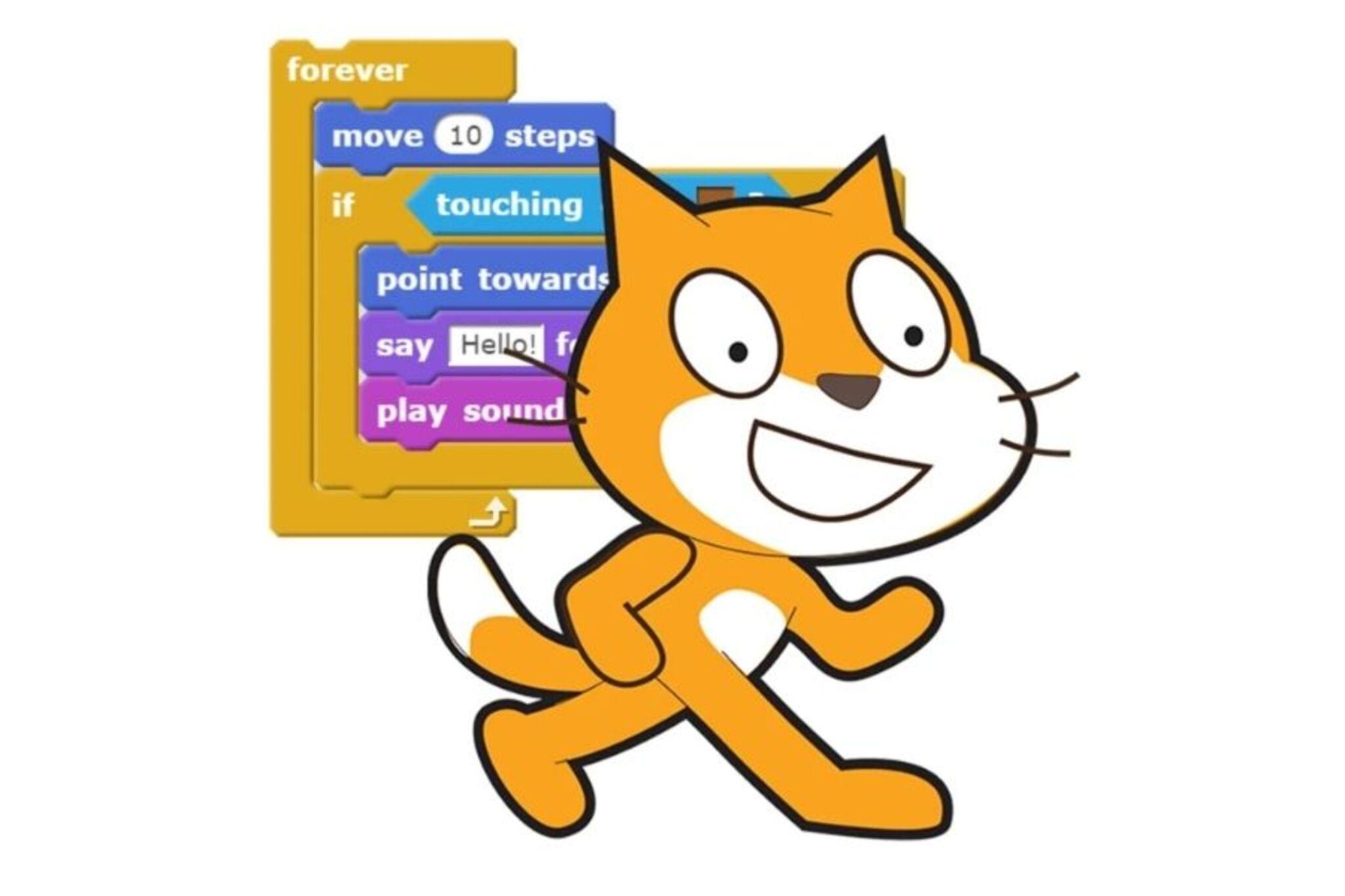
Rename the default cat sprite to "Host" so it will ask the questions.
- 3
Step 3
On your paper write 5 quiz questions and for each write 4 answer choices and circle the correct choice.
- 4
Step 4
In Scratch make a variable called Score for all sprites.
- 5
Step 5
In Scratch make a variable called QuestionNumber for all sprites.
- 6
Step 6
In Scratch make a variable called CorrectAnswer for all sprites.
- 7
Step 7
Add four answer button sprites and label them A B C and D so players can click answers.
- 8
Step 8
Create broadcast messages named Q1 Q2 Q3 Q4 Q5 showChoices and GameOver.
- 9
Step 9
On the Host add a "when green flag clicked" script that sets Score to 0 sets QuestionNumber to 1 and broadcasts Q1.
- 10
Step 10
For each question add a "when I receive Q1" (and Q2 Q3 Q4 Q5) script on Host that says the question sets CorrectAnswer to the correct letter and then broadcasts showChoices.
- 11
Step 11
For each answer button add a "when this sprite clicked" script that broadcasts pickedA or pickedB or pickedC or pickedD depending on the button.
- 12
Step 12
On Host add "when I receive pickedA" (and the other picked messages) scripts that check if CorrectAnswer = "A" (or B C D) then change Score by 1 and say "Correct!" otherwise say "Oops!" then wait 1 second change QuestionNumber by 1 and if QuestionNumber ≤ 5 broadcast the next Qn else broadcast GameOver.
- 13
Step 13
Create a GameOver script that runs when it receives GameOver and shows the final Score and a friendly message like "Great job!" or "Try again!" based on the Score.
- 14
Step 14
Play your quiz from the green flag to test every question and fix any bugs or typos until it works smoothly.
- 15
Step 15
Share your finished quiz game on DIY.org.
Fun facts
How do I create a quiz game in Scratch step-by-step?
Start by planning a set of questions, correct answers, and feedback. Open Scratch, create sprites for the host and answer buttons (or use one sprite with costumes). Make variables: score and questionIndex. Use lists or broadcasts to load each question, show choices, and wait for a click. Check the clicked answer with if/else blocks, update score, give feedback (say or play sound), then advance questionIndex and repeat. Finish with a final score screen and restart option.
What materials and tools do I need to build a Scratch quiz game?
You'll need: a computer or tablet with internet (or offline Scratch), a free Scratch account if you want to save projects, mouse or touch input, and headphones if you add sounds. Also prepare paper or a text file to write questions and correct answers, plus optional images and sound files for sprites. Adult help for younger kids is useful when signing up or downloading assets.
What ages is making a Scratch quiz game suitable for?
Scratch quiz games suit children ages about 8 and up, because they require basic reading and logical thinking. Younger kids (5–7) can try simpler versions with adult help, using picture choices and one or two questions. Older kids and teens can add complexity—variables, lists, timers, and branching stories—to deepen coding and storytelling skills. Adjust difficulty and supervision to the child’s reading and keyboard/mouse ability.
What are the benefits of building a Scratch quiz game and safety tips?
Building a Scratch quiz game improves logic, sequencing, problem-solving, and storytelling. Kids practice debugging, scorekeeping, and user feedback design. For safety, avoid collecting personal information and set project privacy to 'unshared' or review public comments with a parent. Encourage positive feedback and test answers to avoid frustration. Variations include timed quizzes, picture-based questions for younger players, or branching quizzes that change questions based on past answers.
Watch & Learn
Need help?
What can we use if we don't have a computer or can't access Scratch?
Use the Scratch Desktop offline editor or the Scratch app to build the same project, or run the activity offline by reading your paper questions aloud and letting players click real A/B/C/D cards while a person acts as the Host.
Why do my answer buttons sometimes not register clicks and how do I fix it?
Make sure each answer button sprite has a when this sprite clicked script that broadcasts the exact pickedA/pickedB/pickedC/pickedD message and that the Host has matching when I receive pickedX scripts checking the CorrectAnswer variable and that showChoices is broadcast after CorrectAnswer is set.
How can I adapt the quiz for younger kids or make it more challenging for older ones?
For younger children use only A and B buttons, 3 simple questions, and picture costumes for choices, while for older kids increase to 8–10 questions, add a timer variable that penalizes slow answers, and keep a high-score list using a Scratch list.
What are simple enhancements to personalize the game and make it more fun?
Add Host costume changes and sound effects inside each Q1–Q5 script, store questions and correct letters in lists to randomize the order before broadcasting showChoices, and customize the GameOver script to use Score to show different final messages.