Make a video tour
Plan, film, and edit a video tour of your home, backyard, or classroom with adult permission using a phone or tablet, practicing clear narration.


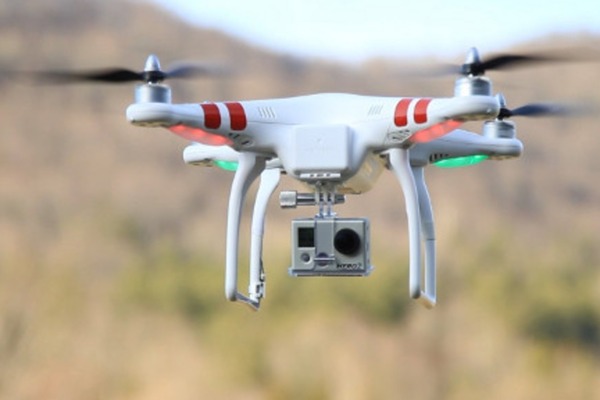

Step-by-step guide to make a video tour
Google Tour Creator tutorial
Step 1
Ask an adult for permission to make a video tour of your home backyard or classroom.
Step 2
Decide which place you will tour today: home backyard or classroom.
Step 3
Make a list of five stops you want to show on your tour.
Step 4
Write one short sentence in your notebook about what you will say at each stop.
Step 5
Practice reading each sentence aloud twice so your narration is clear and confident.
Step 6
Gather any small props you want to show and put them near the stops.
Step 7
Set your device on a tripod or a steady stack of books so it will not move while filming.
Step 8
Turn on lights or open curtains so each stop is bright and easy to see.
Step 9
Record a 10-second test clip to check the picture and sound.
Step 10
Watch the test clip and adjust one thing if the picture or sound needs fixing.
Step 11
Film each stop one at a time while speaking your sentence and showing the area or object.
Step 12
Watch all your clips and choose the best take for each stop.
Step 13
Open a simple editing app and import the chosen clips.
Step 14
Edit your clips by trimming and arranging them into a single tour video and add a title.
Step 15
Share your finished creation on DIY.org
Help!?
I don't have a tripod — what can I use instead?
Follow the instructions' suggestion to use a steady stack of books or place your device on a heavy shelf or cup to keep it from moving while filming.
My 10-second test clip looks dark or the sound is faint — what should I change?
As the instructions say to 'watch the test clip and adjust one thing,' open curtains or turn on lights to brighten the scene or move the device closer to where you speak to improve audio.
How can I adapt this video tour activity for younger or older kids?
For younger kids, choose three stops, have an adult help set the device and edit clips, and read aloud one practiced sentence, while older kids can plan five detailed sentences, record longer takes, and add trims and transitions in the editing app.
How can we extend or personalize our finished tour before sharing on DIY.org?
Use the editing app to add a custom title, simple captions or music, include themed props at stops, and trim clips into a polished single tour before uploading to DIY.org.
Watch videos on how to make a video tour
Awesome tips for Twinmotion | INTERACTIVE TOUR
4 Videos
Awesome tips for Twinmotion | INTERACTIVE TOUR
Tips & Tricks of Creating 360 Virtual Tour With Kuula

How To Make A Virtual Tour // 5 Simple Steps
How To Make A VIDEO Virtual Tour
Facts about video production for kids
🎥 Many modern smartphones can record in 4K — the same resolution used in cinemas, so home tours can look super sharp!
📱 You don’t need fancy gear: a phone or tablet plus a steady hand (or small tripod) can make great videos.
🎬 Short tours around 2–3 minutes often keep viewers’ attention best — highlight the coolest spots!
🗺️ Storyboarding (a few quick sketches of your route) helps you plan shots so you won’t forget anything important.
🗣️ Clear narration — speaking slowly, using descriptive words, and practicing — makes your tour feel like a friendly guide.
How do I plan, film, and edit a video tour of my home, backyard, or classroom?
What materials do I need to make a video tour with a phone or tablet?
What ages is this video tour activity suitable for?
What are the benefits, safety tips, and variations for a child video tour?
