Make a 2d game
Create a simple 2D game using Scratch or paper prototypes, designing sprites, levels, and controls while testing and improving your gameplay.


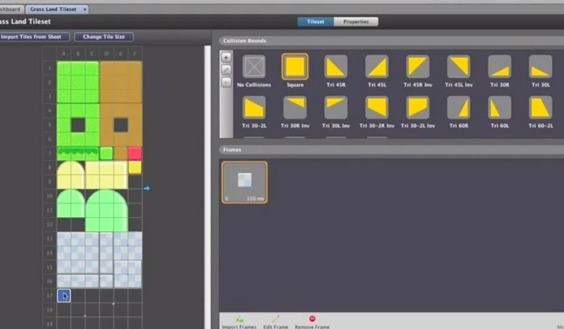

Step-by-step guide to make a simple 2D game using Scratch or paper prototypes
Make Your FIRST 2D Game with Godot 4.3! | FULL Beginner Tutorial
Step 1
Pick a fun game idea and name it so you know what world you are making.
Step 2
Choose whether you will make the game in Scratch or as a paper prototype.
Step 3
Draw your main player sprite on paper or in Scratch’s costume editor so you have a character to control.
Step 4
Draw two more sprites like an enemy and a collectible so the game has things to interact with.
Step 5
Design one level by drawing a map or creating a Scratch backdrop and mark the start and finish.
Step 6
Decide the controls (for example arrow keys to move or tap to jump) and write them down so players know how to play.
Step 7
Build a basic playable version: if paper, cut out pieces and use a token to move; if Scratch, add code blocks for the player movement.
Step 8
Add one challenge and one collectible and program or write the rule for what happens when the player touches them.
Step 9
Play your game three times and write down three things that could be better.
Step 10
Make one improvement from your list (change a control speed level layout or sprite look) and test the change.
Step 11
Create a title screen and a short “how to play” note so other people can understand your game quickly.
Step 12
Share your finished creation on DIY.org
Help!?
What can we use if Scratch or printed paper materials are not available?
If Scratch isn’t available use a free block-coding app like MakeCode or use a paper prototype with cut-out sprites and a token from the 'build a basic playable version' step to test movement.
My player won’t move or touching a collectible does nothing—how do I fix it?
Check the player movement code blocks and key-press events in Scratch or the token rules in the paper prototype from the 'build a basic playable version' step, and make sure collision rules for the enemy and collectible from the 'add one challenge and one collectible' step are correctly set.
How can I change the activity to suit different ages?
For younger kids use the paper prototype with simple arrow controls and one collectible from the 'add one challenge' step, while older kids can use Scratch’s costume editor to design sprites, add enemy AI, multiple levels, and score tracking from later steps.
What are quick ways to extend or personalize the game after testing?
Personalize the game by redesigning the main player in Scratch’s costume editor or on paper, adding sound effects, creating extra levels from the 'design one level' step, and polishing a title screen plus the 'how to play' note before sharing on DIY.org.
Watch videos on how to make a simple 2D game using Scratch or paper prototypes
Your First 2D GAME - Day 1 Beginner Tutorial
4 Videos
Your First 2D GAME - Day 1 Beginner Tutorial
Simple 2D Game Tutorial Using Stride3D
Learn Unity by Making a 2D Game - Full Beginner Course (6 Hours)

Full Course on How to make a 2d game in UNITY with C# | Beginners& Intermediate
Facts about game design and prototyping for kids
🐱 The Scratch Cat is the default sprite and a fun mascot kids love to customize.
🧩 Paper prototyping lets you test levels and controls in minutes—no computer needed!
🎨 A sprite is just an image; switching costumes quickly creates animation in Scratch.
🗺️ Good level design teaches players how to play by using obstacle and reward placement.
🕹️ Playtesting with friends often finds the silliest bugs—and the best ideas to improve your game!
How do I create a simple 2D game with Scratch or a paper prototype?
What materials and tools do I need to make a 2D game with Scratch or paper prototypes?
What ages is making a basic 2D game suitable for?
What are the benefits, safety tips, and variations for making a 2D game?
