Connect a sensor to the internet
Build a simple temperature sensor with a microcontroller and Wi-Fi module, send readings to an online dashboard, and learn how the Internet of Things works.


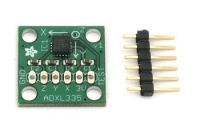

Step-by-step guide to connect a sensor to the internet
How To Use Ultrasonic Sensors with Arduino! + Project Idea!
Step 1
Gather all the materials on a clean table so everything is easy to reach.
Step 2
Ask an adult to help you create a free account on Adafruit IO or ThingSpeak.
Step 3
In your new dashboard account make a feed or channel for temperature and copy the API key or feed name.
Step 4
Plug the microcontroller into the computer using the USB cable so it powers up and can be programmed.
Step 5
Open the Arduino IDE and choose the correct board type (ESP8266 or ESP32) from the Tools menu.
Step 6
Use the Arduino Library Manager to install the "DHT sensor library" so the microcontroller can read the sensor.
Step 7
Use the Arduino Library Manager to install the library or enable HTTP support for your chosen dashboard (Adafruit MQTT or ThingSpeak).
Step 8
Open the example sketch for the DHT library and edit the sketch to add your Wi-Fi name password and the dashboard API key or feed name.
Step 9
Place the DHT11 on the breadboard and connect VCC to 3V3 GND to GND and DATA to a digital pin (for example D2) on the microcontroller using jumper wires.
Step 10
Click the Upload button in the Arduino IDE to send the sketch to your microcontroller.
Step 11
Open the Serial Monitor in the Arduino IDE and watch for messages that show the board connected to Wi-Fi and printing temperature values.
Step 12
Log into your online dashboard and check that new temperature readings appear in the feed or chart.
Step 13
Make a small paper label or sticker and give your sensor a fun name to personalize it.
Step 14
Take a photo and share your finished internet-connected temperature sensor project on DIY.org
Help!?
What can I use if I can't find a DHT11 or a specific microcontroller?
If you can't find a DHT11, substitute a DHT22 or DS18B20 and wire VCC to 3V3, GND to GND and DATA to a digital pin (adjust the example sketch), and if you don't have an ESP8266/ESP32 you can use an Arduino with a Wi‑Fi shield or an ESP32/ESP8266 module instead.
The Serial Monitor shows nothing or the dashboard has no data — what should I check?
If the Serial Monitor or dashboard shows nothing, confirm you selected the correct board (ESP8266 or ESP32) in the Arduino IDE Tools menu, installed the DHT and dashboard (Adafruit MQTT or ThingSpeak) libraries, uploaded the sketch after adding your Wi‑Fi name/password, and pasted the correct API key or feed name into the sketch.
How can I adjust the activity for younger kids or make it more challenging for older kids?
For younger kids, have an adult pre-install the DHT library and dashboard library and upload the edited example sketch so the child can focus on placing the DHT11 on the breadboard, connecting jumper wires and making a sticker label, while older kids can modify the example sketch to change reading intervals, add multiple feeds, or parse extra sensor data for Adafruit IO/ThingSpeak.
How can we extend or personalize the internet-connected temperature sensor project?
Extend the project by adding another sensor (for example a DHT22 for better accuracy), editing the sketch to send both temperature and humidity to your Adafruit IO or ThingSpeak feed, and creating a small enclosure with a paper label or sticker to personalize and protect the sensor.
Watch videos on how to connect a sensor to the internet
15 Best Arduino Sensor Projects for 2025!
4 Videos
15 Best Arduino Sensor Projects for 2025!
Get Started with Ultrasonic Sensors and Arduino: Step-by-Step Wiring & Code Guide
Top 8 Sensors You Must Know in Electronics with Project Ideas.
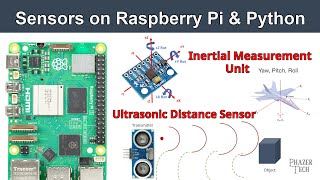
Sensors on Raspberry Pi & Python - Distance Sensor & Inertial Measurement Unit
Facts about the Internet of Things and microcontroller projects
🌐 The Internet of Things lets everyday objects (like sensors and appliances) share data online — there are already billions of connected devices.
🤖 Arduino was created in 2005 in Italy to make electronics easier and more fun for artists, students, and kids.
📡 The ESP8266 is a tiny, inexpensive Wi‑Fi chip that made it simple for hobbyists to connect projects to the internet.
🌡️ Temperature sensors come in many styles — thermistors change resistance with heat, and digital sensors like the DS18B20 use a single data wire.
📊 Sending readings to an online dashboard turns numbers into live graphs you can check from anywhere, even on a phone.
How do I connect a temperature sensor to the internet and send readings to an online dashboard?
What materials and tools do I need to build a simple Wi‑Fi temperature sensor for kids?
What ages is this IoT temperature sensor project suitable for?
What are the benefits, safety tips, and variations for a kid-friendly IoT temperature sensor project?
