Code an app menu
Create and code a simple app menu with buttons and icons using block-based or beginner programming; test navigation between screens and customize appearance.


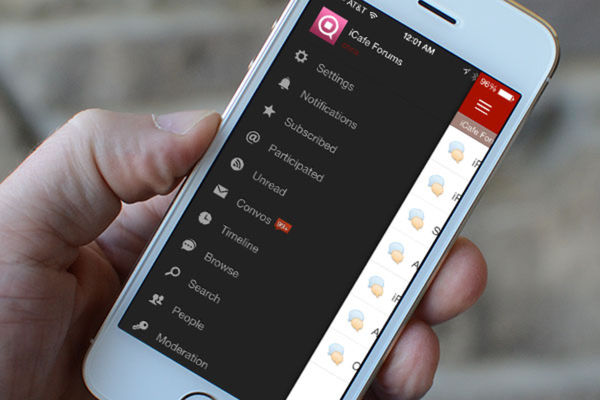

Step-by-step guide to create and code a simple app menu with buttons and icons using block-based or beginner programming
How to make your first App in one Video for kids! Using Code.Org
Step 1
Open your block-based coding platform and start a new project so you have a fresh workspace.
Step 2
Name your project "My App Menu" so you can find it later.
Step 3
Add a new screen or backdrop and call it "Home" to be your main menu page.
Step 4
Add three buttons on the Home screen and label them "Play" "Settings" and "Info" so users know where each goes.
Step 5
Add or upload icons or small images for each button to make them look fun and easy to recognize.
Step 6
Create a new screen and name it "Game" to be the destination for the Play button.
Step 7
Create a new screen and name it "Settings" to be the destination for the Settings button.
Step 8
Create a new screen and name it "Info" to be the destination for the Info button.
Step 9
On the Home screen add a block or script so clicking the Play button opens the Game screen.
Step 10
On the Home screen add a block or script so clicking the Settings button opens the Settings screen.
Step 11
On the Home screen add a block or script so clicking the Info button opens the Info screen.
Step 12
Change colors fonts and button sizes on each screen to customize the look and make it match your style.
Step 13
Test your app by clicking each button to check it goes to the right screen and fix any broken links or styles.
Step 14
Share your finished app menu on DIY.org so everyone can see your awesome creation.
Help!?
What can we use if we can't find the icons or the block-based platform in the instructions?
If you can't find icons or small images, draw or photograph your own and upload them or use built-in shapes, and if your block-based platform is unavailable use Scratch, MakeCode, or a free mobile block-coding app as a substitute for 'Open your block-based coding platform and start a new project'.
My Play button doesn't open the Game screen—what should I check to fix it?
Check that the Play button's script uses the correct 'when clicked' (or tap) event block and that the target screen name exactly matches the 'Game' screen name you created in 'Create a new screen and name it "Game"'.
How can I adapt this app-menu activity for younger or older children?
For younger kids, simplify by using only two buttons (e.g., 'Play' and 'Info'), larger icons, and preset backdrops, while older kids can add extra screens like 'High Scores', custom fonts and styles, and advanced blocks for animations and settings toggles as they customize colors, fonts and button sizes.
What are some ways to enhance or personalize the finished app menu beyond the basic steps?
Enhance it by adding click sound effects, animated icons or screen transitions, a live color/font picker in the Settings screen, and include screenshots plus a written description when you share your finished app menu on DIY.org.
Watch videos on how to create and code a simple app menu with buttons and icons and test navigation between screens
App Lab Beginner Tutorial - Easily Build Your First App on Code.org
4 Videos
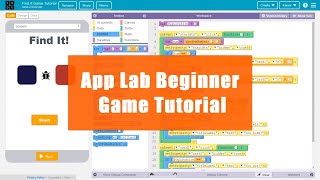
App Lab Beginner Tutorial - Easily Build Your First App on Code.org
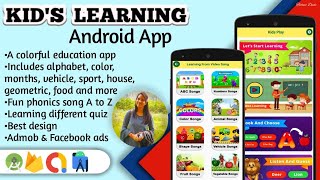
How to make Kids Learning Android App with android studio 2022
How to Make an App for Beginners (2020) - Lesson 1
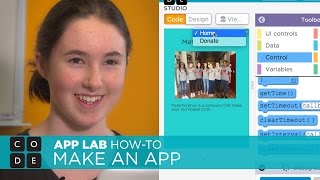
App Lab: Make a Simple App
Facts about app development for kids
🧩 Block coding uses puzzle-like pieces you snap together — great for learning logic without typing.
🏗️ MIT App Inventor lets anyone build real Android apps by dragging blocks and components.
🎯 A clear app menu helps people find things fast — designers aim to reach key screens in 1–3 taps.
🎨 App icons are tested at tiny sizes (like 16 x 16 pixels) so they stay recognizable on any screen.
📱 Most phone time happens inside apps, so a friendly menu makes your app more fun to use.
How do you create and code a simple app menu with buttons and icons?
What materials do I need to build a kid-friendly app menu?
What ages is this app menu coding activity suitable for?
What are the benefits of coding a simple app menu with blocks?
