Add Music to Your Pizzeria on Scratch!
Add background music and sound effects to your Scratch pizzeria project by programming sprites, choosing or creating tunes, and triggering sounds during gameplay.



Step-by-step guide to Add Music to Your Pizzeria on Scratch!
Step 1
Open your Scratch pizzeria project by going to the Scratch website and loading the project you want to add music to.
Step 2
Decide which parts need background music and which need sound effects by naming 2 or 3 events (for example: background music for the whole game oven baking beep cash register).
Step 3
Click the Stage and open the Sounds tab so you can add a music track that will play for the whole game.
Step 4
Add background music by clicking Choose a Sound and picking a music track from the library or uploading a tune you made.
Step 5
Go to the Stage Code tab and add this script: when green flag clicked -> forever -> play sound [your music] until done so the music loops during gameplay.
Step 6
Make a new sprite named SFX by clicking Choose a Sprite then Paint and name it SFX to keep sound-effect code organized.
Step 7
Pick one game event (for example: pizza finished or button pressed) and choose which sprite will trigger that sound so you know where to put the code.
Step 8
For the chosen sprite open its Sounds tab and add or record a short sound effect using Choose a Sound or Record.
Step 9
In that sprite’s Code tab add a trigger block (for example when this sprite clicked or when I receive [orderReady]) to tell Scratch when to play the sound.
Step 10
Add the sound-playing block (for example start sound [your effect] or play sound [your effect] until done) right under the trigger block so the effect plays at the event.
Step 11
If you want custom melodies instead of recorded audio, create a small music script using play note [60] for 0.5 beats blocks stacked in order under the same trigger to make a tune.
Step 12
Test your game by clicking the green flag and causing the events so you hear the background music and each sound effect at the right time.
Step 13
Balance the sounds by changing volume or adding change volume by blocks to keep music from drowning out effects.
Step 14
Share your finished pizzeria with music and sound effects on DIY.org.
Help!?
What can we use if we don't have a microphone or can't find a music track in the Scratch library?
If you don't have a microphone or a library track, use Choose a Sound in the Stage or sprite Sounds tab to pick a built-in effect, upload a pre-made audio file when adding background music, or run the project in Scratch Desktop if you don't have internet access.
Why won't my background music loop or my sound effects play during the game?
Check that the Stage Code tab has when green flag clicked -> forever -> play sound [your music] until done with the exact sound name in the Stage's Sounds tab and that each sprite's trigger block is directly above a start sound or play sound block so effects fire at the right event.
How can I adapt this activity for younger kids or older kids?
For younger kids, simplify by adding one Stage background track and a single SFX sprite with a when this sprite clicked -> start sound trigger, while older kids can compose custom melodies with play note blocks, add change volume blocks to balance audio, and use broadcasts like when I receive [orderReady] for complex triggers.
What are simple ways to extend or personalize the pizzeria's music and sounds?
Make the game more dynamic by creating multiple background tracks on the Stage and broadcasting messages to switch them during busy vs. calm gameplay, compose short custom tunes with stacked play note blocks for unique effects, and adjust volumes with change volume by blocks before sharing on DIY.org.
Watch videos on how to Add Music to Your Pizzeria on Scratch!
How to Make Music in Scratch! (Including Famous Piano Songs)
4 Videos
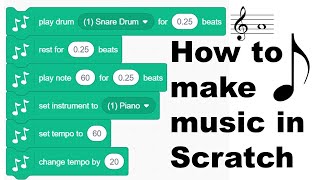
How to Make Music in Scratch! (Including Famous Piano Songs)
How To Add Sound To A Sprite In Scratch? Coding For Kids -Tinkerly
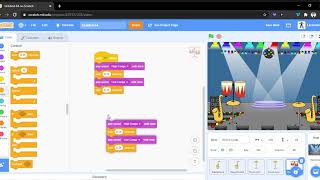
How to make a Music project on Scratch

Scratch Explained: How to use the Music Extension!
Facts about sound and music programming in Scratch
🧑💻 Scratch was created by the MIT Media Lab and first released in 2003 to teach kids block-based coding.
🎧 In Scratch you can record your voice, upload audio files, or pick sounds from a built-in library to add music and effects.
🎹 MIDI (Musical Instrument Digital Interface) was introduced in 1983 and lets digital instruments and software communicate.
🔊 Sound effects are often short audio 'samples'—tiny clips that can be triggered exactly when something happens in a game.
🎶 Background music in games usually loops seamlessly and uses simple melodies so it adds mood without distracting players.
How do I add background music and sound effects to my Scratch pizzeria project?
What materials and resources do I need to add music to my Scratch pizzeria?
What ages is adding music to a Scratch pizzeria suitable for?
What are the benefits and safety tips for adding music to my Scratch pizzeria?
