Scratch Code Shark Attack Game
Design and code a Shark Attack game in Scratch, creating sprites, movement, collision detection, and scoring while learning programming logic and debugging.


Step-by-step guide to design and code the Scratch Shark Attack game
Step 1
Open Scratch and click "Create" to start a brand new project so you have a blank game to build.
Step 2
Delete the cat sprite and add or paint a Shark sprite to be the player so you have a character to control.
Step 3
Add a Fish sprite to collect and make at least one costume variation so you have things for the shark to eat.
Step 4
Add a Big Shark or Hazard sprite to act as an enemy that will make the player lose lives.
Step 5
Choose or paint an Ocean backdrop and make a separate Start backdrop so your game looks like the sea and has a starting screen.
Step 6
Create two variables named Score and Lives for all sprites and set them to 0 and 3 respectively so you can track points and health.
Step 7
Add movement code to the Shark using blocks like "when green flag clicked" then "forever" with "if key pressed" blocks to move the shark with the arrow keys so the player can swim around.
Step 8
On the Fish sprite add code to hide the original then forever wait a random time then create clone of myself and set clone position to the right edge so fish appear over time.
Step 9
Add code to each Fish clone so it moves left across the screen and deletes itself when it goes off the left edge so fish travel across the ocean.
Step 10
Add collision code to each Fish clone so when it touches the Shark it changes Score by 1 plays a munch sound and then deletes the clone so eating gives points.
Step 11
Add spawning and movement to the Big Shark hazard using clones and random intervals so danger moves through the ocean like an enemy.
Step 12
Add collision code so when the Shark touches the Big Shark it changes Lives by -1 and briefly shows a flash or sound so lives go down on hits.
Step 13
Add game-over logic that checks "if Lives = 0" then broadcast "game over" and switch to the Game Over backdrop to stop the game when the player runs out of lives.
Step 14
Playtest your game and fix one bug at a time until it works smoothly then polish with sounds and costume tweaks so your game is fun and bug-free.
Step 15
Share your finished Shark Attack game on DIY.org so everyone can see and try your awesome creation.
Help!?
What can I use if I can't find or paint a Shark sprite?
If you can't find or paint a Shark sprite, delete the cat sprite and choose any sea sprite (like a dolphin or a fish) or draw a simple shape and rename it 'Shark' so the movement and collision scripts still work.
My Score doesn't change when the shark eats a fish — what should I check?
Check the Fish clone's code so under 'when I start as a clone' it moves left and that the collision block reads 'if touching Shark then change Score by 1 play sound munch delete this clone' and that your player sprite is actually named 'Shark'.
How can I adapt this game for younger or older kids?
For younger kids remove or reduce the Big Shark hazard, set Lives to 5 and slow fish spawn times, while for older kids increase Big Shark clone frequency, speed up fish movement, and add a Level or Timer variable for extra challenge.
How can I extend or personalize the game after it's working?
Add a PowerUp sprite that creates clones which, when touching the Shark, broadcast 'invincible' or change Score by more, customize the Ocean and Start backdrops and sounds, and polish costumes before sharing on DIY.org.
Watch videos on how to design and code the Scratch Shark Attack game
Scratch Programming - Shark Attack Game 4
4 Videos
Scratch Programming - Shark Attack Game 4
Shark Attack || M-Block Coding || Scratch || Mobile Game
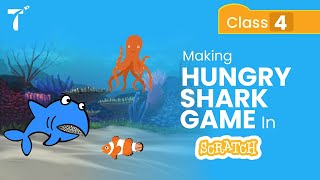
How to make a Hungry Shark Animation Game - Class 4 | Scratch Programming Tutorials | TechoKids
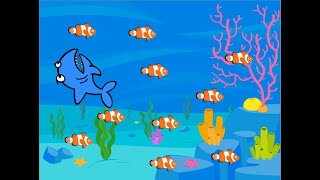
Hungry Shark in Scratch: Game Design for Beginners
Facts about block-based coding and game design
🧩 Scratch has a huge community—kids and teachers around the world have shared millions of projects on the Scratch website!
🦈 There are over 500 known species of sharks, from tiny lanternsharks to the giant whale shark.
🎮 The term “sprite” comes from early computer graphics and refers to the 2D images used to represent characters and objects in many games.
💥 One common beginner collision method is a simple bounding-box check (do the rectangles overlap?), which works great in Scratch.
🔢 Scratch uses variables and broadcasts so young coders can track score, lives, timers, and game events without typing text-based code.
How do I create a Shark Attack game in Scratch?
What materials do I need to make a Scratch Shark Attack game?
What ages is the Scratch Shark Attack game suitable for?
What are the benefits of making a Shark Attack game in Scratch?
