Learn Programming with Angry Birds and Scratch
Build an Angry Birds-style game in Scratch, design characters and levels, program catapult controls and simple physics, and test scoring and collisions.


Step-by-step guide to Learn Programming with Angry Birds and Scratch
Step 1
Open Scratch and start a new project so you have a blank stage to build your game.
Step 2
Draw your bird slingshot and target ideas on paper so you know what to create in Scratch.
Step 3
Create or pick a bird sprite in Scratch and name it "Bird" so you can program it separately.
Step 4
Create a slingshot sprite and place it on the left side of the stage where the bird will start.
Step 5
Create target and block sprites and arrange them on the stage to make your first level layout.
Step 6
Make these variables: bird_vx; bird_vy; launched; score so you can control motion and track points.
Step 7
Program the bird sprite so it follows the mouse while you click and drag to pull it back on the slingshot.
Step 8
Program the bird sprite so when you release the mouse it calculates angle and power and sets bird_vx and bird_vy for the launch.
Step 9
Add a loop that runs while launched is true to move the bird by bird_vx and bird_vy and change bird_vy each frame to simulate gravity.
Step 10
Program collisions so when the bird touches a target the target hides and the score increases by a set amount.
Step 11
Program what happens when the bird falls off the stage or stops moving so it resets to the slingshot and launched becomes false.
Step 12
Playtest your level by launching the bird several times and fix any problems with aiming scoring or collisions.
Step 13
Share your finished Angry Birds-style game on DIY.org so everyone can see and try your creation.
Help!?
What can we use instead of the Scratch website or a mouse if they're not available?
If Scratch online or a mouse isn't available, install Scratch Desktop or use block-based alternatives like MakeCode or Tynker and adapt the click-and-drag step to keyboard arrow controls or a tablet touchscreen so the Bird sprite can still be pulled back on the slingshot.
My bird snaps back or won't launch after I release the mouse — what should I check?
Check that your mouse-release script actually calculates angle and power and sets bird_vx and bird_vy, sets launched to true, and that your 'while launched' loop is running and updating bird_vy each frame to simulate gravity so the bird moves.
How can we change the project for younger or older kids?
For younger kids simplify by using the pre-made bird and slingshot sprites from the library, skip gravity and just move the Bird a fixed number of steps after releasing, and for older kids add angle/power math, realistic gravity using bird_vy, multiple target sprites that hide and change the score variable, and extra levels.
What are easy ways to extend or personalize our Angry Birds-style level?
Add sound effects when a target hides, give different target sprites different point values that change the score variable, create a visible power-meter sprite showing the calculated power before launch, and save/display a high-score before sharing the project on DIY.org.
Watch videos on how to Learn Programming with Angry Birds and Scratch
Angry Birds Scratch 3: Variables & Initialising
4 Videos
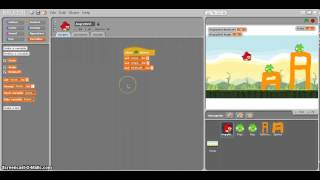
Angry Birds Scratch 3: Variables & Initialising
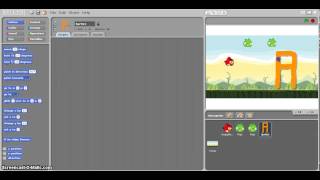
Angry Birds Scratch 2: Graphics & Sounds
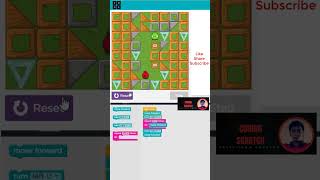
Code.org Lesson 1 Programming with Angry Birds - Express Course
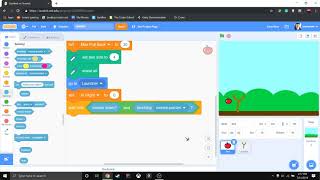
Scratch 3.0 - How to Apply Angry Birds Physics
Facts about block-based programming and game design
🐦 Angry Birds launched in 2009 and quickly became one of the most downloaded mobile games in history.
🧩 Scratch is a block-based coding platform used by millions of young creators to build games, animations, and stories.
🎯 Projectile motion makes launched objects follow a parabolic arc — that’s the science behind a bird’s flight path in the game.
⚙️ Physics engines power game realism by simulating gravity, forces, and materials so objects move and break believably.
🔍 Collision detection ranges from simple boxes to pixel-perfect checks, and it decides whether two game objects actually 'hit'.
How do you build an Angry Birds-style game in Scratch?
What materials do I need to build an Angry Birds-style game in Scratch?
What ages is this activity suitable for?
What are the benefits of making an Angry Birds-style game in Scratch?
