Draw Anything on Procreate
Use Procreate to draw characters, objects, or scenes on an iPad, practicing sketching, layering, color blending, and simple digital art techniques.


Step-by-step guide to Draw Anything on Procreate
Step 1
Open the Procreate app on your iPad.
Step 2
Tap the + button to create a new canvas.
Step 3
Choose a canvas size from the presets or make a custom size.
Step 4
Open the Brush Library and pick a light pencil or sketch brush.
Step 5
Create a new layer and name it Sketch.
Step 6
Draw a light sketch of your character object or scene on the Sketch layer.
Step 7
Lower the Sketch layer opacity so your lines are faint.
Step 8
Create a new layer below the Sketch layer for colors.
Step 9
Paint flat base colors on the color layer staying inside your sketch lines.
Step 10
Create another new layer above the color layer for shading.
Step 11
Change the shading layer blend mode to Multiply.
Step 12
Paint shadows on the shading layer where things should look darker.
Step 13
Create a new layer for highlights.
Step 14
Paint small bright highlights on the highlights layer to make things pop.
Step 15
Share your finished Procreate drawing by uploading it to DIY.org.
Help!?
What can we use if we don't have an iPad or the Procreate app?
If you don't have an iPad or Procreate, use Procreate Pocket on an iPhone or free drawing apps like Autodesk SketchBook or Adobe Fresco and follow the same layer, Brush Library, and export steps (including uploading to DIY.org) using your finger or a basic capacitive stylus.
My sketch lines are still too dark after lowering opacity—what should I try?
Tap the Sketch layer and move the Opacity slider further down, or switch to a lighter pencil in the Brush Library and erase or redraw heavy lines with the Eraser tool to match the 'lower the Sketch layer opacity' step.
How can I adapt this activity for different ages?
For younger kids simplify to one Sketch layer and one color layer using large brushes from the Brush Library and finger painting, while older kids can add separate shading (Multiply) and highlights layers and experiment with layer names and custom brushes.
How can we make the finished drawing look more polished or unique?
Try textured brushes from the Brush Library, use a clipping mask on the color layer before painting shadows on the Multiply shading layer and small bright marks on the highlights layer, then export and upload the polished result to DIY.org.
Watch videos on how to Draw Anything on Procreate
PROCREATE Drawing for Beginners - EASY Step by Step Tutorial
4 Videos

PROCREATE Drawing for Beginners - EASY Step by Step Tutorial
How to Draw in Procreate | Beginners Guide
Learn to Draw a Cute Monster on your iPad - Easy Procreate Tutorial
How to Use the Drawing Guide in Procreate
Facts about digital art for kids
🎨 Procreate first appeared for iPad in 2011 and quickly became a favorite digital studio for artists of all ages.
✏️ The Apple Pencil detects pressure and tilt so your digital strokes can behave like real pencils and brushes.
🧩 Layers let you sketch, color, and edit parts of a drawing separately—no accidental erasing of your whole masterpiece!
🖌️ Procreate includes a huge brush library with hundreds of brushes and lets you create custom brushes for unique effects.
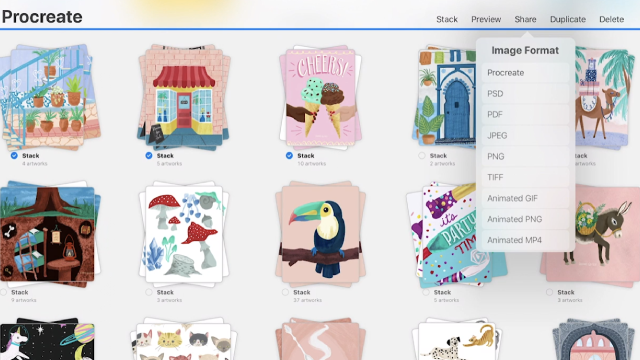
📤 You can export Procreate artworks as PSD, PNG, or JPG so your creations can be shared or opened in other apps.
How do I guide my child to draw anything on Procreate step-by-step?
What materials and tools do I need to draw on Procreate with my child?
What ages is the 'Draw Anything on Procreate' activity suitable for?
What are the benefits and safety tips for kids using Procreate?
