Create a Soccer Game on Scratch
Make a simple soccer game in Scratch by designing players, controls, goals, scoring, and basic ball physics while learning coding concepts and creativity.


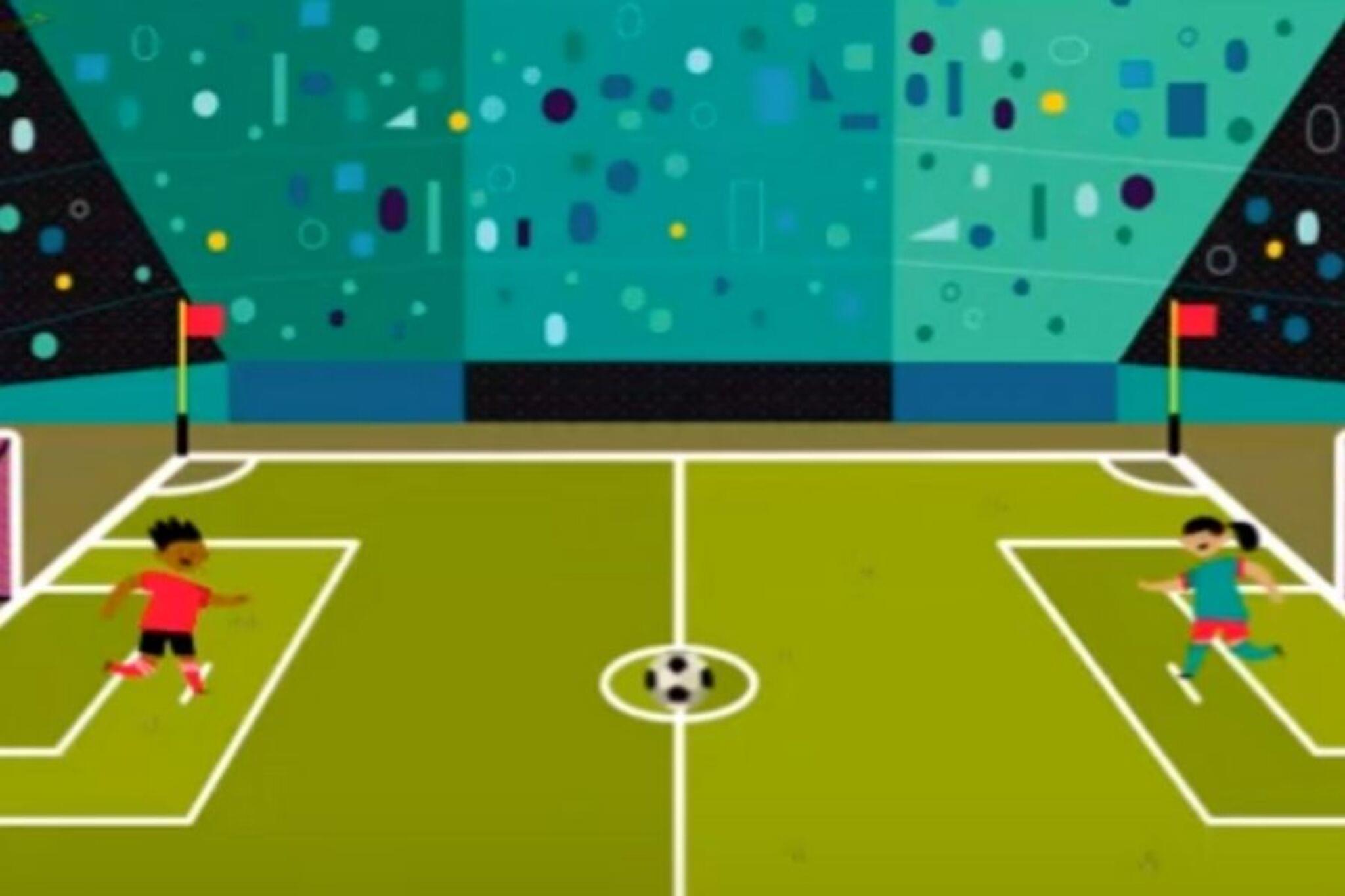
Step-by-step guide to create a soccer game on Scratch
Scratch Soccer Game ⚽ | Fun Coding Project for Beginners#scratch #scratchtutorial #games
Step 1
Open Scratch and click Create to start a new project.
Step 2
Choose or draw a player sprite and add it to the stage.
Step 3
Choose or draw a ball sprite and place it near the center of the stage.
Step 4
Pick a soccer field backdrop from Backdrops and set it as the stage background.
Step 5
On the player sprite add code so the arrow keys move the player (right arrow change x by 10 left arrow change x by -10 up arrow change y by 10 down arrow change y by -10).
Step 6
On the ball sprite add code so when the green flag is clicked it goes to the center points in a random direction forever moves 6 steps and if on edge bounce.
Step 7
On the ball sprite add code so if it is touching the player it points away from the player (point towards player then turn 180 degrees) and moves quickly a few steps.
Step 8
Create two goal sprites and place one at each end of the field to act as goal zones.
Step 9
Make two variables named Left Score and Right Score and show them on the stage.
Step 10
Add code to each goal sprite so when the goal touches the ball it increases the correct score by 1 broadcasts "Goal" and moves the ball back to the center.
Step 11
Add code to play a cheering sound and show a brief celebration when the "Goal" message is received.
Step 12
Add code so when the green flag is clicked both scores reset to 0 and the player and ball move to their starting positions.
Step 13
Add a simple opponent by creating a second sprite that points towards the ball and moves slowly to try to intercept it.
Step 14
Playtest the game and tweak player speed ball speed and goal positions until the game feels fun and fair.
Step 15
Share your finished soccer game project on DIY.org.
Help!?
What can I use if I can't find the cheering sound or the soccer field backdrop?
Use Scratch's built-in sounds like Applause or Pop and either draw a simple green rectangle field in Backdrops or upload a photo from your device to replace the cheering sound and soccer field backdrop.
The ball isn't bouncing at the edges or reacting when it touches the player—what should I check?
Check that the ball's 'when green flag clicked' script has a forever loop containing 'move 6 steps' and 'if on edge, bounce' and that the collision code uses 'if touching [Player] then point towards [Player] turn 180 move (fast) steps' inside a loop so collisions are detected continuously.
How can I adapt this project for younger or older kids?
For younger kids simplify controls and visuals by using only arrow-key movement with change x/y by ±5 and set the ball to move 4 steps, while older kids can add smarter opponent behavior, more scoring rules using Left Score and Right Score, and finer speed tuning during playtesting.
How can we enhance or personalize the soccer game beyond the instructions?
Add power-up sprites that when touched change player speed or ball behavior, create a timer variable to end matches, swap player or goal costumes for celebrations when the 'Goal' broadcast is received, and then share the finished project on DIY.org.
Watch videos on how to create a soccer game on Scratch
Scratch Soccer Game Tutorial ⚽ | Make a Football Game in Scratch | Scratch Game Coding for Kids
4 Videos

Scratch Soccer Game Tutorial ⚽ | Make a Football Game in Scratch | Scratch Game Coding for Kids

Learn How to create a soccer Game in Scratch 3.0 | Yuvin Mevada Tutorial ⚽🎮
Scratch Tutorial #5: Making a Soccer Game!
Beginner Scratch Coding Tutorial: Soccer Game
Facts about Scratch programming and game design
🐱 Scratch was made by the MIT Media Lab so kids can snap code blocks together like puzzle pieces and create games.
⚽ Association football (soccer) is played by over 250 million people worldwide — perfect inspiration for a game idea!
🎮 Pong (1972) showed how simple bouncing and scoring mechanics can make an addictive game.
🔁 In Scratch you can make a ball bounce using the 'if on edge, bounce' block or by reflecting its direction angle.
⌨️ Player movement is easy in Scratch: use 'when key pressed' blocks to map arrow keys or WASD to your sprites.
How do I create a simple soccer game in Scratch step-by-step?
What materials or tools do I need to make a soccer game in Scratch?
What ages is making a Scratch soccer game suitable for?
What are the benefits of building a soccer game in Scratch for kids?
