Basic coding concepts for the Classroom with Vibe Coder
Teach basic coding concepts in the classroom using Vibe Coder, a kid-safe classroom coding tool for hands-on projects, live previews, and gentle explanations.
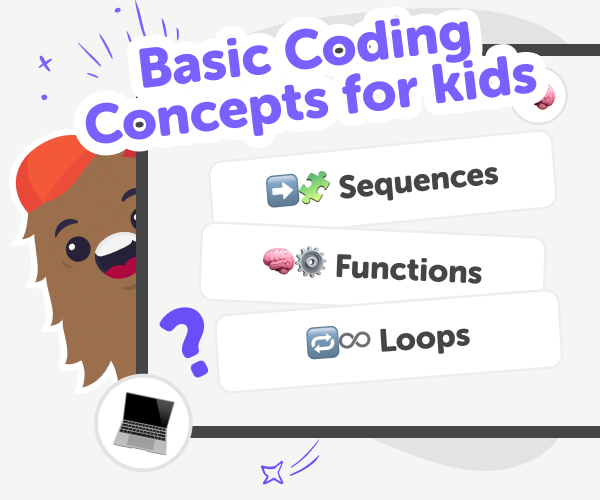
What Are Basic Coding Concepts?
Basic coding concepts are the building blocks that help children understand how software and simple hardware behave. Concepts like sequences, loops, conditionals, variables, events, inputs and outputs give students ways to describe what they want a program or gadget to do. In the classroom, these ideas are taught with examples, play and repeated practice so that students learn by making, testing, and correcting. Teaching these concepts early encourages problem solving, clear thinking, and creativity. Rather than memorising syntax, kids learn to plan steps and reason about cause and effect, which makes later coding easier and more meaningful.
Vibe Coder is a classroom coding tool designed to turn those basic concepts into hands-on activities. The tool presents several kid-friendly environments — Ardu Coder for simulated circuits, Game Viber for playable games, Java Coder and Py Coder for text-based practice, plus Ask Anything for guided explanations. Students type simple prompts on the left, iterate in conversation with the tool, and see a live Preview on the right. Because Vibe Coder shows both a playable Preview and the underlying code or schematic, teachers can connect actions to code, demonstrate loops and conditionals, and support gradual discovery. It’s built to be kid-safe, explanatory, and classroom-friendly, so learning stays focused on making and understanding.
Teach Coding with Vibe Coder
Step 1 - Choose a Project Starter
Open Vibe Coder and pick an example starter or a blank canvas. Choose from the Ardu Coder, Game Viber, Java Coder, or Py Coder.
Step 2 - Write a clear vibe prompt
Type what you want the project to do in the left prompt window. Ask for behaviours, controls, or simple learning notes.
Step 3 - Preview and test your build
Use the Preview window to play or simulate the project. Toggle to Code to inspect, compare, and export the underlying code.
Step 4 - Make the most of Vibe Coder
Try different environments Use Ardu Coder, Game Viber, Java Coder, and Py Coder to teach different concepts; rotate them across lessons. Iterate and compare Encourage students to tweak prompts, test in Preview, then check code to see how changes map to results. Connect to concepts Use simulations to show loops, variables, conditionals, and inputs in real examples and class discussions. Share and reflect safely Let students post finished projects with moderated sharing; discuss choices and next steps.
What are basic coding concepts?
How does Vibe Coder help teach coding concepts?
Is Vibe Coder safe for classroom use?
Can I use Vibe Coder as a classroom coding tool?
Frequently Asked Questions
Why 500,000 families trust DIY

Martin
Dad to 2 DIYers
My son loves DIY! He always finds fun projects to do, and we enjoy making things together. It’s a great way to learn, create, and have fun at the same time!

Pearl
DIYer from USA
DIY is such a great app with really sweet people and moderators who always make sure this app is super safe. You can learn to create things or learn drawing techniques - honestly there is so much to do.

Elaine W.
Middle school teacher
I love logging onto DIY every day - not just for projects but to also look at the comments my kids share about each other's work. It's a brilliant way to foster healthy support systems!

Jenn L.
Mom to 3 DIYers
We absolutely love the DIY platform and its endless river of creative adventures and projects! We always have the best time together participating, learning and creating!
