What's your favorite feature on Procreate?
Use Procreate to make a layered digital drawing, practicing brushes, blending, erasing, and organizing layers to learn basic digital art techniques.


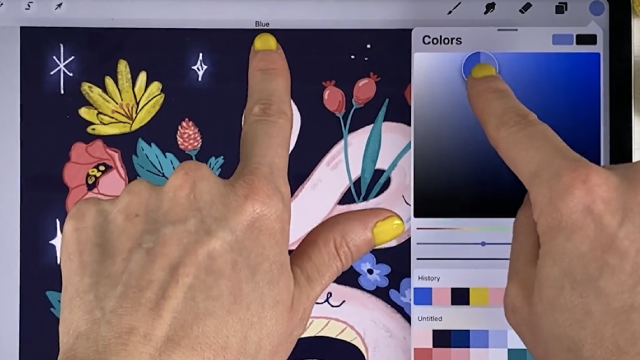
Step-by-step guide to create a layered digital drawing in Procreate
Step 1
Open the Procreate app on your iPad.
Step 2
Tap the + button and choose a canvas size to make a new canvas.
Step 3
Insert your reference photo by tapping Actions > Add > Insert a photo and place it on the canvas.
Step 4
Tap the Layers icon and add a new layer then rename it "Sketch".
Step 5
Choose a pencil brush and draw a light sketch of your idea on the "Sketch" layer.
Step 6
Add another new layer and rename it "Base Color" then drag it below the "Sketch" layer.
Step 7
Pick a large brush and paint flat base colors on the "Base Color" layer.
Step 8
Add a new layer above the base colors and rename it "Shading".
Step 9
Tap the "N" on the "Shading" layer and set the blend mode to Multiply and lower the opacity a little.
Step 10
Use a soft brush to paint shadows on the "Shading" layer where things would be darker.
Step 11
Use the Smudge tool to gently blend the shadow edges so they look smooth.
Step 12
Switch to the Eraser tool and clean any color outside the lines or tidy parts you don’t like.
Step 13
Add a new layer called "Highlights" and use a small brush to add bright highlights and details.
Step 14
Export your artwork by tapping Actions > Share and save a PNG or JPEG to your Photos.
Step 15
Share your finished creation on DIY.org.
Help!?
What can we use if we don't have an iPad or Procreate?
Use Procreate Pocket on an iPhone or a free tablet app like Autodesk SketchBook or MediBang Paint and follow the same workflow: create a canvas, Add/Insert a photo as your reference, make layers named "Sketch", "Base Color", "Shading" (set to Multiply) and "Highlights", paint, smudge, erase, then Actions > Share to export.
My shading isn't showing—what might be wrong?
If shadows aren't visible, confirm you're painting on the "Shading" layer (not "Base Color"), tap the "N" on that layer to set the blend mode to Multiply, lower the opacity only a little, and ensure the "Shading" layer sits above the "Base Color" layer in Layers.
How can I adapt the steps for younger or older kids?
For younger kids, simplify by skipping the Multiply "Shading" step and using a large brush on the "Base Color" layer with a forgiving Eraser for cleanup, while older kids can add clipping masks, extra detail layers, custom brushes, and finer "Highlights" work before exporting via Actions > Share.
How can we personalize or extend the finished artwork?
Personalize by creating custom brushes or texture layers above the base colors, tweak opacities and use the Smudge tool for blended effects, add a top "Signature" layer, then export with Actions > Share and post to DIY.org.
Watch videos on how to create layered digital drawings in Procreate
PROCREATE Drawing for Beginners - EASY Step by Step Tutorial
4 Videos

PROCREATE Drawing for Beginners - EASY Step by Step Tutorial
EASY PROCREATE DRAWING Tutorial in EASY steps - New Beginnings

20 EASY Doodles You Can Draw in PROCREATE
Procreate for Kids Tutorial // How to Use Procreate for Kids!
Facts about digital art for kids
🎨 Procreate is a popular iPad app designed for painting and drawing with a focus on layered artwork.
✏️ It works seamlessly with the Apple Pencil to capture pressure and tilt for natural brush strokes.
🧩 Layers let you separate elements (like background, line art, and color) so you can edit one part without ruining others.
🖼️ Procreate’s brushes are raster-based and can mimic real media like watercolor, oil, and ink with blending effects.
💾 You can export Procreate files as PSDs to keep layers when moving your work into programs like Photoshop.
How do I use Procreate to make a layered digital drawing?
What materials and tools do I need to create a Procreate layered drawing?
What ages is learning layered drawing in Procreate suitable for?
What are the benefits of practicing layered drawing and blending in Procreate?
