Use scratch to do the 10 block challenge
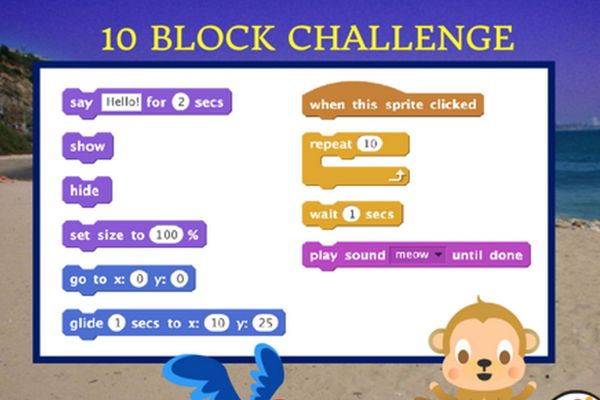
Use Scratch to build a small game or animation using only ten code blocks, experimenting with movement, sounds, and simple interactivity.


Step-by-step guide to the Scratch 10-block challenge
Making a Scratch Game using HACKED BLOCKS
Step 1
Open Scratch and start a new project.
Step 2
Choose a sprite and a backdrop from the Scratch library.
Step 3
Click the chosen sprite and delete any blocks in the Scripts area to start with a blank script.
Step 4
On a piece of paper list the ten blocks you will use and remember: every block you drag into the Scripts area counts as one.
Step 5
Drag the block "when green flag clicked" into the Scripts area.
Step 6
Drag the block "go to x: 0 y: 0" and snap it under the green-flag block.
Step 7
Drag the block "forever" and snap it under the go-to block.
Step 8
Drag the block "move 10 steps" and snap it inside the forever block.
Step 9
Drag the block "if on edge, bounce" and snap it inside the forever block below the move block.
Step 10
Drag the block "wait 0.2 seconds" and snap it inside the forever block after the bounce block.
Step 11
Drag the block "when this sprite clicked" into the Scripts area to make a second script.
Step 12
Drag the block "turn clockwise 90 degrees" and snap it under the sprite-clicked block.
Step 13
Drag the block "play sound pop until done" and snap it under the turn block.
Step 14
Drag the block "change color effect by 25" and snap it under the play sound block.
Step 15
Share your finished project on DIY.org.
Help!?
What can we use if we can't access the Scratch website or can't find a sprite or backdrop in the Scratch library?
Use the Scratch Desktop (offline) editor or the Scratch 3.0 app to access the same sprite and backdrop libraries, or import your own image for the backdrop if the library doesn't have the one you want.
My sprite doesn't move or bounce when I click the green flag — what should I check?
Make sure you deleted any default blocks, have when green flag clicked at the top, snapped go to x: 0 y: 0 under it, and placed move 10 steps and if on edge, bounce inside the forever block so the sprite can actually move and hit the edge.
How can I adapt the 10 block challenge for younger or older kids?
For younger children, pre-select the sprite and backdrop, shorten the planned list to fewer than ten blocks and change move 10 steps to move 5 steps with a longer wait, while older kids can add extra blocks like change size by -10, create a variable, or build custom blocks for more complexity.
How can we extend or personalize the finished project before sharing on DIY.org?
Enhance the project by adding a second sprite with its own when green flag clicked script, use broadcast and when I receive to coordinate actions, add a score variable to count clicks, or make multiple costumes and a custom backdrop for personalization.
Watch videos on how to complete the Scratch 10-block challenge
Introduction to Coding with Scratch | Beginner's Guide to Scratch Programming
4 Videos
Introduction to Coding with Scratch | Beginner's Guide to Scratch Programming
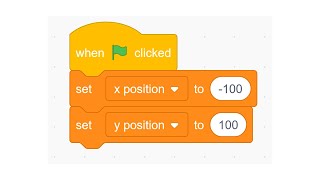
How to Use Variables in Scratch | Scratch Tutorial
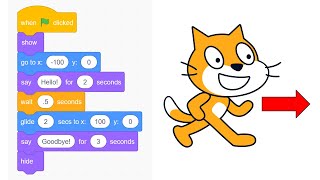
How to Make a Simple Animation in Scratch | Scratch Tutorial
Scratch Basics - A Beginners Guide to Scratch
Facts about block-based coding with Scratch
🐱 Scratch's default sprite is the Scratch Cat — it's the friendly face kids often start with.
🏫 Scratch was developed by the MIT Media Lab's Lifelong Kindergarten group and first released in 2007.
🌍 Millions of projects have been shared in the Scratch online community, so there's lots of inspiration to remix.
🔲 Scratch uses snap-together code blocks (like puzzle pieces), which makes a '10 block challenge' perfect for learning.
🎮 You can build simple interactive games with movement, sounds, and clicks using surprisingly few blocks — sometimes under ten!
How do you do the Scratch 10-block challenge?
What materials do I need for the Scratch 10-block challenge?
What ages is the Scratch 10-block challenge suitable for?
What are the benefits of doing the Scratch 10-block challenge?
