Switch Backdrops from Kitchen to Restaurant on Scratch!
Create a Scratch project that switches the backdrop from a kitchen to a restaurant using broadcast messages and button clicks to explore simple event coding.


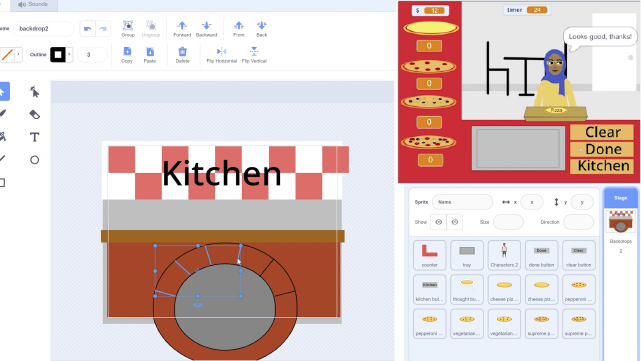

Step-by-step guide to Switch Backdrops from Kitchen to Restaurant on Scratch
Step 1
Open the Scratch editor and start a new project.
Step 2
Remove or hide the default sprite if you want a clean stage.
Step 3
Add the Kitchen backdrop from the Backdrops library to the Stage.
Step 4
Add the Restaurant backdrop from the Backdrops library to the Stage.
Step 5
Add a Button sprite from the Sprite library or paint your own button.
Step 6
Click the Button sprite and add a script that sends a broadcast when clicked using the block "when this sprite clicked" then "broadcast [restaurant]".
Step 7
Click the Stage and add a script that listens for the broadcast "restaurant" using "when I receive [restaurant]" and then switches the backdrop to the Restaurant using "switch backdrop to [Restaurant]".
Step 8
Add a second Button sprite (or reuse the first) and give it a broadcast name "kitchen" for changing back.
Step 9
For the second Button sprite add a script "when this sprite clicked" then "broadcast [kitchen]".
Step 10
Click the Stage and add a script "when I receive [kitchen]" then "switch backdrop to [Kitchen]".
Step 11
Test your project by clicking each button to make sure the backdrop switches correctly.
Step 12
If a button does not work open its code and make sure the broadcast names match exactly and that your backdrop names match the Stage backdrops.
Step 13
Share your finished Scratch project on DIY.org.
Help!?
What can I use if I can't find the Button sprite in the Sprite library?
Use the Scratch costume editor to paint your own Button sprite or pick any simple sprite from the Sprite library (like an arrow or text) and use it in place of the Button sprite.
Why doesn't clicking a button switch the backdrop when I test the project?
Open the button's code and make sure the broadcast name in the 'broadcast [restaurant]' block exactly matches the Stage listener and that the Stage's 'switch backdrop to [Restaurant]' uses the exact backdrop name from the Backdrops library.
How can I change this activity for younger kids or make it more challenging for older kids?
For younger kids reuse the first Button sprite and keep only the basic 'when this sprite clicked' → 'broadcast [kitchen]'/'broadcast [restaurant]' scripts, while older kids can add keyboard controls ('when key pressed'), custom backdrops from the Backdrops library, and extra scripts to animate sprites between scenes.
How can we extend or personalize the Switch Backdrops project?
Paint unique backdrops in the Backdrops library, give your Button sprite custom costumes, add a sound to the Button's 'when this sprite clicked' script, animate a character on the Stage when receiving the 'restaurant' broadcast, and then share the finished project on DIY.org.
Watch videos on how to Switch Backdrops from Kitchen to Restaurant on Scratch
How to switch backdrop in Scratch 3.0 } #Scratch
4 Videos
How to switch backdrop in Scratch 3.0 } #Scratch
Switching Backdrops | Scratch Fun Programs | Learn Scratch | Scratch Tutorials for Beginners
The EASIEST Way to SWITCH BACKDROPS in Scratch
Scratch - How To Change Backdrops
Facts about event-driven programming in Scratch
🐱 Scratch launched in 2007 and its friendly cat mascot shows up in tons of beginner projects.
🔁 The "broadcast" block in Scratch sends a message that other sprites or backdrops can listen for and react to.
🎭 Backdrops are like stage scenes — one block can switch your project from a kitchen to a restaurant instantly.
🖱️ Any sprite can be turned into a clickable button using the "when this sprite clicked" event block.
🌍 Millions of kids worldwide use Scratch to make stories, games, and animations and share them online.
How do you switch backdrops from Kitchen to Restaurant on Scratch?
What materials do I need to make this Scratch switch-backdrop project?
What ages is the Scratch backdrop-switching activity suitable for?
What are the benefits and fun variations for switching backdrops in Scratch?
