Swap The Loops in Bandlab
Use BandLab to swap and replace musical loops, rearrange sounds, and create new song variations while learning about rhythm, melody, and layering.


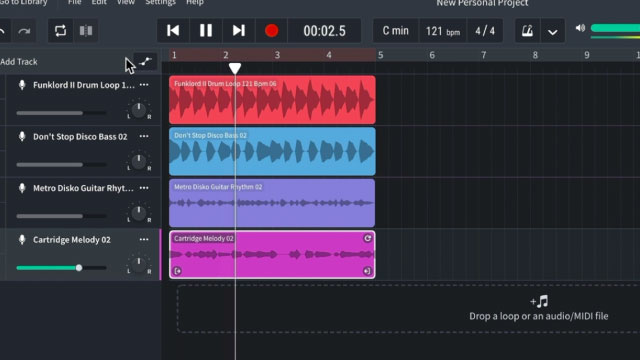
Step-by-step guide to Swap The Loops in BandLab
Step 1
Open BandLab on your device.
Step 2
Tap New Project to start a fresh song.
Step 3
Tap the Loops icon to open the loop browser.
Step 4
Preview a drum loop by tapping its play button.
Step 5
Add the drum loop to your timeline.
Step 6
Preview a bass or harmony loop by tapping its play button.
Step 7
Add the bass or harmony loop to your timeline.
Step 8
Preview a melody or lead loop by tapping its play button.
Step 9
Add the melody or lead loop to your timeline.
Step 10
Replace any loop with a different loop to try a new sound.
Step 11
Drag a loop left or right to change when it starts in the song.
Step 12
Open the mixer to see each track’s controls.
Step 13
Move a track’s volume slider to balance how loud each loop is.
Step 14
Tap Save or Export to create a file of your song.
Step 15
Share your finished creation on DIY.org.
Help!?
What can we use if we don't have the BandLab app or a compatible device to do the 'Open BandLab' and 'Tap New Project' steps?
If you don't have the BandLab app or device, use BandLab's web browser version or another loop-based app like GarageBand or Soundtrap and follow the same steps to start a new project and add loops to the timeline.
Why won't a loop preview or add to the timeline when I tap its play button, and how can I fix it?
If tapping a loop's play button won't preview or add it to the timeline, force-close and reopen BandLab, check for an app update or internet connection, or try the web version before attempting to add the loop again.
How can I adapt the activity for younger kids versus older kids when they 'preview' and 'add' loops or use the mixer?
For younger kids, an adult can pre-select a few drum, bass, and melody loops in the Loops browser and let them drag loops on the timeline, while older kids can replace loops, balance tracks using the mixer volume sliders, and use Save/Export to create files to share on DIY.org.
What are simple ways to make our finished song more interesting after we 'add' and 'drag' loops and before we 'Save or Export'?
Personalize the song by recording a vocal or instrument track over the added loops, use the mixer to lower or raise its volume slider, replace or drag loops to change arrangement, then Save/Export and share on DIY.org.
Watch videos on how to Swap The Loops in BandLab
BandLab Tutorial: Using Loops part 1
4 Videos
BandLab Tutorial: Using Loops part 1
How To Use BandLab Studio | Navigate Our Free DAW With This Detailed BandLab Tutorial
How to make beats on BandLab | A step-by-step guide to building your first beat in Studio
How to Make a Trap Beat on BandLab | Learn The Essentials of Beat Making in Studio
Facts about digital music production for kids
🎛️ BandLab is a cloud-based DAW that lets you record, edit, and collaborate on music from any browser or mobile app.
🔁 A loop is a short repeating sound — producers often stack many loops to build beats, hooks, and whole songs.
🎚️ Swapping a drum or bass loop can instantly change a track's groove; modern DAWs can match tempos so new loops fit cleanly.
🎹 Switching a melodic loop from major to minor can turn a bright-sounding song into a moody one in seconds.
🌟 Many famous remixes started by rearranging and replacing loops — remixing is a magical way to make brand-new songs from existing pieces.
How do you swap loops and create new song variations in BandLab?
What materials do I need for the Swap The Loops activity in BandLab?
What ages is Swap The Loops in BandLab suitable for?
What are the benefits of letting kids swap loops in BandLab?
