Share a Minecraft collab you're super proud of
Create a short Minecraft showcase video or photo tour of a collaborative build, explain each teammate's contribution, and share it with classmates or family.


Step-by-step guide to create and share a Minecraft collab showcase
Step 1
Load your saved collaborative world in Minecraft so your build is ready to view.
Step 2
Switch to Creative or Spectator mode to move around the build easily and get good angles.
Step 3
Choose up to six key areas or features of the build that you want to highlight on your tour.
Step 4
Write one short note for each chosen area naming the teammate and what they built or helped with.
Step 5
Decide whether you will make a short video or a photo slideshow for your showcase.
Step 6
Take clear screenshots or record short clips of each key area while facing the best angle.
Step 7
Record one short voice sentence or type a caption for each screenshot or clip explaining that teammate’s contribution.
Step 8
Create a simple title card or thumbnail using your coloring materials and a quick drawing or title.
Step 9
Use a simple editor or slideshow tool to place clips or photos in order and add your voice or captions.
Step 10
Insert your title card at the start and a credits card at the end listing each teammate and their role.
Step 11
Export or save your finished video or slideshow as one file.
Step 12
Show your showcase to a family member or classmate and ask one quick idea to improve it.
Step 13
Share your finished creation on DIY.org
Help!?
What can we use if we don't have a video editor or coloring materials for the title card?
Use your phone's built-in screen recorder and free apps like Google Photos or iMovie to arrange clips and captions, and create the title card by drawing on paper and photographing it or making a quick digital sketch in a simple paint app.
My screenshots are dark or clips are shaky—how do I fix that when capturing each key area?
Switch to Creative or Spectator mode for smoother camera movement and better angles, move closer to in-game light sources or increase render distance before taking screenshots, and pause briefly or use a phone tripod to avoid blur in recorded clips.
How can I adapt this showcase for younger children or older kids?
For younger children, pick 2–3 key areas, let them voice-record a single sentence per screenshot and have an adult handle editing, while older kids can highlight up to six areas, write teammate notes, add captions and simple transitions themselves.
What are simple ways to make the showcase more special or polished?
Add a short royalty-free background music loop, include before-and-after shots of the build, record a brief behind-the-scenes clip of teammates building, and end with a personalized credits card listing each teammate and their role before exporting to share on DIY.org.
Watch videos on how to make a Minecraft collab showcase video
Minecraft for Kids - Tutorial - How to make your first base. Ep 001
4 Videos
Minecraft for Kids - Tutorial - How to make your first base. Ep 001
Minecraft Toy Learning Video for Kids - FULL VIDEO!
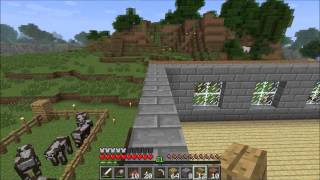
Minecraft for Kids - Tutorial - How to Build a New House Pt 2 - Ep 006
Learn Minecraft's Best Mod! Create Mod Beginners Guide
Facts about Minecraft building and teamwork
🎮 Minecraft has sold hundreds of millions of copies worldwide and remains one of the best-selling video games ever.
🎥 Machinima is the art of making movies inside video games — Red vs. Blue used Halo gameplay and became a landmark series.
📸 You can create a polished Minecraft showcase using in-game screenshots or clips and free editors like Shotcut, OpenShot, or iMovie.
🧑🤝🧑 Team builds in Minecraft help kids learn real skills: planning, task-sharing, communication, and project management.
🌍 Popular collaborative servers like HermitCraft and Dream SMP show how players around the world build massive, story-driven projects together.
How do I make a Minecraft collab showcase video or photo tour?
What materials and tools do I need to create a Minecraft collab showcase?
What ages is creating a Minecraft collab showcase suitable for?
What are the benefits and safety tips for sharing a Minecraft collab with classmates or family?
