Make a trailer for an animation with credits & music
Create a short animation trailer with simple scenes, add music and rolling credits, then share your finished trailer with friends or family.


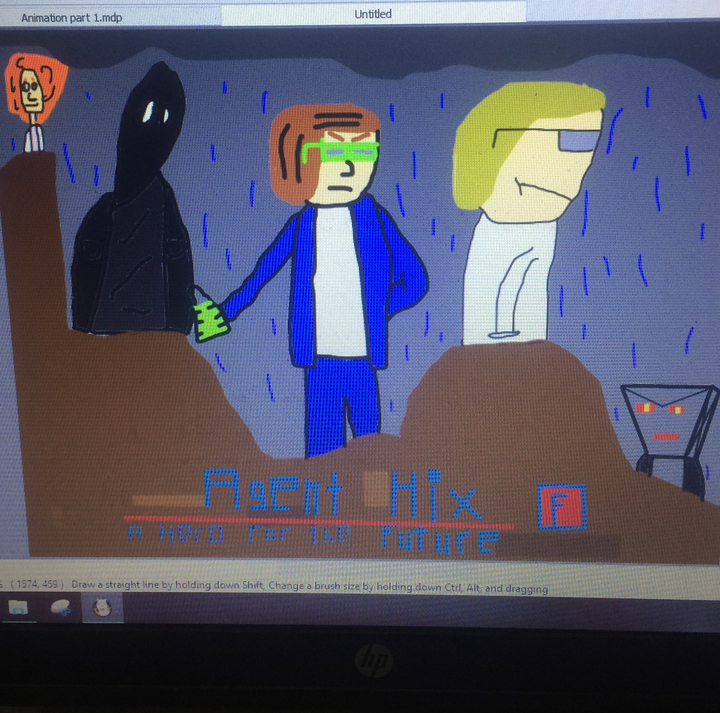

Step-by-step guide to make a trailer for an animation with credits and music
How to make a trailer for a short film
Step 1
Pick a short idea for your trailer and write a one-sentence logline and a title.
Step 2
Draw a simple storyboard with six numbered frames showing what happens in each scene.
Step 3
Draw and color the backgrounds and characters for each of the six scenes on separate sheets or pieces of cardboard.
Step 4
Cut out any characters you want to move as separate pieces for your scenes.
Step 5
Arrange a flat, well-lit workspace and make a steady spot to place each scene so the camera view stays the same.
Step 6
Take a clear photo of each of your six finished scene pages in order.
Step 7
Import the six photos into your free animation or slideshow app or website in the right order.
Step 8
Set each photo to display for one to two seconds to create the pacing of your trailer.
Step 9
Add a short royalty-free music clip under the scenes and lower the volume so the music sounds balanced.
Step 10
Create rolling credits by adding a text slide at the end with names and roles and set the text to scroll up.
Step 11
Preview your trailer from start to finish and check for timing or spelling fixes.
Step 12
Export or save your trailer as a video file.
Step 13
Show your trailer to a friend or family member and ask for one thing to improve.
Step 14
Share your finished trailer on DIY.org
Help!?
What can we use instead of cardboard for drawing and cutting the backgrounds and characters?
If you don't have cardboard, use heavyweight construction paper, cereal-box cardboard, or thin poster board for the "draw and color the backgrounds and characters" step and for "cut out any characters" so pieces stay sturdy.
My photos keep coming out blurry or the framing shifts between scenes — how do we fix that?
To stop blur and framing shifts when you "take a clear photo of each of your six finished scene pages", secure the camera with a tripod or a stack of books, mark the camera spot with tape on the table, and keep the lighting consistent for every shot.
How can we change the activity to suit different ages or skill levels?
For younger kids, reduce the "draw a simple storyboard with six numbered frames" to three frames, use stickers or pre-cut characters for the "cut out any characters", and set each photo to display longer, while older kids can expand to more frames, add voiceover and sound effects in the animation app, and write full rolling credits.
What are simple ways to improve or personalize our trailer after the basic version is done?
Add a custom title card and record a short voiceover or sound effects to layer with the "short royalty-free music clip", create parallax by moving cut-out characters slightly between photos, and decorate the rolling credits slide with colors and specific roles before you export the video.
Watch videos on how to make a trailer for an animation with credits and music
Simple Techniques to Create an Animated Film in Adobe Animate and Premiere Pro with Chris Georgenes
4 Videos
Simple Techniques to Create an Animated Film in Adobe Animate and Premiere Pro with Chris Georgenes

Create Epic TRAILER TEXT Animation in Premiere Pro

After Effects Tutorial: Cinematic Trailer Title Animation in After Effects (No Plugins)
After Effects Tutorial - Cinematic Trailer Title Animation in After Effects (Free Project)
Facts about animation and video editing for kids
🎬 The first film trailers appeared in the 1910s and were originally shown after movies — that's why they're called "trailers"!
🎵 Editors often use "temp tracks" (temporary music) when building a trailer before the final score is written.
🎞️ Animatics (moving storyboards) are commonly used to plan timing and camera moves for trailers and animations.
⏱️ Most movie trailers are about 1–2 minutes long so they build excitement without spoiling the story.
🎭 Big animated films can have rolling credits that list hundreds of people — from voice actors to background artists.
How do I make a trailer for an animation with credits and music?
What materials do I need to make an animation trailer?
What ages is creating an animation trailer suitable for?
What are the benefits and safety tips for making and sharing an animation trailer?
