Learn to Edit a Video with DIY Star @EvieGoo
Edit a short clip with simple cuts, transitions, music, and captions using a phone or tablet, guided by DIY star @EvieGoo.


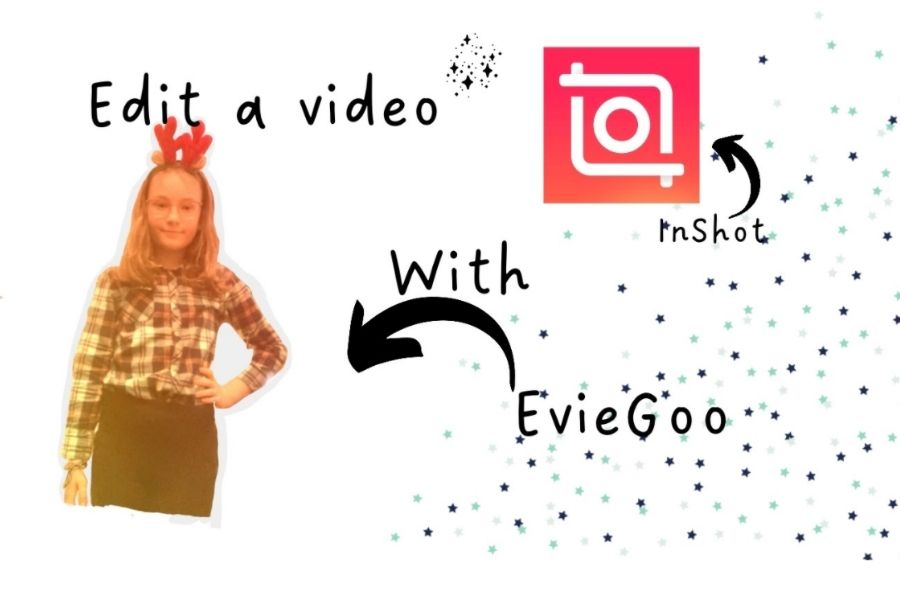

Step-by-step guide to learn to edit a video with DIY Star @EvieGoo
Step 1
Open your video editing app on your phone or tablet.
Step 2
Watch DIY star @EvieGoo's short tutorial or tip video for fun editing ideas.
Step 3
Start a new project inside the app.
Step 4
Import the clips you want to edit from your camera roll.
Step 5
Arrange your clips in the order you want by dragging them into the timeline.
Step 6
Trim the start or end of a clip to remove extra footage.
Step 7
Split a clip to cut out a mistake or a long pause.
Step 8
Insert a transition between two clips from the transitions menu.
Step 9
Add a music track to the timeline.
Step 10
Lower the music volume so it does not overpower voices.
Step 11
Add captions using the app's text tool for key lines or funny moments.
Step 12
Move each caption so it appears at the right moment in the video.
Step 13
Preview your whole video from start to finish to check how it flows.
Step 14
Export or save your finished video to your device.
Step 15
Share your finished creation on DIY.org.
Help!?
What can we use if we don't have a phone or tablet to open the video editing app?
Use a computer and open a free editor like iMovie or OpenShot to start a new project and import clips from your camera roll or an SD card instead of a tablet.
The app crashes when I try to import clips or export—how can I fix that?
If importing clips or exporting fails, close other apps, update or reinstall the editing app, import fewer clips at a time from your camera roll, save the project, and try exporting at a lower resolution.
How can I adapt the activity for a 5-year-old versus a 12-year-old?
For younger kids pick 2–3 short clips from the camera roll and have an adult handle trimming, splitting, transitions, and exporting, while older kids can follow every step themselves including lowering music volume, timing captions, and previewing the whole video.
What's a simple way to improve or personalize the finished video before sharing on DIY.org?
Add a short voice-over recorded in the app, customize caption styles and timing, include B-roll or a custom thumbnail, preview the whole video to check flow, then export and share on DIY.org with a fun description.
Watch videos on how to learn to edit a video with DIY Star @EvieGoo
Beginners Guide to Video Editing (Start to Finish)
4 Videos
Beginners Guide to Video Editing (Start to Finish)
How To Edit Videos For Youtube as Beginner in 2025 (STEP-BY-STEP)

🎬 Canva Video Editing Made Easy: A Beginner's Guide!
BEGINNERS GUIDE TUTORIAL FOR VIDEO STAR
Facts about video editing for kids
🎬 Early video editors literally cut and spliced film with scissors and tape — editing used to be physical!
📱 Modern phones and tablets can run full video-editing apps so you can make edits without a computer.
✂️ Non-linear editing lets you move, trim, and undo clips freely without changing the original files.
🎵 Changing the music can instantly switch a scene's mood from funny to dramatic or suspenseful.
⏱️ Short clips (under 60 seconds) are super popular on social apps — great for practicing quick edits.
How do I edit a short clip with DIY star @EvieGoo on a phone or tablet?
What materials do I need to edit a short video with @EvieGoo?
What ages is 'Learn to Edit a Video with DIY Star @EvieGoo' suitable for?
What safety tips should I follow when kids edit and share videos?
