Build with digital LEGO® bricks
Design and build a virtual LEGO model using a digital bricks app, experimenting with shapes, colors, and functions while learning 3D design basics.


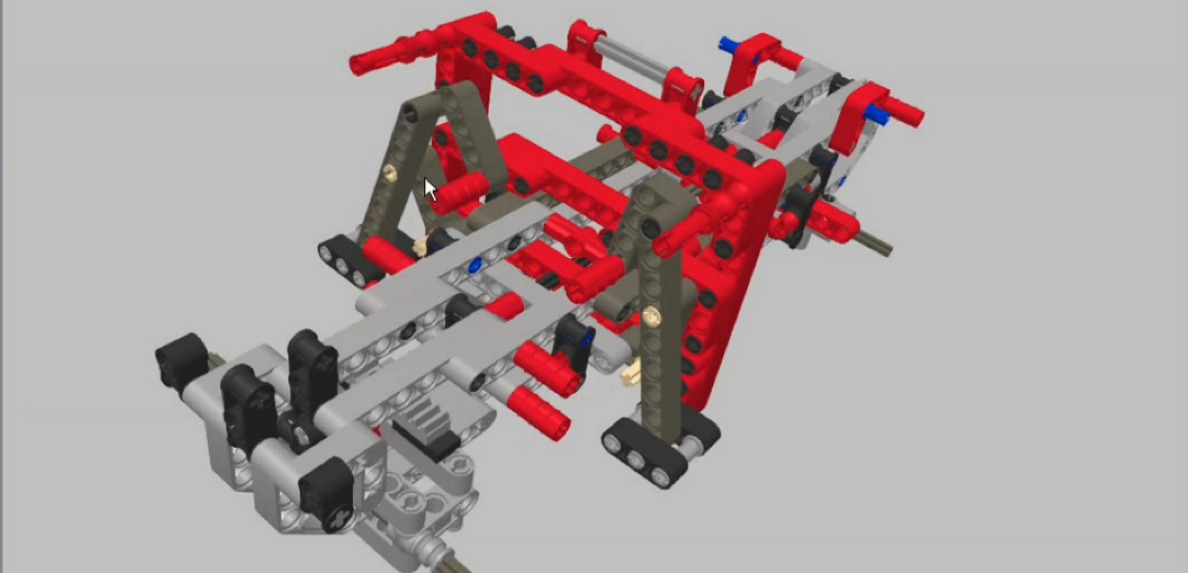

Step-by-step guide to build with digital LEGO® bricks
How To Build A Lego Castle (Easy, Kids Tutorial)
Step 1
Open the digital bricks app.
Step 2
Sign in or create an account in the app.
Step 3
Tap "New Project" to start a blank build.
Step 4
Pick a baseplate or blank workspace for your model.
Step 5
Choose five different brick shapes to experiment with.
Step 6
Place bricks onto the baseplate to form a simple structure.
Step 7
Change the color of each brick to create a fun palette.
Step 8
Use the rotate and zoom tools to view your model from all sides.
Step 9
Add one moving part like a door wheel or hinge to give it function.
Step 10
Test the moving part to make sure it moves smoothly.
Step 11
Save your project in the app.
Step 12
Export a screenshot or image of your finished model.
Step 13
Upload the image and share your finished creation on DIY.org.
Help!?
What can we use if the 'digital bricks' app or an account isn't available?
If the 'digital bricks' app or account is unavailable, use free alternatives like LEGO Digital Designer or BrickLink Studio (or build with real LEGO on a physical baseplate and photograph it) to complete steps like choosing a baseplate, placing bricks, and exporting an image.
The door/wheel/hinge we added doesn't move smoothly—what should we try?
If the moving part (door, wheel, or hinge) is glitchy, reposition the connected bricks so the hinge studs are not overlapping, use the rotate tool to precisely align the joint, test the movement again, and then save when it moves smoothly.
How can we adapt this project for different ages or skill levels?
For younger kids, simplify by choosing only 3 large brick shapes and a small baseplate with parent help for signing in and exporting, while older kids can experiment with five or more brick types, complex moving parts, and advanced color schemes before exporting and uploading to DIY.org.
How can we extend or personalize our finished digital LEGO model?
Extend the project by adding extra moving parts, creating a themed color palette when you 'change the color of each brick,' building a mini scene on the baseplate, exporting the screenshot to add text or background, and including that story when you upload to DIY.org.
Watch videos on how to build with digital LEGO® bricks
Studio Tutorials - Creating Digital Parts. How to create your own custom LEGO parts!
4 Videos

Studio Tutorials - Creating Digital Parts. How to create your own custom LEGO parts!
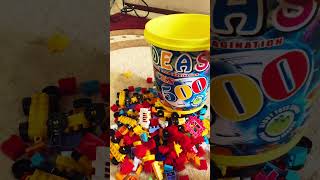
ASMR Learn How to Build with Lego - Easy Step-by-Step Tutorial #Lego #asmrvideo #LegoMaster
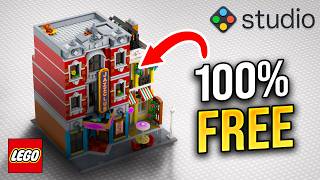
Build any LEGO SET for FREE with BrickLink Studio (Tutorial)
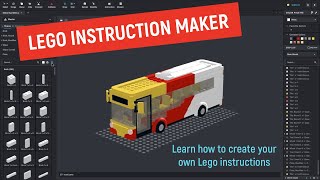
Bricklink Studio How To Create Lego Instructions - PART 3 Instruction Maker
Facts about 3D design and digital building
🧱 A famous LEGO stat: there are 915,103,765 ways to combine six 2×4 LEGO bricks — so your designs are practically endless!
💻 LEGO Digital Designer, LEGO's official building software, launched in 2004 and lets you build virtual models on a computer.
🖱️ Modern digital brick apps like BrickLink Studio let you rotate, color, and test moving parts so you can try functions before you build physically.
🎨 LEGO uses dozens of colors — over 50 official shades — so picking colors in a digital app helps you plan exactly how your model will look.
🛠️ Building digitally teaches the same 3D design ideas professionals use: aligning parts, thinking in layers, and planning supports for moving pieces.
How do you design and build a virtual LEGO model using a digital bricks app?
What materials or tools do I need to build with digital LEGO bricks?
What ages is this activity suitable for?
What are the benefits of building with digital LEGO bricks?
