Animate on Procreate with DIY Star CraftyUnicorn10
Animate a sparkly star unicorn character in Procreate using simple frame-by-frame drawing, timing tips, and a DIY paper star prop for reference.


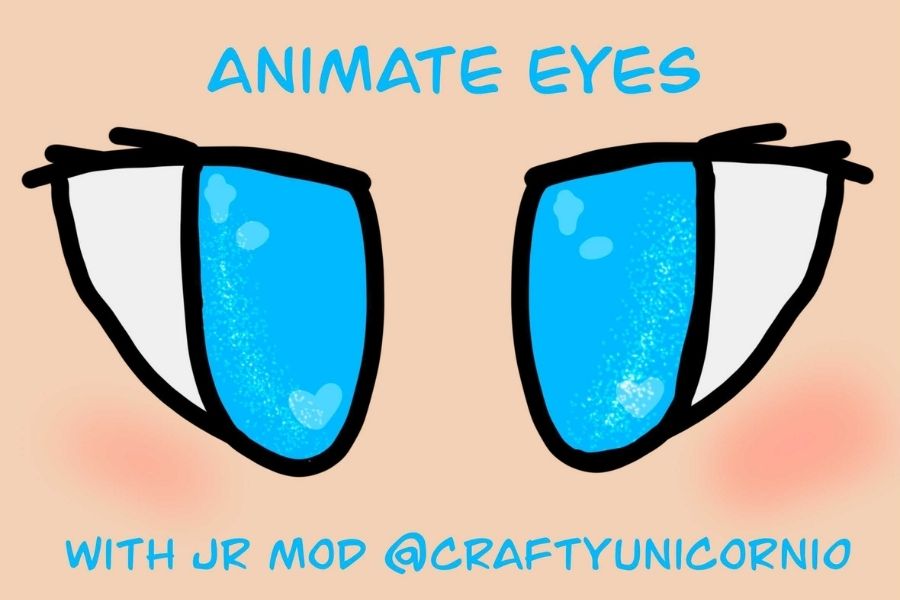

Step-by-step guide to Animate on Procreate with DIY Star CraftyUnicorn10
Step 1
Find a quiet workspace and gather all the materials listed.
Step 2
Draw a simple star shape on your paper with your pencil.
Step 3
Carefully cut out the paper star with scissors while an adult watches.
Step 4
Decorate the paper star with colors and sparkles using your coloring materials.
Step 5
Take a clear photo of your decorated star with your iPad camera.
Step 6
Open Procreate and create a new square canvas about 2000 by 2000 pixels.
Step 7
Import the star photo into your canvas as a new layer.
Step 8
Lower the opacity of the star photo layer to around 30% and lock that layer for reference.
Step 9
Turn on Animation Assist in Actions > Canvas and set the frame rate to 12 frames per second.
Step 10
Create the first animation frame by drawing a simple unicorn character on a new animation frame layer using the star reference.
Step 11
Duplicate that frame six times to make a short loop of seven frames.
Step 12
On each duplicated frame change the unicorn or the star sparkles slightly using onion-skin to keep the motion smooth.
Step 13
Export your finished animation as an MP4 or GIF to your iPad Photos.
Step 14
Share your finished animation and your paper star prop on DIY.org.
Help!?
What can we use if we don’t have an iPad or Procreate for importing the star photo and animating?
If you don't have an iPad or Procreate, use an iPhone/tablet app like FlipaClip or Stop Motion Studio or a desktop program like Krita, then import your clear star photo as a layer and use onion-skin/frames the same way.
My animation looks jumpy after duplicating frames—how do I fix it?
Use Animation Assist's onion-skin to make smaller, consistent changes on each of the six duplicated frames (so your seven-frame loop is smoother) and confirm the frame rate is set to 12 fps.
How should I adapt the steps for younger or older kids?
For younger kids have an adult cut the paper star and help import the clear photo, then make a simple 3-frame loop with big changes, while older kids can use the full 2000 by 2000 canvas, add more than seven duplicated frames, finer unicorn details, and extra background layers.
How can we extend or personalize the finished animation before sharing on DIY.org?
Animate the physical paper star separately with stop-motion photos and import those frames as another layer in your Procreate canvas, or export the MP4 and add music or sound effects in iMovie before uploading to DIY.org.
Watch videos on how to Animate on Procreate with DIY Star CraftyUnicorn10
PROCREATE Animation for Beginners - EASY Step by Step Tutorial
4 Videos
PROCREATE Animation for Beginners - EASY Step by Step Tutorial
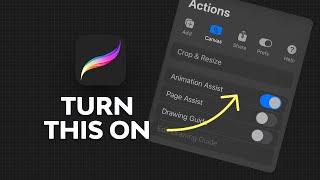
How to Animate in Procreate | Procreate Animation Tutorial
Procreate DREAMS animation tutorial. Learn to animate the easy way!

How I Make Animations on Procreate
Facts about digital animation for kids
🦄 Scotland chose the unicorn as its national animal — magical creatures have a long cultural history!
🎨 Procreate includes an "Animation Assist" feature that makes simple frame-by-frame animation easy on iPad.
⏱️ Many beginner-friendly animations use about 12 frames per second (fps) to look smooth while saving time.
✂️ Lucky stars and many paper stars are classic papercraft projects made from just a single strip of paper.
✨ Sparkly glow effects are created by using blend modes like Add/Linear Dodge or Screen to make colors pop.
How do I animate a sparkly star unicorn in Procreate?
What materials do I need to animate a star unicorn with a DIY paper star prop?
What ages is animating a star unicorn in Procreate suitable for?
What are the benefits and safety tips for kids animating in Procreate?
