Godot for Kids: Build Your First 2D Game (Free & Open Source)
Start a kid-friendly Godot 2D platformer in 60-90 minutes. Step-by-step setup, movement, collisions, and export plus classroom tips and free resources.
In 60–90 minutes, you and your kid will build a tiny 2D platformer in Godot: tiles, player movement, coins, and a win screen then export to web/desktop. It’s free, fun, and classroom-ready. Download the Classroom Rubric
✨Need bite-size explanations while you build? Try the kid-safe AI Homework Helper for vocabulary checks, guided prompts, and citations.
What Is Godot (for Parents & Teachers)?
Godot is a free, open-source game engine known for speedy 2D workflows and a friendly scripting language (GDScript). Compared with Scratch/MakeCode, it feels like a “real engine” while staying approachable for kids.
Best for: Ages 9–14 with adult guidance, after-school clubs, project blocks.
Why Godot for kids: Visual editor, quick wins, exports to HTML or desktop so kids can share and play.
Setup (5 Minutes)
Install Godot (standard build).
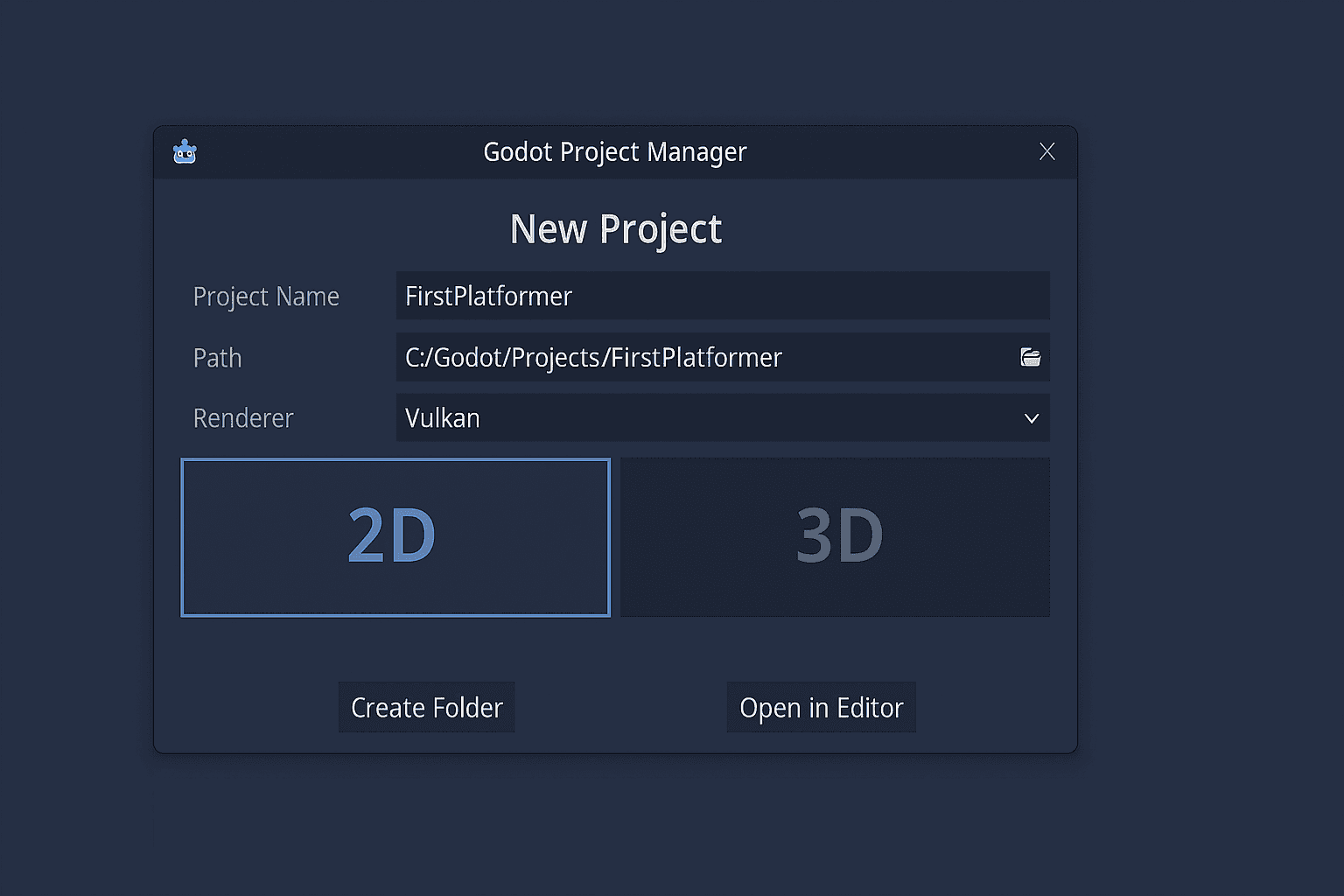
New Project → 2D. Name it FirstPlatformer.
Create folders: assets/, scenes/, scripts/.
Project Structure
FirstPlatformer/ assets/ # sprites, tiles, sounds scenes/ # Level.tscn, Player.tscn, Coin.tscn, Goal.tscn, UI.tscn scripts/ # Player.gd, Coin.gd, Goal.gd |
Scene 1: Level + Tiles + Player (15 Minutes)
Level scene: Add Node2D → rename to Level. Save as scenes/Level.tscn.
TileMap: Add TileMap, assign a tileset (any free 16x16 or 32x32 set). Paint ground and a few platforms.
Player: Add CharacterBody2D → name Player → add a sprite (placeholder OK) + CollisionShape2D (capsule/rectangle). Save as scenes/Player.tscn.
Camera: Add Camera2D as a child of Player → Current = On.
Instance Player.tscn into Level.tscn.
Input Map (2 Minutes)
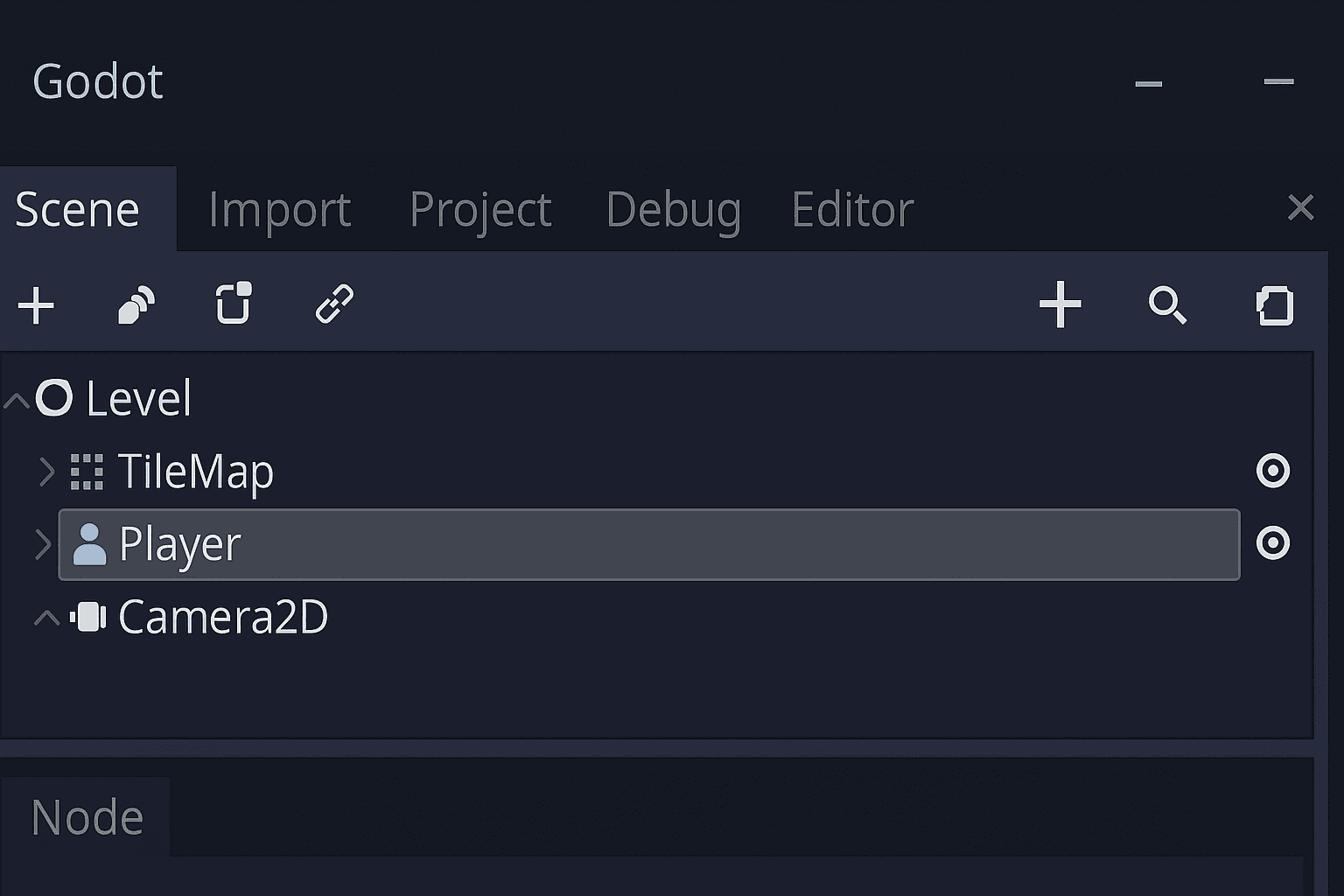
Project → Project Settings → Input Map
Add actions: move_left, move_right, jump.
Bind to arrow keys (or A/D + Space).
[screenshot: Input Map with actions + key bindings]
Player Movement & Gravity (Godot 4, GDScript) (10 Minutes)
Attach this to Player as scripts/Player.gd:
extends CharacterBody2D const SPEED := 220.0 const JUMP_VELOCITY := -420.0 var gravity := ProjectSettings.get_setting("physics/2d/default_gravity") func _physics_process(delta: float) -> void: # Gravity if not is_on_floor(): velocity.y += gravity * delta # Horizontal input var dir := 0.0 if Input.is_action_pressed("move_left"): dir -= 1.0 if Input.is_action_pressed("move_right"): dir += 1.0 velocity.x = dir * SPEED # Jump if is_on_floor() and Input.is_action_just_pressed("jump"): velocity.y = JUMP_VELOCITY move_and_slide() |
Test: Press Play. Player should walk and jump on tiles.
Coins (Collectibles) (10 Minutes)
Coin scene: Area2D → add Sprite2D + CollisionShape2D. Save as scenes/Coin.tscn.
Place a few coins in Level.tscn.
Add a UI label in a new scene UI.tscn with a Label named ScoreLabel. Instance it into Level.tscn and anchor top-left.
Coin script scripts/Coin.gd:
extends Area2D signal collected func _ready() -> void: body_entered.connect(_on_body_entered) func _on_body_entered(body: Node) -> void: if body.is_in_group("player") or body.name == "Player": emit_signal("collected") queue_free() |
Level script (simple score manager), attach to Level:
extends Node2D var score := 0 @onready var score_label := $"UI/ScoreLabel" func _ready() -> void: for node in get_tree().get_nodes_in_group("coins"): # optional if you grouped coins; otherwise connect individually node.collected.connect(_on_coin_collected) func _on_coin_collected() -> void: score += 1 score_label.text = "Coins: %d" % score |
If you didn’t group your coins, connect each coin’s collected signal to Level in the editor.
Goal & Win Screen (5–10 Minutes)
Goal scene: Area2D + CollisionShape2D + sprite (e.g., flag/door). Save as scenes/Goal.tscn.
Instance into Level.tscn.
Add a CanvasLayer with a hidden Label named WinLabel (“You Win!”) and a Button named RestartButton (hidden).
Goal script scripts/Goal.gd:
extends Area2D signal reached func _ready() -> void: body_entered.connect(_on_body_entered) func _on_body_entered(body: Node) -> void: if body.name == "Player": emit_signal("reached") |
Level script additions:
@onready var win_label := $"UI/WinLabel" @onready var restart_btn := $"UI/RestartButton" func _ready() -> void: # ...existing coin hookup... $"Goal".reached.connect(_on_goal_reached) restart_btn.pressed.connect(_on_restart) func _on_goal_reached() -> void: win_label.visible = true restart_btn.visible = true get_tree().paused = true func _on_restart() -> void: get_tree().paused = false get_tree().reload_current_scene() |
Polish (Pick 2–3 Only)
Juice: tiny camera shake on landing, jump/coin SFX.
Challenge: one moving platform or a single patrolling enemy.
Art swap: redraw one sprite to personalize the game.
🧠Debugging a weird error? Ask the AI Homework Helper to explain fixes in kid-friendly steps (no copy-paste “answers”).
Export & Sharing (5–10 Minutes)
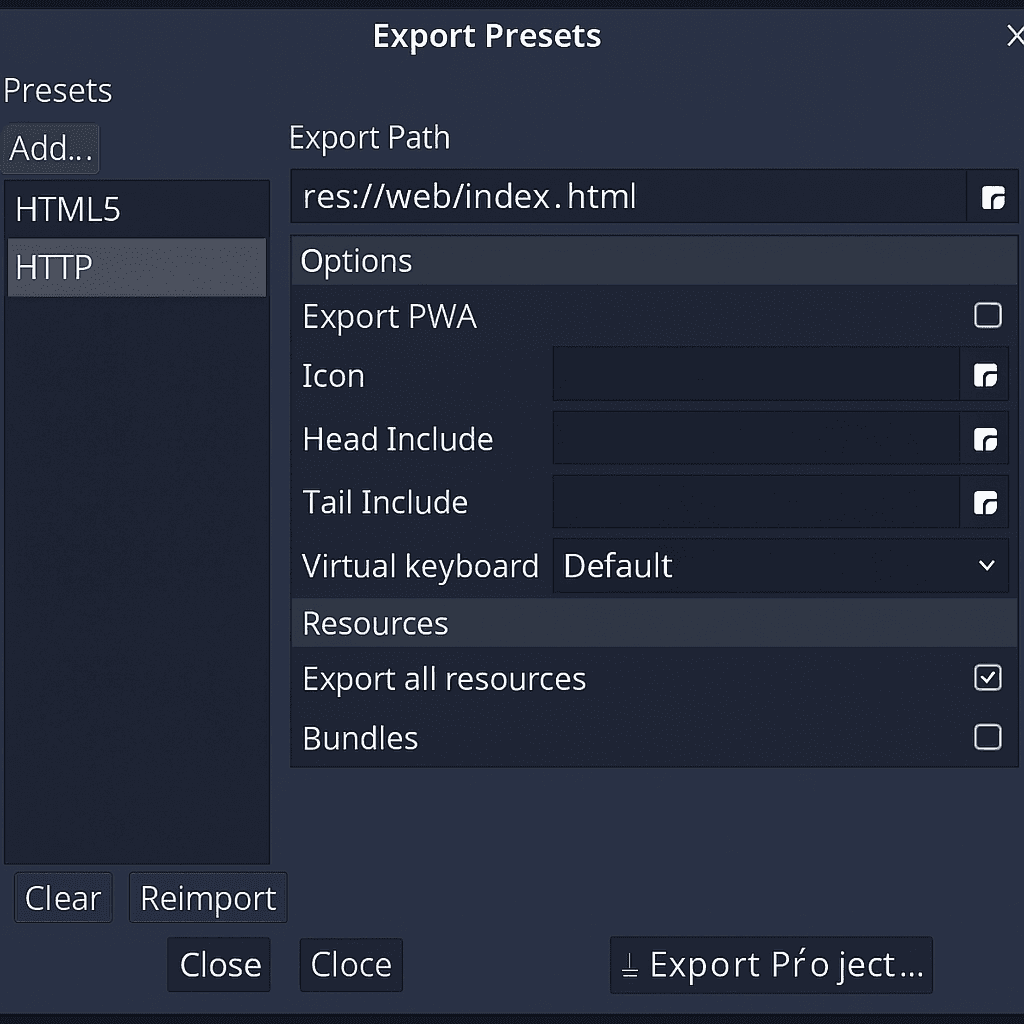
HTML/Web: Install the Web export template → Project → Export → HTML5 → Export.
Desktop: Add platform preset (Windows/macOS/Linux) → Export.
Credits screen: “Game by ___, art by ___.”
Share via school site, itch.io classroom page, or family cloud drive.
Classroom & Homeschool Playbook
Mini-jam (45–60 min): Pairs (driver/navigator), swap every 10 minutes.
Rubric: Playability, clarity, debugging/reflection, originality, scope/time, credits, playtest.
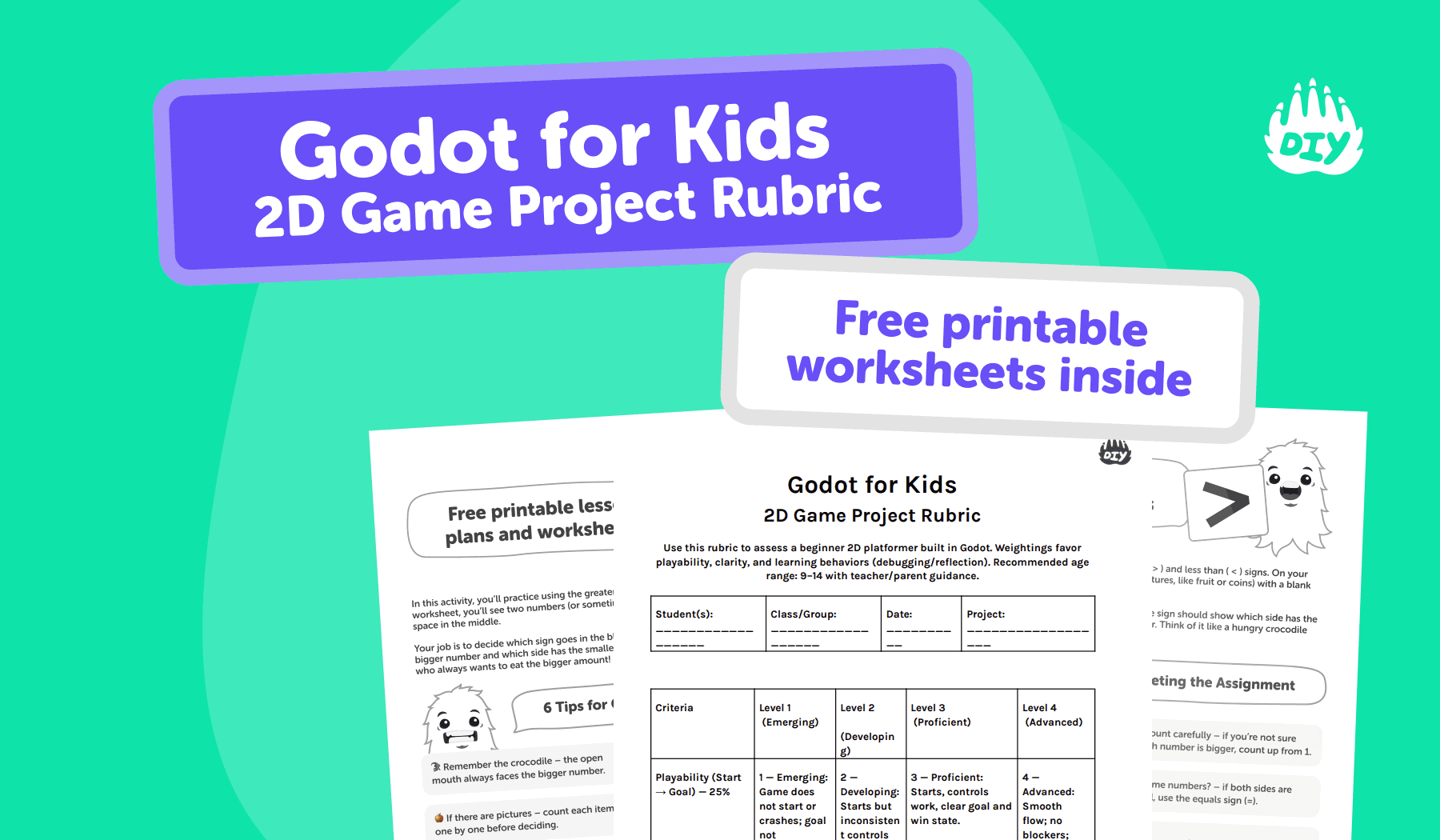
Assess faster: Grab the 2D Game Rubric
✅Use the AI Homework Helper for vocabulary checks (gravity, velocity, collision), rubric reminders, and citation help.
Troubleshooting (Fast Fixes)
Player falls through: Ensure CollisionShape2D on Player and solid tiles (TileMap collision layer).
Jump doesn’t work: Check Input Map bindings and is_on_floor() condition.
Coins don’t count: Confirm signal connections to Level; update label path.
Goal doesn’t trigger: Confirm Area2D collision shape and body name “Player.”
Camera not following: Camera2D child of Player; Current = On.
FAQs
Is Godot too hard for kids?
With tiny goals and clear steps, kids 9–14 can ship a simple platformer in one evening.
Scratch or Godot first?\
Start with Scratch for block logic; move to Godot to export polished games.
Can we use our own art?
Yes. PNG sprites at consistent sizes look best; keep filenames tidy.
How long does this take?
Build: 60-90 minutes. Polish and export can be homework.
Related DIY Challenges & Courses
More Blogs You Might Like
Ready to start creating?
Join hundreds of thousands of kids already building cool stuff.
Get started for free