Use a character editor
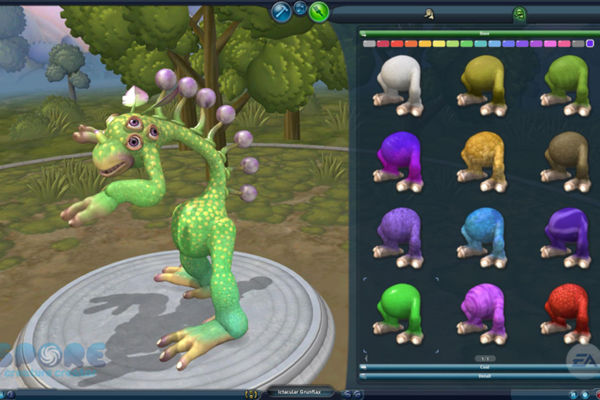
Use a character editor to design and customize your own game avatar, choosing features, colors, and outfits while learning how choices affect appearance.
About this tutorial
Use a character editor to design and customize your own game avatar, choosing features, colors, and outfits while learning how choices affect appearance.
What you need
Step by step
- 1
Step 1
Open the character editor app or website and start a new avatar project.
- 2
Step 2
Choose a base body shape for your avatar.
- 3
Step 3
Set the skin tone or complexion for your avatar.
- 4
Step 4
Pick an eye style and choose the eye color.
- 5
Step 5
Select a nose style for your avatar.
- 6
Step 6
Select a mouth style to give your avatar an expression.
- 7
Step 7
Choose a hairstyle and pick a hair color.
- 8
Step 8
Pick the main clothing item for your avatar.
- 9
Step 9
Add more clothing pieces or layers to build the outfit.
- 10
Step 10
Change the colors or patterns of the clothes using the color tools.
- 11
Step 11
Add accessories like hats glasses or props to personalize your avatar.
- 12
Step 12
Set a pose and adjust the facial expression if the editor lets you.
- 13
Step 13
Save or export your finished avatar to the editor gallery or your files.
- 14
Step 14
Write a short note explaining how your choices changed the avatar appearance and share your finished creation on DIY.org.
Fun facts
How do you use a character editor to design an avatar with your child?
Open a child-friendly character editor, pick a base body or template, then work step-by-step: choose face shape, eyes, nose, mouth, hair, skin tone and colors. Add clothing, accessories, and background, and use preview or rotate tools to check appearance. Encourage kids to try different combinations, take screenshots, save versions, and talk about how each choice changes the character’s look and personality.
What materials do I need to design a game avatar using a character editor?
You need a device (tablet, phone, Chromebook, or computer) and a stable internet connection for web or cloud editors. A mouse or touchscreen helps precision. Optional materials: paper and crayons to sketch ideas, headphones for sound, and a parent-managed account if registration is required. Adult supervision is recommended for younger children when installing apps or entering account details.
What ages is using a character editor suitable for?
Character editors work well for ages about 4 and up. Simple, icon-based editors suit preschoolers (4–6) with help; ages 6–9 handle more options and finer motor tasks independently; 9–12+ enjoy detailed customization and saving presets. Adapt complexity: offer templates for little ones, and let older kids experiment with layers, color palettes, and story creation to match their skill and attention span.
What are the benefits of using a character editor with children?
Designing avatars boosts creativity, visual decision-making, and fine motor skills while teaching color, proportion, and basic design choices. It encourages storytelling, role play, and self-expression, which builds confidence. The activity also introduces digital literacy—saving files, using menus, and following steps. Keep it low-pressure: celebrate experimentation and learning rather than perfection to maximize the developmental benefits.
Watch & Learn
Need help?
What can we use instead if the character editor app or website is unavailable or hard to access?
If you don't have the editor app or internet, substitute by printing a blank body template and using crayons, markers, or cut-out clothing to set skin tone, pick a hairstyle, clothes, and accessories, then photograph the finished paper to export it to your files.
The avatar won't save or export — what troubleshooting steps should we try?
If the Save or export step fails, try taking a screenshot of the finished avatar, check app permissions and available storage, or save to the editor gallery and then download the image file to your device.
How can this activity be adapted for younger children or older kids?
For younger children limit choices to a base body, skin tone, one hairstyle and one clothing piece with parental help to save or photograph the avatar, while older kids can add multiple clothing layers, experiment with color tools, set poses and write a longer note to share on DIY.org.
What are simple ways to enhance or personalize the finished avatar project?
Extend the activity by mixing and matching more clothing pieces and color patterns, adding custom accessories or props, exporting several poses to create a sticker sheet or short storybook, and then sharing the creations on DIY.org.