Trace your palm on Procreate!
Open Procreate to trace your palm, then decorate the digital palmprint with colors, textures, and layers to learn drawing and editing tools.
About this activity
Open Procreate to trace your palm, then decorate the digital palmprint with colors, textures, and layers to learn drawing and editing tools.
What you need
Step by step
- 1
Step 1
Open the Procreate app on your iPad.
- 2
Step 2
Create a new canvas using the + button and pick a size that fits your hand.
- 3
Step 3
Take a clear photo of your open palm with the iPad camera.
- 4
Step 4
Insert the palm photo into your canvas using Actions > Add > Insert a photo.
- 5
Step 5
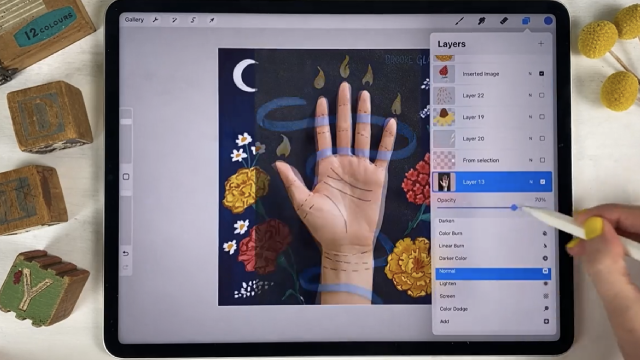
Lower the photo layer opacity so the photo looks faint and easy to trace.
- 6
Step 6
Add a new layer above the photo layer for tracing.
- 7
Step 7
Choose a brush and a color you like for the outline.
- 8
Step 8
Trace the outer shape of your palm on the new layer by following the faint photo.
- 9
Step 9
Create another new layer beneath the outline layer for colors.
- 10
Step 10
Fill the inside of your palm with base colors using a brush or the color-drop tool.
- 11
Step 11
Add fingerprints lines textures or fun patterns on new layers using different brushes.
- 12
Step 12
Try changing a layer’s blending mode or opacity to make cool effects.
- 13
Step 13
Export your finished palmprint as an image to your Photos using Share > Export.
- 14
Step 14
Share your finished palmprint on DIY.org.
Fun facts
How do you trace your palm in Procreate?
Open Procreate and create a new canvas. Add a sketch layer and lower the brush opacity. Place your hand near the screen (or carefully rest it) and trace the palm outline with an Apple Pencil or finger. Add new layers to color, add textures, and refine lines. Use layer blend modes, alpha lock, and the smudge or eraser tools to add shading. Save or export your artwork as PNG when finished.
What materials do I need to trace a palm in Procreate?
You need an iPad with Procreate installed and a stylus like an Apple Pencil for best control; fingers work too. Optional items: a screen protector to reduce smudges, a stand or case for a steady angle, a cleaning cloth, and a charger. If a child is very young, adult supervision and a clean surface are helpful. A reference photo or colored brushes can make decorating easier.
What ages is tracing your palm in Procreate suitable for?
This activity suits children roughly aged 5 and up with adult help; younger kids enjoy tracing but need supervision. Ages 7–9 can try basic coloring and layers with guidance. Ages 10+ can learn more advanced Procreate tools like layer blending, masks, and texture brushes. Adjust expectations for fine motor skills and reading menus; always monitor screen time and provide help with app navigation for younger users.
What are the benefits, safety tips, and variations of tracing a palm in Procreate?
Benefits include learning digital drawing tools, building fine motor skills, color exploration, and creativity with layers and textures. Safety tips: limit screen time, encourage good posture, take regular breaks, and supervise young children. Variations: trace fingers or both hands, create patterned backgrounds, turn the palm into a character, animate a simple blink or color change, or print the digital palm to color by hand.
Watch & Learn
Need help?
What can we use if we don't have an iPad or Procreate?
If you don't have Procreate or an iPad, use a similar app with layers like Autodesk SketchBook or Adobe Fresco on a tablet/phone or simply take the palm photo, print it, and trace it on paper following the same 'insert a photo' and tracing steps.
My photo is too dark or I can't see it well enough to trace—what should I do?
Select the photo layer in the Layers panel and lower its opacity slider to make it faint, and if the photo is the wrong size use Transform > Uniform to resize it and be sure you added a new layer above the photo for tracing before you draw.
How can I adapt this activity for different ages?
For younger children use a large canvas and a thick brush on the tracing layer with simple color fills on the color layer (and adult help taking the photo), while older kids can add fingerprint textures on separate layers, experiment with blending modes and opacity, and use finer brushes for detail.
How can we enhance or personalize the finished palmprint?
Add extra layers for background patterns, names or stickers, try different brushes for fingerprint textures and layer blending modes for glow or shadow effects, then export via Share > Export to save and share on DIY.org.