Time to Code Your Orders on Scratch
Code an interactive ordering game on Scratch where you create menus, accept customer orders, and program sprites to prepare and deliver items.


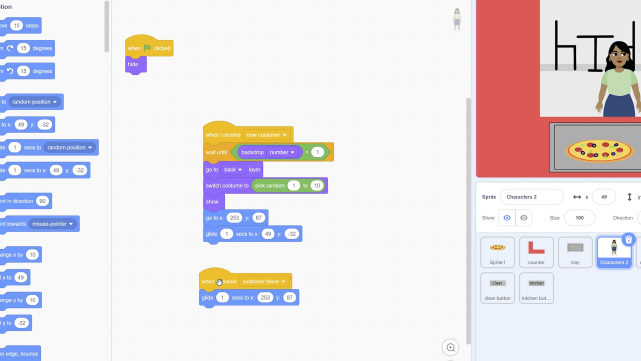

Step-by-step guide to Time to Code Your Orders on Scratch
Step 1
Open Scratch and start a new project so you have a blank stage to code your game.
Step 2
Sketch a simple menu on paper listing three food or toy items and a price for each so you know what to build.
Step 3
Create one clickable sprite for each menu item in Scratch and draw a button costume that shows the item name.
Step 4
Add code to each menu item sprite using a "when this sprite clicked" block to broadcast a unique message like "order_item1" for that item.
Step 5
Make a Customer sprite and add a "when I receive" block for each order message so the customer says which item they ordered.
Step 6
Create a Kitchen sprite and add "when I receive" blocks for each order message that switch its costume to a preparing look then wait 2 seconds and broadcast a matching "item_ready" message.
Step 7
Make a Delivery sprite and add a "when I receive item_ready" block that glides to the Customer sprite position then uses a "say" block to tell the customer their order has arrived and glides back.
Step 8
Create a variable called Served and add code in the Delivery sprite to change Served by 1 right after it finishes delivering an item.
Step 9
Add a timer by making a variable named Time Left and add code to set Time Left to 60 at the green flag then decrease it by 1 every second until it reaches 0.
Step 10
Test your game by clicking the green flag and then clicking the menu item sprites to place orders and watch the customer kitchen and delivery sprites work.
Step 11
Save and share your Scratch project and then share your finished creation on DIY.org.
Help!?
What can we use if we can't open Scratch or don't have paper to sketch the menu?
If you can't open Scratch use the Scratch Desktop app or a block-coding site like Code.org (or ScratchJr for tablets), and if you don't have paper sketch the three-item menu on a whiteboard or tablet while still creating clickable sprite buttons and costumes in Step 3.
If clicking a menu sprite doesn't make the Customer or Kitchen respond, what should we check?
Check that each menu sprite's "when this sprite clicked" block broadcasts the exact message name (for example "order_item1") that the Customer and Kitchen "when I receive" blocks are waiting for and fix any typos or extra spaces.
How can we change the project to suit younger or older kids?
For younger kids simplify Steps 2–6 by using only two big menu buttons, skipping the Time Left timer and keeping deliveries slow, while older kids can add more items, multiple kitchen costumes, competition by extending the Served variable into a points system and tightening the Time Left countdown for a challenge.
How can we extend or personalize the game after finishing the basic version?
Enhance the project by adding custom costumes and sound effects to the Kitchen and Delivery sprites, animating the delivery glide with extra costumes, creating an end-of-game high-score screen that uses the Served and Time Left variables, and then save and share the improved project on DIY.org.
Watch videos on how to Time to Code Your Orders on Scratch
Introduction to Coding with Scratch | Beginner's Guide to Scratch Programming
4 Videos
Introduction to Coding with Scratch | Beginner's Guide to Scratch Programming
Scratch Coding Lesson 1 | Intro to Scratch Coding | How to start | Free Beginner Programming Class
Get Started with Scratch Guide: 5 Tips & Tricks for Beginners 🎉
INTRODUCTION TO SCRATCH JR | LEARN FREE CODING | Coding For Kids
Facts about Scratch programming and game design
🐱 Scratch's mascot is a friendly cat sprite that's the default character in every new project.
🧩 Scratch uses colorful code blocks so you can snap together programs like puzzle pieces — no typing required!
🎮 You can build full games on Scratch with menus, scores, and levels — creators have made everything from simulators to platformers.
📣 Sprites can send and receive broadcast messages so one sprite (like a cashier) can tell another (like a chef) when an order is ready.
🍔 Use variables and lists to track customer orders and menus — a list can act like a real queue of orders.
How do you code an interactive ordering game on Scratch?
What materials do I need to make a Scratch ordering game?
What ages is the Scratch ordering game suitable for?
What are the benefits of coding an ordering game on Scratch?
