Take a Group Photo of All Your Gacha Life OCs
Arrange all your Gacha Life original characters, choose poses and a background, then take a group screenshot to practice composition and storytelling.


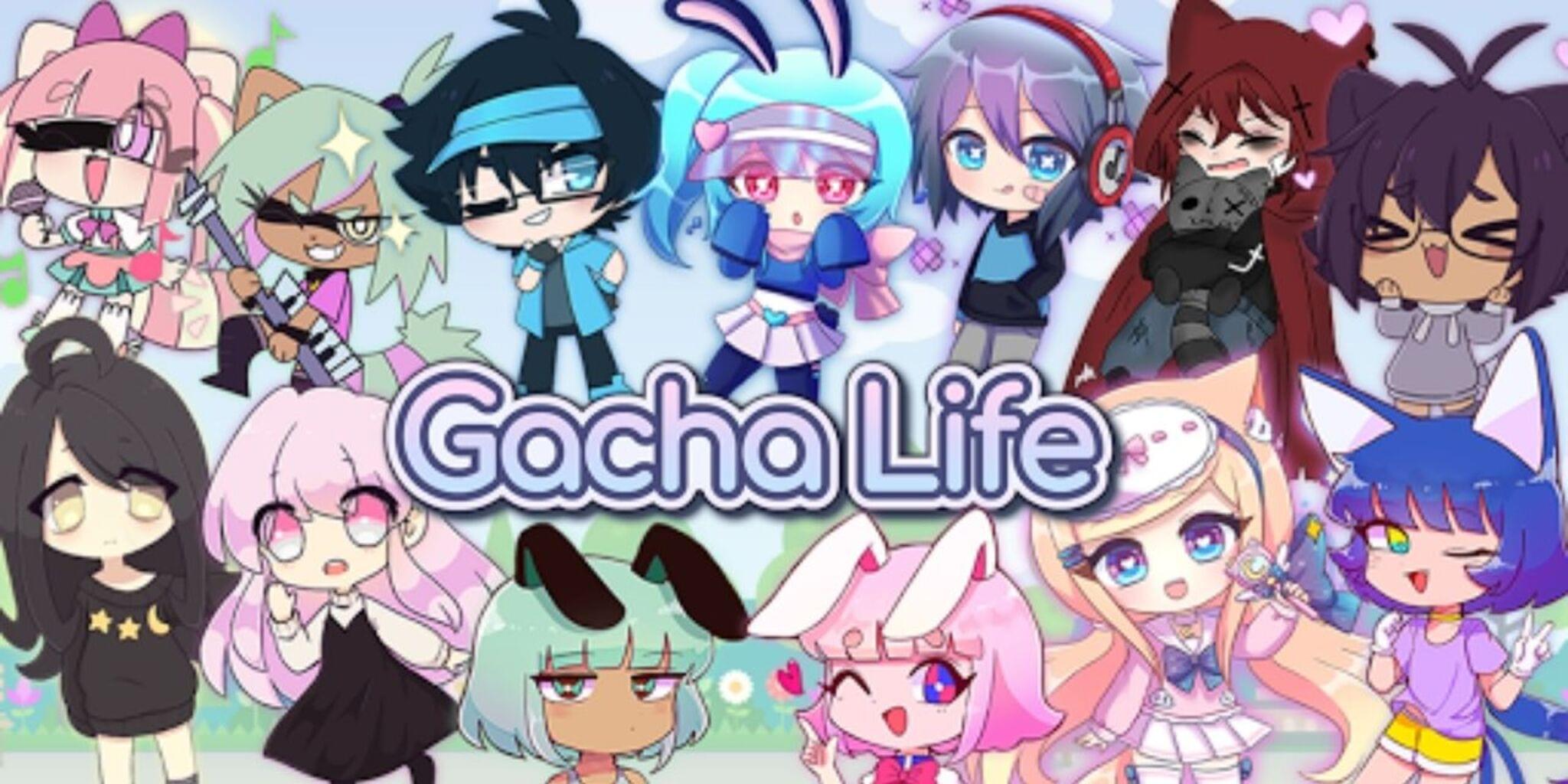

Step-by-step guide to Take a Group Photo of All Your Gacha Life OCs
10 Steps To Make a Gacha OC: 😳👈
Step 1
Open the Gacha Life app on your device.
Step 2
Go to the Studio or Dress-Up screen to start a new scene.
Step 3
Choose a background that matches the story you want to tell.
Step 4
Load one of your Gacha Life OCs into the scene.
Step 5
Pick and set a pose for that OC.
Step 6
Repeat Steps 4 and 5 for each additional OC you want in the group.
Step 7
Drag each character into a spot on the screen to arrange the group.
Step 8
Resize or move characters forward or backward to create depth.
Step 9
Add props or accessories that help explain what’s happening in the scene.
Step 10
Adjust facial expressions and small details so each OC shows an emotion.
Step 11
Check the whole picture and move characters until the scene looks balanced and tells your story.
Step 12
Hide any app menus or switch to capture mode so only the scene is visible.
Step 13
Take a screenshot of your finished group photo and save it.
Step 14
Share your finished group photo of your Gacha Life OCs on DIY.org.
Help!?
What can I use if I don't have the Gacha Life app or can't install it?
Use Gacha Club or a mobile emulator on a computer to access a Studio/Dress-Up screen, or photograph paper drawings of your OCs and arrange/pose them in a simple photo editor following the same steps.
My characters are overlapping or won't move forward/backward—what should I do?
Use the app's resize and move forward/backward controls to separate characters for depth, slightly reduce size of background or middle figures if needed, and hide menus or switch to capture mode before taking the screenshot so overlaps aren't hidden by UI.
How can I change this activity for different age groups?
For young kids limit the scene to 2–3 OCs and have an adult handle the screenshot/share steps, while older kids can add many OCs, fine-tune facial expressions and props, and write a short caption or story to post on DIY.org.
How can we make the group photo more interesting or personal?
Add homemade props or digital stickers, choose a themed background, tweak poses and expressions to tell a clearer story, or create a short multi-frame series of screenshots and edit them with captions or filters before saving and sharing on DIY.org.
Watch videos on how to Take a Group Photo of All Your Gacha Life OCs
Gacha life 2 oc tutorial !!
4 Videos

Gacha life 2 oc tutorial !!
How to get your OC in Gacha life 2 Presets!

How To Save Ocs In Gacha Club (2024 Guide)

..💛 Gacha life Free ocs || Tiktok Comp || ✨..
Facts about digital character photography and storytelling for kids
🎮 Gacha Life and Gacha Club are popular mobile apps where players design characters, choose outfits, and build scenes.
🎭 A character's pose is like a little story—tilted shoulders, crossed arms, or a big smile tell viewers who they are.
📐 The rule of thirds is a simple composition trick: place characters along grid lines to make group photos more interesting.
🌆 Changing the background can flip the whole mood—same characters, different story (happy park vs. mysterious alley).
📸 Taking a screenshot keeps the game's art style exact and is the quickest way to save a high-quality group image.
How do I take a group photo of all my Gacha Life OCs?
What materials or tools do I need for a Gacha Life group screenshot?
What ages is this Gacha Life group photo activity suitable for?
What are the benefits of making Gacha Life group photos with OCs?
