Show us the settings of your canvas on procreate
Create a step-by-step poster showing Procreate canvas settings, including size, DPI, orientation, and layers, using screenshots or simple drawings with labels.
About this activity
Create a step-by-step poster showing Procreate canvas settings, including size, DPI, orientation, and layers, using screenshots or simple drawings with labels.
What you need
Step by step
- 1
Step 1
Open Procreate and create a new canvas or open the canvas you want to show.
- 2
Step 2
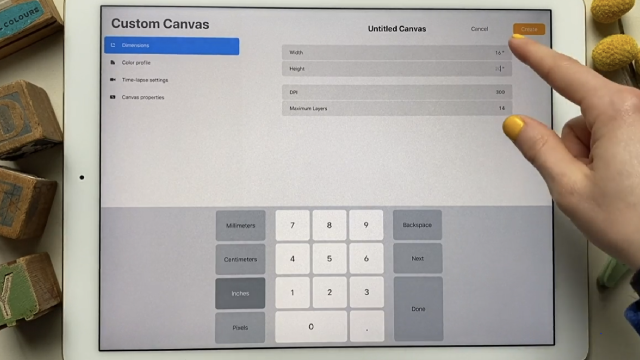
Go to the screen in Procreate that displays the canvas size DPI and orientation.
- 3
Step 3
Take a screenshot of that canvas settings screen.
- 4
Step 4
Open the Layers panel in Procreate so the layer stack is visible.
- 5
Step 5
Take a screenshot of the Layers panel showing the layers and layer count.
- 6
Step 6
If you did not take screenshots draw simple sketches of the two screens on plain paper now.
- 7
Step 7
Cut out your printed screenshots or your drawn sketches with scissors.
- 8
Step 8
Arrange the cutouts on a clean sheet of plain paper in a clear poster layout.
- 9
Step 9
Use your pencil to write clear labels for Size DPI Orientation and Layers next to each picture.
- 10
Step 10
Use colouring materials to add arrows highlights and color to make each label easy to read.
- 11
Step 11
Use tape to glue the cutouts and labels in place on your poster.
- 12
Step 12
Add a big title at the top that says "Procreate Canvas Settings" and write your name below it.
- 13
Step 13
Take a photo or scan your finished poster so it is ready to upload.
- 14
Step 14
Share your finished creation on DIY.org
Fun facts
How do you make a step-by-step poster showing Procreate canvas settings?
To make a step-by-step poster of Procreate canvas settings, open Procreate and tap + to create a new canvas. Choose Custom Size and enter width/height, set DPI (300 for print, 72–150 for screen), select orientation (portrait/landscape), and create labeled layers (background, sketch, ink, color). Capture screenshots or draw simple illustrations for each step, add arrows and short captions, and arrange steps visually on the poster. Export as PNG or PDF for printing or sharing.
What materials do I need to create a Procreate canvas settings poster?
You'll need an iPad with Procreate installed, an Apple Pencil or stylus for drawing, and enough battery or charger. Use the iPad's screenshot tool to capture screens. Optionally have paper and markers for sketching a mockup, a printer for a hard copy, and a simple photo editor or notes app for labeling. Adult supervision may be required to manage app settings, files, and prints.
What ages is this Procreate canvas settings poster activity suitable for?
This activity suits children about 7–14 years old. Younger kids (5–7) can participate with heavy adult help for screenshots and labels; older kids (10–14) can design independently and learn DPI and layer concepts. Tailor complexity: simplify language and visuals for early readers, provide step prompts for middles, and add technical challenges (resolution variations, multiple layers) for teens. Supervise account access and purchases.
What are the benefits, safety tips, and variations for this activity?
Making this poster teaches kids digital design basics: canvas size, DPI, orientation, and layers. It builds visual organization, sequencing, and fine motor control. Safe practices include avoiding sharing personal info in screenshots, using screen-time breaks, and supervising account or in-app purchases. Variations: create a printed poster, a classroom wall display, or a video slideshow with voiceover; challenge kids to design posters for different output types (web, print, tablet).
Watch & Learn
Need help?
What can I use instead of a printer, scissors, or tape if I don't have them?
If you don't have a printer, scissors, or tape, redraw the two screenshots by hand as the instructions allow, use safety scissors or carefully tear the paper for cutouts, and substitute a glue stick or double-sided tape (or assemble the poster digitally in Procreate) to attach pieces.
I can't find the Canvas Size/DPI screen or the Layers panel—what should I do?
Open Procreate's Actions (wrench) > Canvas > Crop & Resize to view Size and DPI, tap the Layers icon in the top-right to show the layer stack, use your iPad's screenshot shortcut (Side+Volume Up or Home+Side) or AssistiveTouch to capture screens, and if screenshots fail follow the instruction to draw simple sketches instead.
How can I adapt this project for different ages?
For younger kids have an adult pre-print and pre-cut the screenshots so the child only colors and labels, for elementary kids let them cut, arrange, and write the Size/DPI/Orientation and Layers labels themselves, and for teens have them make the entire poster digitally in Procreate using actual screenshots and annotated layers.
How can we extend or personalize the poster to make it more interesting?
Extend the activity by adding a comparison section with two different canvas settings (different DPI or orientations), color-code and arrow-annotate the Layers on the poster, decorate with stickers or washi tape, and include a photo/scan of the finished poster when you upload it.