Program Your Snake Sprite!
Program a snake sprite in Scratch by building movement, turning, food collision, and scoring with blocks to learn coding logic and problem solving.
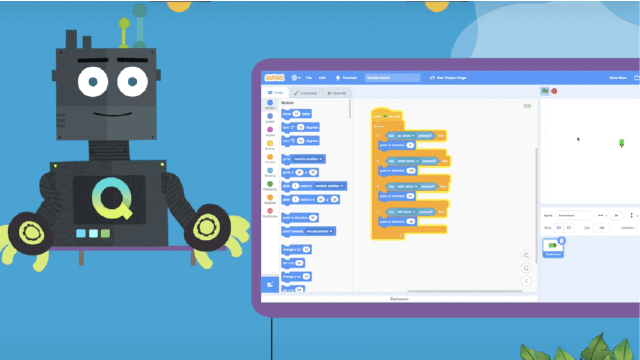
About this tutorial
Program a snake sprite in Scratch by building movement, turning, food collision, and scoring with blocks to learn coding logic and problem solving.
What you need
Step by step
- 1
Step 1
Click "Create" to start a new Scratch project.
- 2
Step 2
Delete the cat sprite by right-clicking it and choosing "delete."
- 3
Step 3
Add or draw a snake sprite by clicking "Choose a Sprite" or "Paint" and making it slithery.
- 4
Step 4
Add a small bright food sprite by clicking "Choose a Sprite" and selecting or drawing a food shape.
- 5
Step 5
Create a variable named score for all sprites using the "Variables" category.
- 6
Step 6
Attach a "when green flag clicked" hat block to the snake and add a block to set score to 0.
- 7
Step 7
Add a second "when green flag clicked" script with a forever loop that moves the snake 10 steps and waits 0.1 seconds so it glides.
- 8
Step 8
Make the snake turn with the arrow keys by adding "when key pressed" blocks that point the snake to 0 for up 90 for right 180 for down and -90 for left.
- 9
Step 9
Inside the snake's movement loop add an "if touching [food]?" block.
- 10
Step 10
Inside that "if touching" block add blocks to change score by 1 and to make the food go to a random position.
- 11
Step 11
Click the green flag to test your game and play using the arrow keys to make sure the snake eats food and the score increases.
- 12
Step 12
Share your finished snake game on DIY.org.
Fun facts
How do I program a snake sprite in Scratch?
Start by adding a snake sprite and a food sprite. Use a forever loop to move the snake forward and change direction with key-press blocks (arrow keys). When the snake touches the food, broadcast a message to respawn the food, increase a score variable, and add a body segment (clone) or grow the snake by recording positions. Use sensing blocks for collision and control blocks to prevent instant reversal. Test and debug step-by-step.
What materials do I need to program the snake sprite?
You need a computer or tablet with internet or the Scratch desktop app and a Scratch account (optional). Prepare the Scratch editor, a snake sprite (or costume), a food sprite, and a score variable. A keyboard is helpful for directional input. Optionally print a simple flowchart of game logic and have paper/pencil for planning. Parental supervision is recommended for younger children.
What ages is this Scratch snake project suitable for?
This project suits kids roughly aged 7–14. Younger children (7–9) will benefit from guided, simplified steps like moving a single sprite and detecting food. Older kids (10–14) can add cloning, lists for body segments, and collision edge rules for more challenge. Adjust complexity and adult support based on experience with Scratch and reading ability; pair younger makers with an adult or older sibling for smoother learning.
What are the benefits and safety tips for making a snake game in Scratch?
Building a snake game teaches sequencing, event-driven logic, variables, and debugging—boosting problem solving and computational thinking. It encourages creativity through sprite design and level ideas. For safety, supervise screen time, use a child-safe account, avoid sharing personal info, and ensure ergonomic setup (breaks, good posture). For variety, try different controls, maze levels, or multiplayer scoring to extend learning.
Watch & Learn
Need help?
What can we use if we don't have the Paint editor or can't find a snake or food sprite in Scratch?
If you can't use Paint or find a sprite, click 'Choose a Sprite' to search the Scratch library or upload an image from your computer, or pick any built-in sprite and edit its costume to make it look like a slithery snake or bright food.
The snake moves but the score doesn't go up when it touches the food—what should I check?
Check that the 'if touching [food]?' block is inside the snake's movement script and that both the 'change score by 1' and 'go to random position' blocks are nested inside that same 'if' and that the sensing menu actually names your food sprite.
How can I adapt this snake project for different age groups?
For younger kids, slow the snake by increasing the forever loop's wait to 0.5 seconds and make the food larger and fewer, while older kids can shorten the wait, increase the move steps, add tail sprites to grow the snake, or add wall-collision logic for extra challenge.
What are easy ways to personalize or extend the game before sharing on DIY.org?
Personalize by adding a 'play sound' block and a chomping sound inside the 'if touching [food]?' branch, create multiple food costumes or extra food sprites, and make levels by gradually decreasing the wait or increasing the move steps as the score rises.