Make Your First Project on Stop Motion Studio
Create a short stop-motion film using the Stop Motion Studio app, planning scenes, moving characters frame-by-frame, capturing and editing your animation.
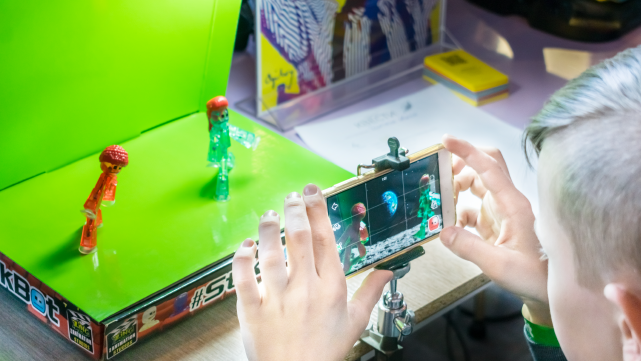
About this activity
Create a short stop-motion film using the Stop Motion Studio app, planning scenes, moving characters frame-by-frame, capturing and editing your animation.
What you need
Step by step
- 1
Step 1
Open Stop Motion Studio on your device.
- 2
Step 2
Create a new project in the app.
- 3
Step 3
Think of a short story idea that lasts about 10 seconds.
- 4
Step 4
Draw a simple 4-panel storyboard on your paper.
- 5
Step 5
Lay your background paper flat on a stable surface.
- 6
Step 6
Arrange your characters and props on the background where your first scene will be.
- 7
Step 7
Place your device so the camera view in the app shows the whole scene.
- 8
Step 8
Turn on the onion-skin feature in the app so you can see the last frame ghosted.
- 9
Step 9
Tap the capture button to take your first photo frame.
- 10
Step 10
Move your character just a tiny bit to change its position.
- 11
Step 11
Tap the capture button again to take the next frame.
- 12
Step 12
Repeat moving your character and capturing frames until your storyboard is finished.
- 13
Step 13
Preview your animation inside the app to watch how it moves.
- 14
Step 14
Add music or record a short voice-over using the app’s audio tools.
- 15
Step 15
Share your finished creation on DIY.org
Fun facts
How do I make my first stop-motion project using Stop Motion Studio?
Begin by planning a short story or gag and sketching a simple storyboard of scenes. Set up your tablet or phone on a tripod or steady surface and open Stop Motion Studio. Create a new project, choose a frame rate, and use consistent lighting. Position characters and take one photo per small movement, using onion-skinning to align frames. Review playback, trim frames, add titles, music or sound effects, then export your finished short film to share.
What materials do I need to make a stop-motion film with Stop Motion Studio?
You’ll need the Stop Motion Studio app on a phone or tablet, plus a tripod or stable holder, simple props and small figures (toys, clay, paper cutouts), a plain background, and steady lighting like a desk lamp or natural light. Optional items: a Bluetooth remote or app shutter, sticky putty or double-sided tape to steady characters, craft tools (scissors, markers), and headphones for editing audio. No advanced equipment is required.
What ages is this stop-motion activity suitable for?
This activity suits ages 6–14. Younger children (4–6) can join with close adult help for device handling and cutting; they’ll enjoy moving toys and simple scenes. Older kids and teens can plan more complex plots, practice editing, and add sound effects. Supervise screen time, device use, and any small parts. Adults should install the app, manage settings and in-app purchases for younger users.
What are the benefits and safety tips for making stop-motion films?
Making stop-motion films builds storytelling, planning, patience, and fine motor skills. Kids learn sequencing, timing, and basic editing while exercising creativity and problem-solving. It’s a screen-based but hands-on activity that encourages cooperation when working in teams. Safety tips: secure devices on tripods, avoid small choking hazards for young children, and limit session length to prevent eye strain. Variations include claymation, paper cutouts, or shadow animation to keep projects f
Watch & Learn
Need help?
I don't have a tripod—how can I keep my device steady when I need to "Place your device so the camera view in the app shows the whole scene"?
Prop your device on a stack of books, tape it to a stable box, or attach it to a LEGO base so the camera view in Stop Motion Studio stays fixed over your background paper.
Even with the onion-skin on, my animation looks jumpy—what can I do when I "Move your character just a tiny bit" and tap the capture button to get smoother motion?
Make much smaller movements and take more frames between changes, keep the device and background paper locked in place, and maintain consistent lighting so the onion-skin and repeated taps on the capture button produce smoother motion.
How can I adapt the project for different ages when I ask kids to "Draw a simple 4-panel storyboard" and create the animation?
For ages 4–6, use a 2-panel storyboard with large pre-made characters and only a few big moves per panel, while older kids can plan a full 4-panel storyboard, capture many small-frame movements, use onion-skin, and add a voice-over.
How can we enhance or personalize the animation beyond the basic steps like tapping capture and "Add music or record a short voice-over"?
Decorate and customize your background paper, add layered music or sound effects in Stop Motion Studio, try slow camera zooms by moving the device between frames, and then share the finished, personalized project on DIY.org.