Make Digital Cotton Candy on Procreate
Create a fluffy digital cotton candy illustration in Procreate by using soft brushes, layer colors, and blending tools to learn texture and shading.
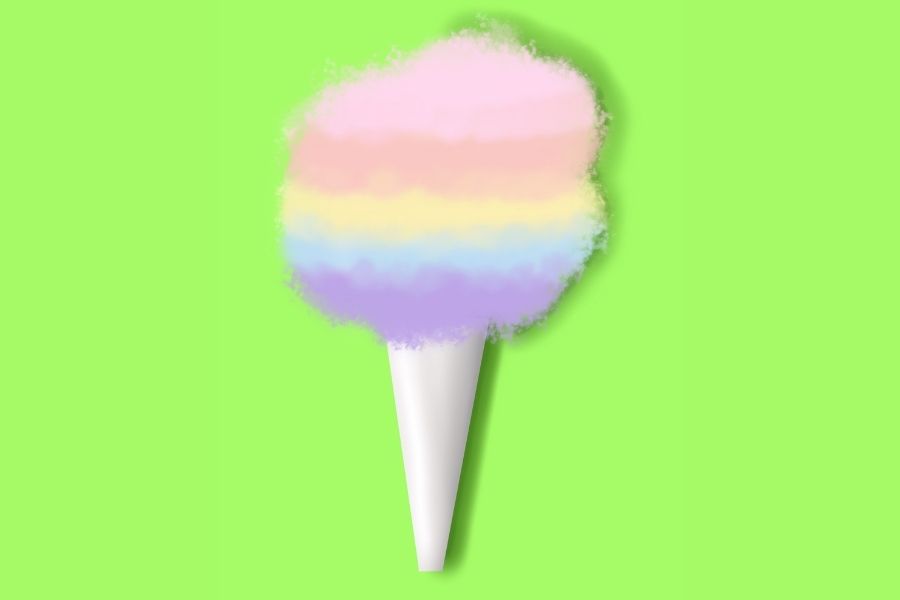
About this activity
Create a fluffy digital cotton candy illustration in Procreate by using soft brushes, layer colors, and blending tools to learn texture and shading.
What you need
Step by step
- 1
Step 1
Open the Procreate app on your iPad.
- 2
Step 2
Create a new square canvas about 2000 by 2000 pixels.
- 3
Step 3
Tap the Layers icon and add a new layer for your cotton candy base.
- 4
Step 4
Open the Brush Library and choose a soft round brush.
- 5
Step 5
Pick a pastel pink color from the color picker.
- 6
Step 6
Draw a loose fluffy cloud shape on the base layer with gentle strokes.
- 7
Step 7
Add a new layer above the base layer for shadows.
- 8
Step 8
Choose a slightly darker pink and paint soft shadow areas under the fluffy folds.
- 9
Step 9
Add another new layer above for highlights.
- 10
Step 10
Choose a lighter pink or white and paint soft highlights on the top edges.
- 11
Step 11
Select the Smudge tool with a soft brush and gently blend the colors to make the cotton candy look fluffy.
- 12
Step 12
Add a new layer below the cotton candy layers and draw a stick or cone with a brown color.
- 13
Step 13
Add a new layer and make tiny white dots with a small brush to create sugar sparkles.
- 14
Step 14
Export your finished image to your Photos or Files as a PNG or JPEG.
- 15
Step 15
Share your finished cotton candy illustration on DIY.org.
Fun facts
How do I make a fluffy digital cotton candy illustration in Procreate?
Start a new canvas, pick soft round or airbrush brushes, and block in a loose cloud shape with a mid-tone color. Add layers for secondary colors (pink, blue, purple) and reduce each layer’s opacity. Use a soft brush and low opacity to build fluffy strokes, then blend gently with the smudge or Gaussian Blur to soften edges. Add lighter highlights and a few sharp strands for texture. Finish by adjusting layer blend modes and opacity for a sugary glow.
What materials and Procreate tools do I need to make digital cotton candy?
You’ll need an iPad with Procreate and an Apple Pencil (or stylus) for control. Use soft brushes like Airbrush, Soft Brush, or custom cloud brushes, plus the Smudge tool and Gaussian Blur. Have multiple layers, layer blend modes (Add/Screen/Overlay), and a simple color palette of pastel pinks, blues, and purples. Optional: a reference photo, a textured brush for sugary highlights, and a light background layer to test contrast.
What ages is this Procreate cotton candy activity suitable for?
This activity suits kids about 7 and up. Ages 7–9 benefit from guided steps and simple brush use to learn digital strokes. Ages 10–13 can work more independently, exploring layers and blend modes. Teens can experiment with custom brushes, color grading, and advanced techniques. Younger children can try with parental supervision and simpler tools like a single soft brush to practice hand control and color mixing.
What are the benefits of making digital cotton candy in Procreate?
Creating digital cotton candy teaches texture and shading, color blending, and layer management—core digital art skills. It builds fine motor control and patience while encouraging color experiments and creativity without wasted materials. Kids learn to observe light and soft edges, boosting visual literacy. It’s low-mess, easy to undo mistakes, and can be a gentle introduction to digital art portfolios or timed practice sessions to develop technique.
Watch & Learn
Need help?
What can we use if we don't have the soft round brush or Procreate on an iPad?
If the Brush Library's soft round brush is missing, pick Airbrushing > Soft Brush or any round brush lowered to low opacity and flow, and if you don't have Procreate use a similar app like SketchBook or MediBang on a tablet and follow the same layer and smudge steps.
My cotton candy looks flat or muddy after smudging—what should I try?
If smudging makes colors muddy, undo, reduce the Smudge tool's strength, use a soft brush to blend only the fluffy edges, and make sure shadows and highlights are painted on their own layers as the instructions say.
How can I adapt the activity for different age groups?
For younger kids simplify by using one cotton candy layer, a large soft round brush, and skipping tiny sparkles, while older kids can add extra layers for textured fibers, finer highlight dots, and experiment with blend modes.
How can we extend or personalize the cotton candy illustration?
To personalize, add a background gradient on a new layer below, duplicate the cotton candy layer to create multiple pastel flavors, and add Animation Assist to make twinkling sparkles or a slow spin before exporting to PNG/JPEG for DIY.org.