Make a Gacha Edit with @FoxRose
Make a colorful Gacha character edit with @FoxRose: design outfits, pose characters, add backgrounds and stickers using safe photo or editing apps.


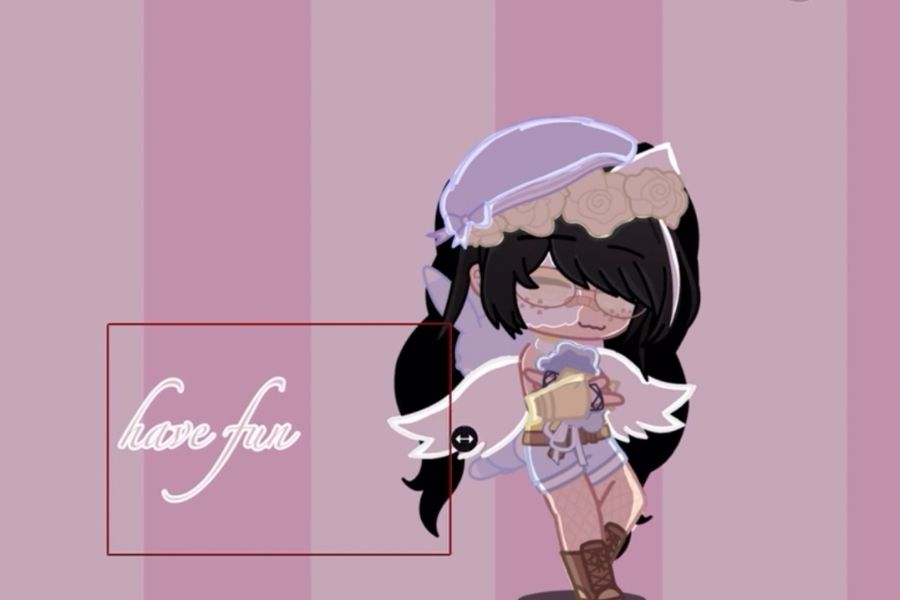

Step-by-step guide to make a Gacha edit with @FoxRose
Step 1
Open your safe photo or editing app.
Step 2
Create a new canvas at a size you like.
Step 3
Import your Gacha character image into the canvas.
Step 4
Use the move or transform tool to position the character where you want it.
Step 5
Use stickers drawing or color tools to design or change the outfit.
Step 6
Choose a background image or pick a solid background color.
Step 7
Place the background behind the character layer.
Step 8
Add stickers decorations and small extras around the character.
Step 9
Apply a filter or adjust brightness contrast and saturation to make the colors pop.
Step 10
Add a small text tag to credit @FoxRose.
Step 11
Export or save your edit as a PNG or JPG file.
Step 12
Share your finished creation on DIY.org and tag @FoxRose.
Help!?
What can I use if I don't have the exact 'safe photo or editing app' or a Gacha character image listed in the instructions?
If you don't have a 'safe photo or editing app' or a Gacha character image, use free web editors like Photopea or Pixlr (or your phone's Photos app plus a basic editor) and import a screenshot, a scanned/drawn character, or a shared PNG into the canvas.
My character disappears or won't stay in place after I add the background—what should I check?
If the character disappears or won't move after you place the background, select the character layer, use the move/transform tool, and fix layer order by sending the background behind the character or using 'bring to front'/'send to back' and lock the correct layers before exporting.
How can I adapt the steps for different age groups?
For younger kids, simplify by creating a new canvas, choosing a solid background and only adding stickers while an adult imports the character, and for older kids add drawing/color tools, transform the outfit, tweak brightness/contrast/saturation, and export a high-resolution PNG or JPG to share.
How can we extend or personalize the Gacha edit beyond the basic instructions?
Extend the edit by designing multiple outfit versions with stickers and drawing tools, adding extra characters and layered backgrounds, stylizing the small text tag that credits @FoxRose, then export alternate PNG/JPG files and share the themed series on DIY.org.
Watch videos on how to make a Gacha edit with @FoxRose
How to make babies in Gacha Club ♡ Easy ♡
3 Videos
How to make babies in Gacha Club ♡ Easy ♡
Como fazer bebês no gacha life 2/ How to make babies in gacha life 2
how to make a small head in gacha online(roblox)//hope this helps :)//
Facts about digital art and photo editing for kids
🎮 Gacha games like Gacha Life and Gacha Club let you design chibi characters and tiny scenes for storytelling.
🎨 Digital art tools give you layers and undo buttons, so beginners can experiment without fear of mistakes.
🖼️ Many image-editing apps include sticker packs and premade backgrounds to speed up creating edits.
🌈 Using bright, contrasting colors helps characters stand out on phone screens and thumbnails.
✂️ Gacha edits are often made by stacking clothes, poses, and stickers on separate layers—like digital paper cutouts.
How do I make a colorful Gacha edit with @FoxRose?
What materials do I need to make a Gacha character edit with @FoxRose?
What ages is making a Gacha edit with @FoxRose suitable for?
How can I keep my child safe while making and sharing Gacha edits with @FoxRose?
