Make a Gacha Edit
Create a colorful Gacha character edit by posing characters, exporting images, adding stickers, text, simple effects, and music using a basic editing app.
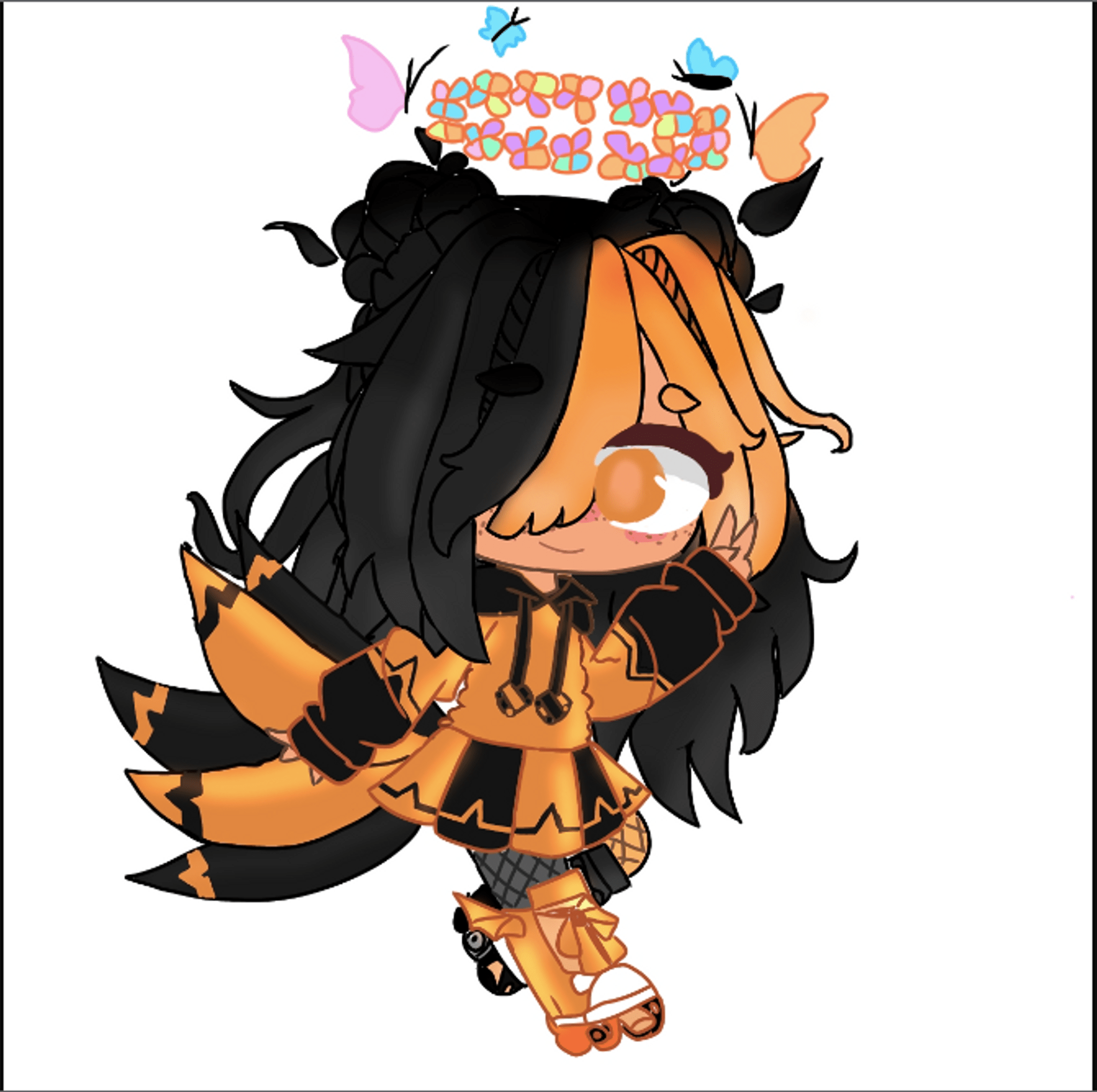
About this activity
Create a colorful Gacha character edit by posing characters, exporting images, adding stickers, text, simple effects, and music using a basic editing app.
What you need
Step by step
- 1
Step 1
Open your Gacha app.
- 2
Step 2
Create or pick a character you want to edit.
- 3
Step 3
Pose the character using the app’s pose tools.
- 4
Step 4
Save or export the posed character image to your device.
- 5
Step 5
Open your basic editing app.
- 6
Step 6
Import the saved character image into the editing app.
- 7
Step 7
Choose a colorful background for your scene.
- 8
Step 8
Place the background behind your character.
- 9
Step 9
Add stickers around your character to decorate the scene.
- 10
Step 10
Add text to label your character or write a fun phrase.
- 11
Step 11
Change the text font and color to match your design.
- 12
Step 12
Apply a simple visual effect to the character or background.
- 13
Step 13
Add a short music clip to the project.
- 14
Step 14
Export your edit as a video or GIF file from the editing app.
- 15
Step 15
Share your finished creation on DIY.org
Fun facts
How do you make a Gacha edit step by step?
Start by designing and posing characters in your Gacha app—choose outfits, expressions, and backgrounds. Export each pose or scene as images to your device. Open a simple photo/video editor and import the images in order, adjusting the timing for each frame. Add stickers, speech bubbles, and text layers, then apply basic effects or filters. Finally, add a short, copyright-safe music clip, balance the audio, export the final video, and review it with your child before sharing.
What materials do I need for a Gacha edit?
You need a smartphone or tablet, a Gacha-style character app to create and pose characters, and a simple photo/video editing app to combine images, stickers, text, effects, and music. Also useful are headphones, a charger, basic image or music files (copyright-safe), and parental permission for downloads and sharing. Optional extras include a stylus, cloud storage for saves, and printed reference images for costume or pose ideas.
What ages are Gacha edits suitable for?
Gacha edits are generally suitable for children ages 7 and up, when they can navigate apps and understand layering and timing. Younger kids (4–6) can participate with adult help by choosing colors, stickers, or posing characters while an adult handles exporting and editing. Teens can explore advanced effects and audio syncing. Always supervise account setup, monitor in-app purchases, and set screen-time limits appropriate for your child.
What are the benefits, safety tips, and variations for Gacha edits?
Gacha edits boost creativity, storytelling, and basic digital editing skills like sequencing and layering. For safety, avoid sharing personal information, supervise downloads and in-app purchases, and use copyright-free music. Check app privacy settings and community rules before posting. Variations include silent slideshow edits, lip-sync videos, themed collages (holiday or fandom), or short storyboards where each image represents a scene—adjust complexity to your child’s age and interests.
Watch & Learn
Need help?
What can we use if we don't have the 'basic editing app' or a separate music clip?
Use your phone's built-in Photos/Gallery editor or free apps like CapCut or Canva to import the saved character, add a colorful background, stickers, text and effects, and either use royalty-free clips or record a short music clip on your device.
The posed character image won't export from the Gacha app—what should we try?
If 'Save or export the posed character image' fails, take a screenshot of the posed character, crop it in your editing app, and check that the Gacha app has storage permissions and is updated before importing.
How can this activity be adapted for younger children or older kids?
For younger kids have an adult 'create or pick a character', choose the background, and let the child place stickers and simple text, while older kids can fine-tune poses, change fonts/colors, apply effects, add a music clip, and export as a video or GIF.
How can we extend or personalize the finished Gacha edit?
Turn it into a mini movie by creating multiple posed characters and backgrounds, applying different visual effects to each frame, adding a voice-over or longer music track, then export as a video and share on DIY.org with custom title text.