Make a club website
Build a simple club website using templates, photos, and basic text to create pages, links, and a calendar to share your group's activities online.


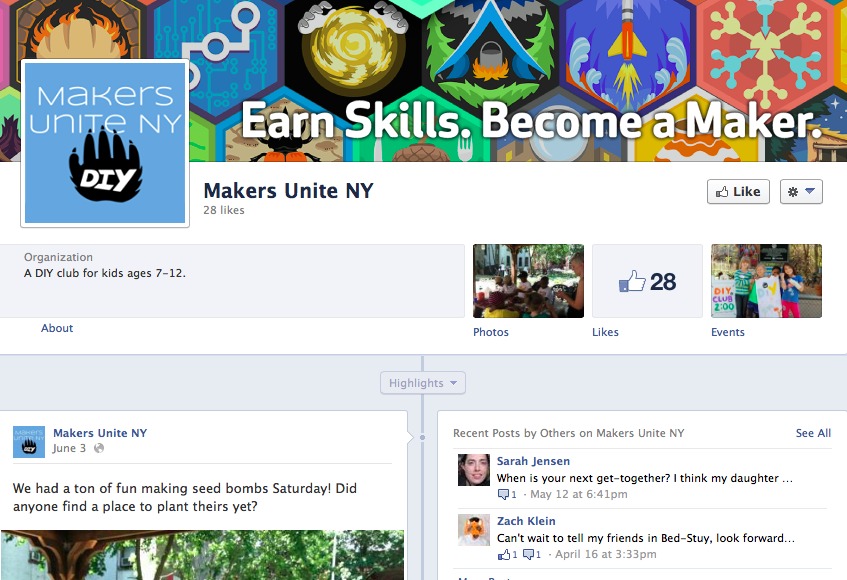

Step-by-step guide to make a club website
DIY Clubs - The Most Awesome Hub For Creative Kids Around The World To Chat, Connect, and Create!
Step 1
Choose a kid-friendly website builder to make your club site.
Step 2
Ask an adult to help you make or sign in to an account on the website builder.
Step 3
Pick a simple template you like to start your club website.
Step 4
Type your club's name as the site title so everyone knows who you are.
Step 5
Create a Home page for your club website.
Step 6
Add a short welcome sentence on the Home page to invite visitors in.
Step 7
Create an About page for your club.
Step 8
Add a short About paragraph that lists members and explains what your club does.
Step 9
Create an Activities page for the fun things your club does.
Step 10
Add three activity entries on the Activities page with a short description and a matching photo for each.
Step 11
Create a Calendar page for your club events.
Step 12
Add at least three events with titles and dates to the Calendar page.
Step 13
Add navigation links so visitors can move between Home About Activities and Calendar.
Step 14
Ask an adult to publish your site online so others can visit it.
Step 15
Share your finished club website on DIY.org
Help!?
What can we use if we can't access the recommended kid-friendly website builder or don't have an adult to help with signing in?
If you can't use the chosen kid-friendly website builder or don't have adult help for step 2, pick an easy alternative like Google Sites or Wix and have an adult create and sign in to the account as instructed.
My photos won't upload or the Activities page keeps losing my three activity entries—what should I try?
If photos won't upload to the Activities page or entries disappear, resize images to JPG/PNG under 1–2 MB, save drafts frequently, and ask the adult to check upload permissions or internet connection before publishing in step 11.
How can we adapt the project for younger children or make it more challenging for older kids?
For younger kids, simplify by choosing a template, typing only a short welcome sentence on the Home page and adding smartphone photos for the three Activities, while older kids can add member profile subpages, detailed activity descriptions, and a custom embedded Calendar with event details.
What are simple ways to extend or personalize the club website after finishing the Home, About, Activities, and Calendar pages?
Personalize the site by adding a club logo as the site title, creating a Members page from the About paragraph photos, embedding a live Google Calendar for the three events, and linking the published site when you share on DIY.org.
Watch videos on how to make a club website
Preschool Prep Kids Club!
2 Videos
Preschool Prep Kids Club!
Easy DIY Playhouse Ideas For Your Kids
Facts about website design for kids
🌐 The first website went live in 1991 and it was all about explaining how the World Wide Web worked!
🧱 HTML (Hypertext Markup Language) is like the skeleton of a webpage — it tells the browser what goes where.
🎨 Cascading Style Sheets (CSS) control colors, fonts, and layout so one stylesheet can change the look of many pages.
📅 You can embed a live calendar (like Google Calendar) in a site so club events update automatically for everyone.
🖼️ Using templates and photos can speed up building a site from hours to minutes while still looking great.
How do I make a simple club website to share activities online?
What materials and tools do I need to build a club website?
What ages are suitable for making a club website?
How can I keep the club website safe and private for children?
