Join a minecraft server
Set up a Minecraft account, join a child-friendly server with friends, explore builds, practice teamwork, and follow online safety and server rules.


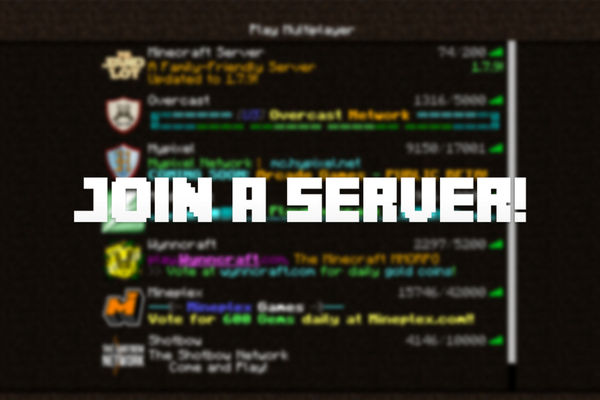
Step-by-step guide to join a Minecraft server
How to Host a Minecraft Server on your PC
Step 1
Ask an adult for permission and help to play Minecraft online.
Step 2
Create a Minecraft account with your adult's assistance.
Step 3
Sign in to Minecraft using your new account.
Step 4
Ask a parent or friend for a recommended child-friendly server invite or address.
Step 5
Enter the server address in Minecraft and click join to connect to the server.
Step 6
Read the server rules on the welcome board or type the /rules command.
Step 7
Choose a safe username or confirm your current name and do not use real personal details.
Step 8
Say a short friendly hello in chat without sharing personal information.
Step 9
Walk around the spawn area slowly to explore the builds you see.
Step 10
Type a polite request to a friend or server helper asking for a tour.
Step 11
Offer to help with a small team task by asking to join a build or gathering job.
Step 12
Follow the server rules and listen to teammates while you work together.
Step 13
Create a small build with your team such as a house or garden.
Step 14
Take a screenshot of your finished build to save how it looks.
Step 15
Share your finished creation on DIY.org
Help!?
What can we use instead of an adult if one isn't available to help create an account or give permission?
Ask a trusted guardian, older sibling, or teacher to help create and sign into the Minecraft account and to approve joining a server, or play in a private local world or a family Realm instead of a public server.
What should we try if the game won't let us join the server after entering the address?
Make sure you are signed into Minecraft with the new account, verify the server address is typed exactly (or copy/paste it), confirm your game edition/version matches the server, and have a parent check firewall or parental controls before asking a server helper for help via chat or the /rules command.
How can this activity be changed for younger children or made more challenging for older kids?
For younger children, have a parent or friend join the same private Realm to lead the tour, control chat, and do most building, while older kids can request tours in chat, take charge of a small team task, and organize a bigger collaborative build before taking the screenshot.
How can we personalize or extend our finished build before sharing it on DIY.org?
Add a sign with your safe username, decorate the house or garden with themed details and banners, invite teammates to expand the area into a neighborhood, then take a clear screenshot of the finished build and write a short teamwork description when you share it on DIY.org.
Watch videos on how to join a child-friendly Minecraft server
How To Make A Minecraft Server - Full Guide
4 Videos

How To Make A Minecraft Server - Full Guide
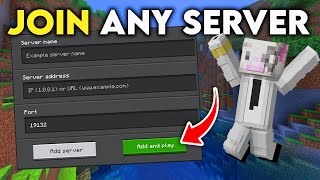
How to Join Any Minecraft Server on Bedrock Edition (Easy Tutorial)
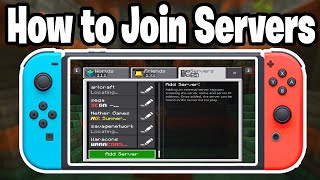
How To Join Servers On Minecraft Nintendo Switch! - Step By Step
How to Join My 24/7 Minecraft Server on Java + Bedrock! (Full Guide)
Facts about multiplayer online gaming for kids
🟩 Minecraft has sold over 200 million copies, making it one of the best-selling video games ever.
🧱 Some Minecraft servers let players cooperate to build entire cities, working together brick by brick.
👥 Playing on a multiplayer server encourages teamwork—players often take roles like builder, explorer, or defender.
🔒 Child accounts and parental controls (like Microsoft/Xbox family settings) can limit chat and friend requests for safer play.
📜 Many child-friendly servers publish clear rules and use volunteer moderators to keep the community safe and fun.
How do I join a child-friendly Minecraft server with my child?
What materials and accounts do we need to join a Minecraft server?
What ages is joining a child-friendly Minecraft server suitable for?
What safety rules should we follow on a child-friendly Minecraft server?
