Import a file from the internet on Procreate.
Find an image online, download it safely, then import it into Procreate to resize, trace, and start creating your own digital drawing.
About this activity
Find an image online, download it safely, then import it into Procreate to resize, trace, and start creating your own digital drawing.
What you need
Step by step
- 1
Step 1
Ask an adult to help you find and approve an image online that you are allowed to use.
- 2
Step 2
With the adult, open a kid-safe website or image source and pick an image you like.
- 3
Step 3
With the adult, tap and hold the image and save it to your Photos app.
- 4
Step 4
Open Procreate on your iPad.
- 5
Step 5
Tap the + button to create a new canvas and choose a size you like.
- 6
Step 6
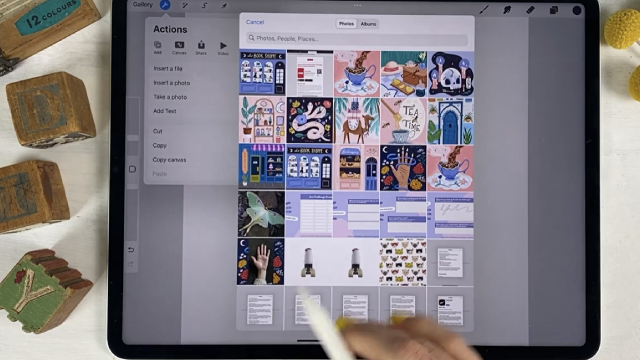
Tap the Actions wrench icon in the top menu.
- 7
Step 7
Tap Add then tap Insert a photo to bring your saved image into the canvas.
- 8
Step 8
Select the photo from your Photos to import it onto the canvas.
- 9
Step 9
Use the Transform tool to move and resize the imported image to the spot and size you want.
- 10
Step 10
Open the Layers panel and lower the imported image layer’s opacity so it looks faint.
- 11
Step 11
Create a new layer above the faint image layer to trace on.
- 12
Step 12
Choose a brush and trace over the faint image on your new layer to make your own drawing lines.
- 13
Step 13
Hide or delete the original image layer so only your traced drawing remains.
- 14
Step 14
Add color or extra details on new layers to make your drawing unique.
- 15
Step 15
Save your artwork using Actions then Share then PNG and then share your finished creation on DIY.org
Fun facts
How do I import an image from the internet into Procreate and trace it?
To import and trace an internet image in Procreate, first pick a safe, reusable image (public domain or with permission) and download it to your iPad. Open Procreate, create a canvas, tap Actions (wrench) > Add > Insert a photo or file and choose the image. Resize with two fingers, lower the layer opacity, then add a new layer above to trace with your Apple Pencil. After tracing, hide or delete the original layer and refine your drawing with colors and brushes.
What materials and apps do I need to import a file into Procreate?
Materials needed: an iPad or compatible tablet with Procreate installed, an Apple Pencil or stylus for better control, a steady internet connection to find images, and enough free storage. Use a safe image source (public domain, Creative Commons, or your own photos). Optionally install Files or a photo manager for downloads. Procreate accepts JPG, PNG, TIFF, and PSD files. Also keep a protective case and adult supervision for younger children.
What ages is importing and tracing images in Procreate suitable for?
Importing and tracing images in Procreate suits kids about 7 and up for independent work; younger children (4–6) can try with close adult help. Tweens (10–13) can handle more complex steps like file management and resizing, while teens can explore advanced tracing and editing techniques. Adjust tasks to fine motor skill level and limit screen time. Always supervise online searches and downloading to teach safe habits.
What safety, copyright tips and creative variations should I know when importing images into Procreate?
Safety and copyright tips: choose images labeled for reuse or use your own photos, and avoid downloading from untrustworthy sites. Teach kids to scan images and use virus-safe sources and parental controls. Creative variations include converting photos to silhouette for pattern-making, importing multiple images to collage, or lowering opacity to practice freehand styles. Benefits: tracing builds observation, hand-eye coordination, and confidence in digital tools.
Watch & Learn
Need help?
What can we use if we don't have Procreate or an iPad?
You can follow the same steps using a different drawing app (for example Autodesk SketchBook, ibisPaint X, or Procreate Pocket on iPhone) by saving the image to your Photos, creating a new canvas, then using that app's Insert/Add photo and tracing on a new layer.
The imported image doesn't appear when I tap Insert a photo — what should we try?
Check that you actually saved the image to Photos (step: tap and hold then Save), give Procreate permission to access Photos in iPad Settings, close and reopen Procreate, and then use Actions > Add > Insert a photo again.
How can we change the difficulty so both little kids and older kids can do this activity?
For younger kids let an adult do the online search and the Import steps and choose a simple, high-contrast image and a large brush for tracing, while older kids can use smaller brushes, multiple layers, lower the imported layer's opacity more, and add detailed coloring and effects before exporting.
How can we make the traced artwork more creative before sharing it on DIY.org?
After hiding or deleting the original layer, personalize your piece by adding new layers for color, textured brushes for shading, custom color palettes, and optional effects like clipping masks or Procreate's Animation Assist before saving as PNG to share.