Give your Pets a Digital Makeover: Eyewear & Headwearur Pets a Digital Makover: Jewelry Edition
Use a tablet or computer to add eyewear, hats, and jewelry to pet photos, learning about scale, color, and design while creating playful portraits.


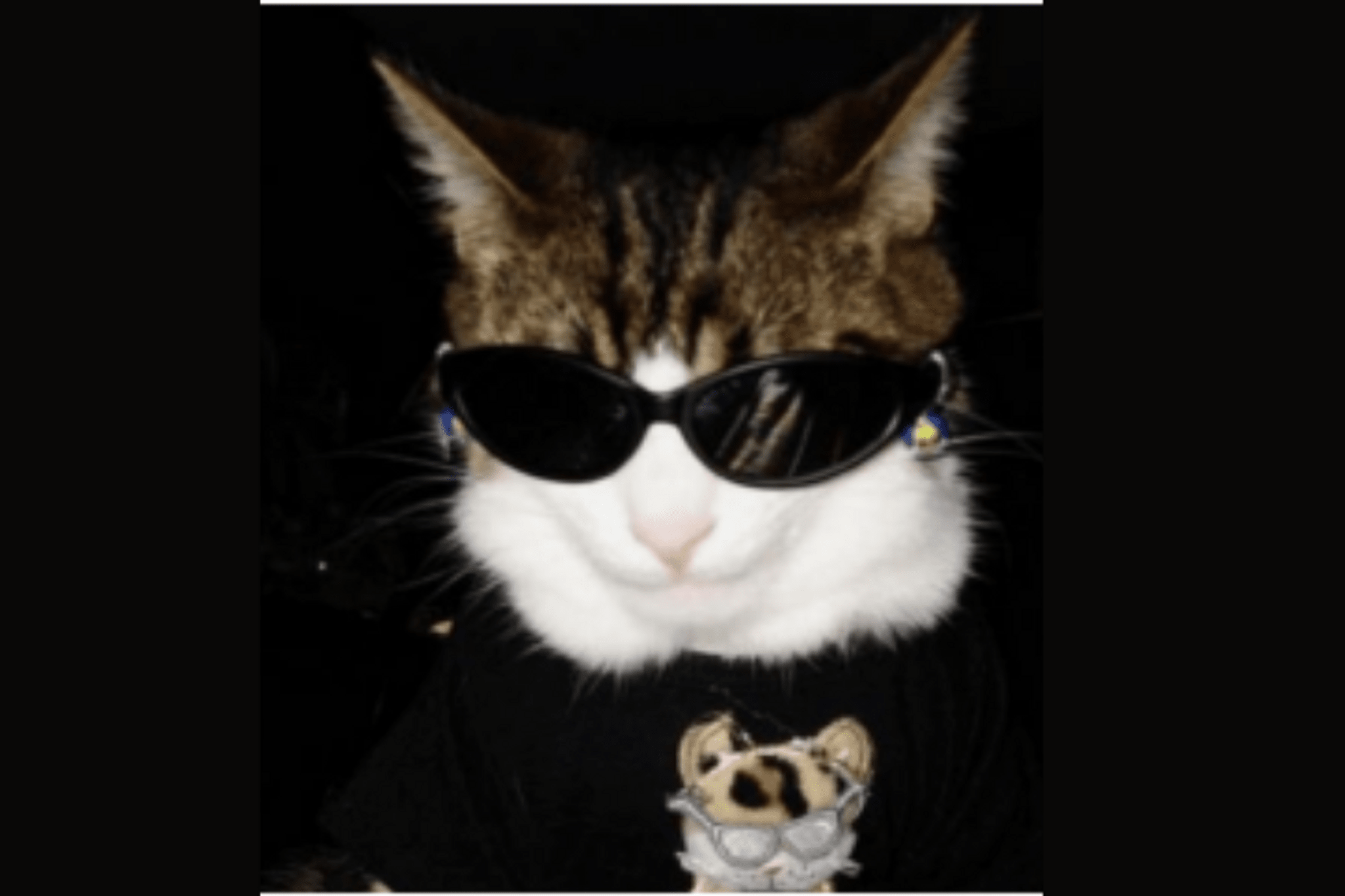

Step-by-step guide to give your pet a digital makeover: eyewear, headwear, and jewelry
BEST PET GADGETS AND HACKS EVERY PET OWNER SHOULD KNOW
Step 1
Pick one clear photo of your pet from the tablet or computer.
Step 2
Open the chosen photo in your photo editing app or drawing program.
Step 3
Create a new transparent layer above the photo to keep your accessories separate from the picture.
Step 4
Draw a simple eyewear shape over your pet’s eyes using the shape tool or brush so you can work on scale.
Step 5
Use the transform or resize tool to adjust the eyewear so the frames sit comfortably over the pet’s eyes.
Step 6
Choose two colors for the frames and lenses using the color picker to explore contrast and style.
Step 7
Fill the eyewear shapes with your chosen colors using the fill tool or brush.
Step 8
Create another new layer and draw a hat or headband above the pet’s head.
Step 9
Resize and rotate the hat to match the pet’s head angle using the transform tool.
Step 10
Create another new layer and draw a necklace collar or ear jewelry and place it around the pet’s neck or ear.
Step 11
Add soft shadows and highlights on separate layers with a low-opacity brush to make accessories look three dimensional.
Step 12
Save or export your finished portrait as an image file to your device.
Step 13
Share your finished creation on DIY.org
Help!?
What can we use if we don't have a tablet, computer, or a photo-editing app?
Print the chosen clear photo and use tracing paper and markers to draw eyewear, a hat, and a necklace by hand, or use a smartphone with free apps like Pixlr or Canva to follow the same steps digitally.
My drawn frames don't sit right over my pet's eyes when I resize them—what should I try?
Lower the eyewear layer's opacity to see the pet underneath, then use the transform/resize and rotate tools on that transparent layer to align the frames with the eyes before restoring opacity and cleaning edges.
How can I adapt this activity for younger kids or older kids?
For younger kids, give pre-made sticker shapes or printed templates to place over the photo so they can skip layer and transform steps, while older kids can add extra layers for soft shadows/highlights and experiment with blending modes and custom brushes for more realistic accessories.
What are simple ways to enhance or personalize the finished pet portrait?
Add patterns or textures to frames and hats using the color picker and fill tool on separate layers, export the result as a PNG or JPG using the save/export step, and share it on DIY.org or make a short animated GIF by saving a few versions with slight accessory changes.
Watch videos on how to give your pet a digital makeover: eyewear, headwear, and jewelry
Secret Pet House Upgrades! 🐾 🏡 New DIY Room Makeover, Hacks & Gadgets
4 Videos
Secret Pet House Upgrades! 🐾 🏡 New DIY Room Makeover, Hacks & Gadgets
Next-Gen Smart Glasses That Will Blow Your Mind - Even Realities G1 Smart Glasses

transform your pet with AI
How To Hand-Make Eyewear From Acetate
Facts about digital photo editing for kids
🎨 Image editors use 'layers' so you can add glasses or hats and still move them independently — layers became popular in the 1990s.
🐶 Pet photos are some of the most-shared and most-loved images online, which makes pet makeovers super fun to show off!
🕶️ When you add eyewear, designers often use the distance between the pet’s eyes to scale and place glasses correctly.
🎩 Changing a hat’s color can change the whole mood of a portrait — warm colors feel energetic, cool colors feel calm.
💎 Small jewelry details read bigger on screen if you boost contrast and add a tiny shadow, a common illustrator trick to make accessories pop.
How do I give my pet a digital makeover with eyewear, hats, and jewelry?
What materials or apps do I need to do a digital pet makeover?
What ages is a digital pet makeover suitable for?
What are the benefits of doing digital makeovers for my pet?
