Give us a procreate tour like a pro
Explore Procreate tools and create a simple digital illustration, practicing brushes, layers, color mixing, and basic workflow on a tablet.
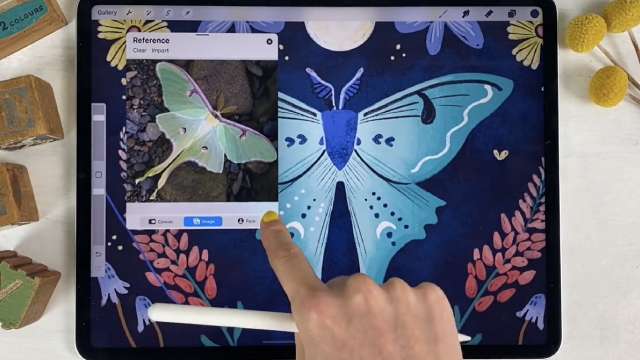
About this activity
Explore Procreate tools and create a simple digital illustration, practicing brushes, layers, color mixing, and basic workflow on a tablet.
What you need
Step by step
- 1
Step 1
Open the Procreate app on your tablet so you can start a new drawing.
- 2
Step 2
Tap the + button in the Gallery and choose a canvas size you like to make a new canvas.
- 3
Step 3
Tap the Brush icon and pick a soft sketch brush from the Sketching set to make light marks.
- 4
Step 4
Draw a simple light pencil sketch of a subject you love like a pet a plant or a fruit.
- 5
Step 5
Tap the Layers icon and add a new layer on top of your sketch for cleaner work.
- 6
Step 6
Lower the sketch layer’s opacity until the sketch is faint so you can trace easily.
- 7
Step 7
Select an inking brush and draw clean line art on the new top layer tracing your sketch.
- 8
Step 8
Add another new layer beneath the line art layer to hold your flat colors.
- 9
Step 9
Tap the Color circle and choose a base color for one area of your drawing.
- 10
Step 10
Paint flat color areas inside the lines on the flats layer to block in shapes.
- 11
Step 11
Add one more new layer above the flats layer to use for shadows and highlights.
- 12
Step 12
Change the new layer’s blend mode to Multiply for shadows or Overlay for light effects.
- 13
Step 13
Choose a soft low-opacity brush and paint shadows and highlights on that layer to add depth.
- 14
Step 14
Export your finished illustration to your Photos as a PNG using the Actions -> Share menu.
- 15
Step 15
Share your finished creation on DIY.org.
Fun facts
How do I give a kid-friendly Procreate tour so they can create a simple digital illustration?
Start by opening Procreate and choosing a basic canvas size. Show the gallery, then the brush library, color picker, and layers panel. Demonstrate a simple workflow: sketch with a pencil brush, add color on a new layer, and use blend modes or opacity. Teach undo/redo gestures and how to resize or erase. Finish by exporting the image. Keep steps short, demonstrate slowly, and let the child try each tool after you show it.
What materials do I need to explore Procreate tools and create a digital illustration?
You need an iPad that supports Procreate and the Procreate app installed. A stylus (Apple Pencil recommended) helps control strokes. Include a charged device, a comfy stand or case, a screen protector to mimic paper texture, and a simple reference image. Optional items: headphones, a palette or color swatches saved in the app, and a backup method (iCloud) to save work. A quiet, well-lit workspace completes the setup.
What ages is this Procreate activity suitable for?
Suitable for children around 6+ with adult guidance; younger kids can explore brushes and colors while an adult handles menus. Ages 8–12 can follow step-by-step lessons, practice layers, and learn basic mixing with supervision. Teens can work independently on more detailed illustrations and advanced settings. Adjust complexity and session length to match attention span and fine-motor skills, offering simpler tasks for younger children.
What are the benefits of doing a Procreate tour and digital illustration with a child?
This activity builds creativity, digital art skills, and hand-eye coordination while introducing layers, color theory, and workflow habits. Children learn problem-solving by experimenting with brushes and blending, and gain confidence when saving and exporting work. It also teaches responsible screen use, file organization, and how to share or print artwork. Regular practice improves fine-motor control and can translate into traditional art skills as well.
Watch & Learn
Need help?
I don't have an iPad or Procreate — what can I use instead?
Use a similar tablet app such as Autodesk SketchBook, MediBang Paint, or Procreate Pocket on your device and follow the same steps (new canvas, soft sketch brush, layers, flats, shadows/highlights, and export to Photos).
My line art is wobbly or messy when I trace the sketch — how do I fix it?
Select an inking brush and enable StreamLine in the brush settings before tracing, and also lower the sketch layer’s opacity so your top line-art layer is easier to draw cleanly on.
How can I adapt this Procreate tour for younger or older kids?
For younger kids use a larger canvas, big simple shapes, chunky inking brushes and ColorDrop to fill the flats layer, while older kids can add extra layers for texture, use Multiply/Overlay for shadows/highlights, tweak brush settings, and export PNGs to share on DIY.org.
How can we extend or personalize the finished illustration beyond the basic steps?
Add a background layer beneath the flats layer, use clipping masks for patterned fills, try texture brushes on a separate layer before switching to Multiply/Overlay for shading, or enable Animation Assist in Actions -> Canvas to make a short animation to export along with your PNG.