Encrypt using openssl
Use OpenSSL to encrypt and decrypt short text messages with adult help on a computer, learning about passwords, keys, and secrecy.


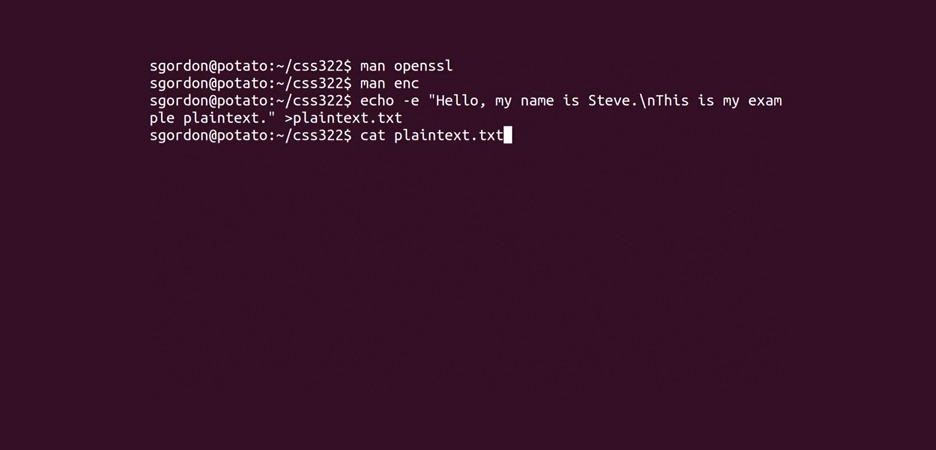

Step-by-step guide to encrypt using OpenSSL
Encrypt and Decrypt Messages Using OpenSSL | Complete Encryption Tutorial for Beginners #OpenSSL
Step 1
With an adult, open the Terminal or Command Prompt on the computer.
Step 2
With an adult, create a new text file named secret.txt and type your short secret message into it.
Step 3
Choose a strong password with your adult helper and write it down on paper so you will remember it.
Step 4
With an adult, check that OpenSSL is installed by typing openssl version and pressing Enter.
Step 5
With an adult, encrypt secret.txt using a password by running: openssl enc -aes-256-cbc -pbkdf2 -salt -in secret.txt -out secret.enc and enter the password when prompted.
Step 6
Look in the folder to confirm the encrypted file secret.enc was created (use ls or dir with your adult).
Step 7
With an adult, decrypt secret.enc to a new file by running: openssl enc -aes-256-cbc -d -pbkdf2 -in secret.enc -out secret_decrypted.txt and enter your password when prompted.
Step 8
Open secret_decrypted.txt and check that the message matches your original secret.txt.
Step 9
With an adult, create a 2048-bit RSA private key by running: openssl genpkey -algorithm RSA -out private.pem -pkeyopt rsa_keygen_bits:2048.
Step 10
With an adult, create the matching public key by running: openssl rsa -pubout -in private.pem -out public.pem.
Step 11
With an adult, encrypt secret.txt using the public key by running: openssl pkeyutl -encrypt -pubin -inkey public.pem -in secret.txt -out secret_rsa.enc.
Step 12
With an adult, decrypt secret_rsa.enc using the private key by running: openssl pkeyutl -decrypt -inkey private.pem -in secret_rsa.enc -out secret_rsa_decrypted.txt.
Step 13
Open secret_rsa_decrypted.txt and confirm the message matches the original secret.txt.
Step 14
Share your finished lesson and what you learned about passwords keys and secrecy on DIY.org.
Help!?
What if OpenSSL is not installed or I can't find it?
Install OpenSSL so you can run the openssl commands in the instructions—for example use 'sudo apt install openssl' on Linux, 'brew install openssl' on macOS, or install Git for Windows/WSL on Windows to get access to the 'openssl' command.
My decrypted file doesn't match the original; what should I check?
Check that you entered the exact same password when running the openssl enc -aes-256-cbc -pbkdf2 commands, that secret.enc was created in the same folder (use ls or dir), and that you used the correct input/output filenames when decrypting.
How can I adapt this activity for different ages?
For younger kids, have an adult type the Terminal/Command Prompt steps while the child writes secret.txt and watches the file appear, skipping the RSA key steps; for older kids, let them type the commands themselves and try generating a 4096-bit RSA key using openssl genpkey -algorithm RSA -out private.pem -pkeyopt rsa_keygen_bits:4096 to explore stronger keys.
How can we extend or personalize the encryption lesson?
As an extension, create and verify a digital signature with the private/public keys using openssl dgst -sha256 -sign private.pem -out secret.sig secret.txt and verify with openssl dgst -sha256 -verify public.pem -signature secret.sig secret.txt, or protect private.pem with a passphrase when generating it.
Watch videos on how to encrypt using OpenSSL
OpenSSL Tutorial Video-3 | Encryption using OpenSSL
4 Videos
OpenSSL Tutorial Video-3 | Encryption using OpenSSL
Encrypt and Decrypt Files with AES Using OpenSSL
Encrypting Files with OpenSSL

Public Key Encryption with OpenSSL: Easy Guide
Facts about cryptography and digital security for kids
🔐 OpenSSL is an open-source toolkit used around the world to help encrypt internet traffic and messages.
🔑 Symmetric encryption uses the same secret key to lock and unlock data, while public-key cryptography uses a pair of keys (one public, one private).
🧠 Short passwords are easier to guess — using a longer passphrase (a few words) makes secrets much harder to crack.
🔎 The 2014 'Heartbleed' bug in OpenSSL taught the internet a big lesson: software must be updated to keep secret keys safe.
💡 Learning to encrypt and decrypt messages helps you practice problem-solving, privacy, and careful handling of passwords and keys.
How do I use OpenSSL to encrypt and decrypt a short message with a child?
What materials do I need to do this OpenSSL encryption activity?
What ages is the OpenSSL encryption activity suitable for?
What safety tips and benefits come from teaching kids OpenSSL encryption?
