Digital Art Tips & Tricks with DIY Star @Wolfeycriesrainbows
Learn easy digital art tips and tricks to design a colorful DIY star avatar using a tablet or computer, practicing layers, shapes, and shading.


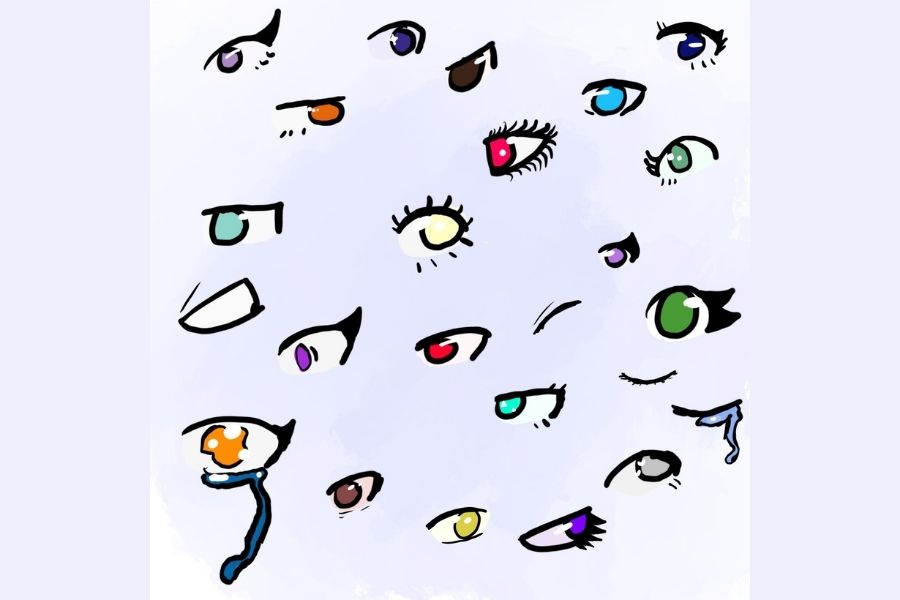
Step-by-step guide to create a DIY star avatar (Digital Art Tips & Tricks)
Step 1
Open your drawing app.
Step 2
Create a new square canvas about 1000 by 1000 pixels.
Step 3
Unlock or select the background layer.
Step 4
Fill the background layer with a color you like.
Step 5
Select the star shape tool or the pen tool.
Step 6
Draw a star shape in the center of the canvas.
Step 7
Create a new layer above the background for the star base.
Step 8
Select a bright base color for your star.
Step 9
Fill the star shape on the star base layer with the base color.
Step 10
Create a new layer above the base layer for shading.
Step 11
Use a soft low-opacity brush to paint darker shading on one side of the star on the shading layer.
Step 12
Create another new layer above the shading layer for highlights.
Step 13
Use a small soft brush to paint lighter highlights on the highlight layer.
Step 14
Trace a clean outline around the star on a top line-art layer to make the edges pop.
Step 15
Share your finished colorful DIY star avatar on DIY.org.
Help!?
What can we use if the drawing app doesn't have a star shape tool?
If your app lacks a star shape tool, draw the star with the pen tool or paste a star PNG onto a new star base layer on your 1000×1000 canvas and fill it with the bright base color.
Why can't I see my shading or highlights on the star?
If shading or highlights aren't visible, make sure the shading and highlight layers are placed above the star base layer, the background layer is unlocked, and your brush opacity is low for soft shading.
How can I change the activity for younger or older kids?
For younger kids, simplify by using the star shape tool, large soft brushes on the shading and highlight layers, and a bold outline on the line-art layer, while older kids can add extra layers for gradients, blending modes, finer highlights, and more detailed line-art before sharing on DIY.org.
How can we make the star avatar more unique or advanced?
To enhance the star, try multicolor fills on the star base layer, add a gradient or overlay on the shading layer, apply a soft outer glow on the highlight layer, and decorate the top line-art layer with patterns or a signature before posting on DIY.org.
Watch videos on how to create a DIY star avatar (Digital Art Tips & Tricks)
5 Digital Art Tips FOR BEGINNERS 2021
4 Videos
5 Digital Art Tips FOR BEGINNERS 2021
【 PART 1 】★ A Beginner's Guide to Become a Digital Artist
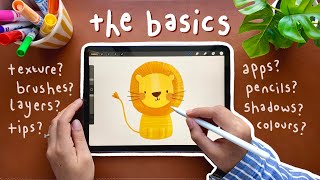
Digital art for beginners 🍃 the basics! How to get started + step-by-step Procreate tutorial

10 Tips for Beginner Digital Artists
Facts about digital art for kids
🎨 Digital art uses layers so you can stack, edit, and rearrange parts without changing the whole picture.
🖊️ Graphics tablets sense pressure, letting your stylus draw thin or thick lines just like a real pen or brush.
🎯 Complementary colors sit opposite each other on the color wheel and make each other look brighter when paired.
✨ Avatars can be tiny icons or full illustrations — stars are a popular simple avatar shape that read well at small sizes.
🗂️ Saving your project in the app's native file format (like PSD or the app's layered format) preserves layers so you can edit later.
How do I create a colorful DIY star avatar using digital art tips from @Wolfeycriesrainbows?
What materials and apps do I need for Digital Art Tips & Tricks with DIY Star?
What ages is the DIY star avatar activity suitable for?
What are the benefits of learning digital art tips and designing a DIY star avatar?
