Create Your Social Story on Scratch
Design and code a short interactive social story on Scratch, adding characters, dialogues, and simple animations to practice storytelling and basic programming skills.
About this tutorial
Design and code a short interactive social story on Scratch, adding characters, dialogues, and simple animations to practice storytelling and basic programming skills.
What you need
Step by step
- 1
Step 1
Pick one social situation for your story like sharing a toy making a new friend or asking for help
- 2
Step 2
Write a short script of 3 to 6 lines on your paper for the characters to say
- 3
Step 3
Open Scratch and start a new project
- 4
Step 4
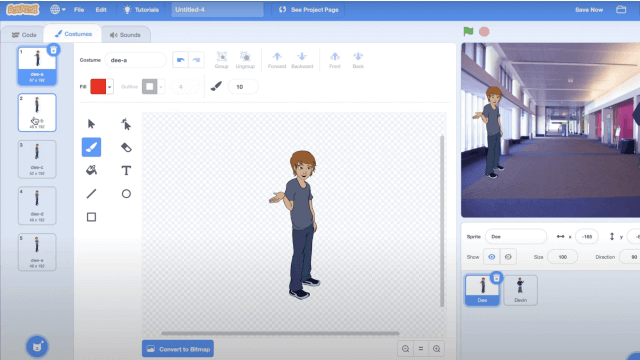
Delete the default cat sprite and choose sprites for each character in your story
- 5
Step 5
Choose a background (stage) that fits the place where your story happens
- 6
Step 6
Give each sprite a clear name that matches a character from your script
- 7
Step 7
For each line in your script add a "say" block to the matching sprite and type the exact sentence
- 8
Step 8
Add simple animations to sprites using "move" "glide" or "next costume" blocks to show actions
- 9
Step 9
Use "wait" blocks or "broadcast" messages to make the dialogue happen in the right order
- 10
Step 10
Add sounds or short music by using "play sound" blocks or uploading a sound for a sprite
- 11
Step 11
Click the green flag to test your story from start to finish and watch how it plays
- 12
Step 12
Edit any text timing or animation blocks that need fixing and test again until it flows nicely
- 13
Step 13
Save your project and give it a title that matches your social story
- 14
Step 14
Share your finished creation on DIY.org
Fun facts
How do I create a short interactive social story on Scratch?
Start by choosing a simple social situation and the message you want to teach. Sketch characters, scenes, and short dialogue. On Scratch, create sprites and backdrops, use 'say' or 'broadcast' blocks for dialogue, and motion/looks blocks for animations. Add clickable events or broadcast messages to make interactions. Test each scene, fix timing or speech bubbles, then save and share. Keep scenes short and choices clear for easier understanding.
What materials do I need to make a social story on Scratch?
You need a computer or tablet with internet and a modern browser, and a free Scratch account (optional for saving/sharing). Have a mouse or trackpad, headphones, paper and pencil for planning scripts, and an optional microphone for recording voices. Printed images or stickers can be used for inspiration. Adult help may be needed to set up accounts and explain basic blocks.
What ages is creating a Scratch social story suitable for?
This activity suits children roughly ages 7–14. Younger children (about 5–6) can join with caregiver assistance to place sprites and record lines, enjoying drag-and-drop coding. Older kids and teens can add variables, conditionals, and branching choices to make interactive stories more advanced. Tailor complexity, session length, and adult support to each child’s reading level and attention span.
What are the benefits of designing social stories on Scratch?
Making social stories on Scratch builds storytelling, empathy, sequencing, and basic programming skills. Kids practice writing dialogue, planning cause-and-effect, and debugging when interactions fail. The project boosts confidence through visible results and sharing, supports social learning by modeling behaviors, and introduces computational thinking. Encourage discussing character choices to deepen understanding and social awareness.
Watch & Learn
Need help?
If we can't access the Scratch website or DIY.org, what can we use instead?
Use the Scratch Offline Editor (Scratch Desktop) or ScratchJr to create and save your project locally, export the .sb3 file or record a video of the green-flag test, and upload or email that file later instead of sharing directly on DIY.org.
My characters all speak at once instead of one after another — how do I fix the timing?
Add appropriate 'wait' blocks after each sprite's 'say' block or use 'broadcast' messages so each sprite's script starts only when the previous sprite finishes, matching the instruction to use wait or broadcast for order.
How can I adapt this Scratch social story for younger or older children?
For younger kids keep the script to 3 lines, choose simple sprites and use only 'say' and 'next costume' or basic 'move' blocks, while older kids can add broadcasts, 'if' branching, custom voice recordings and more complex glides or variables for richer interactions.
How can we personalize or extend the finished story beyond the basic steps?
Personalize by uploading photos as sprites or stage backgrounds, record each character's voice with 'play sound', add branching outcomes using 'broadcast' plus 'if' blocks for alternate endings, and refine animations before saving and sharing on DIY.org.