Create Your Digital Postcard on Procreate
Design and draw a colorful digital postcard using Procreate, add stickers and handwritten text, then export or share your finished artwork.
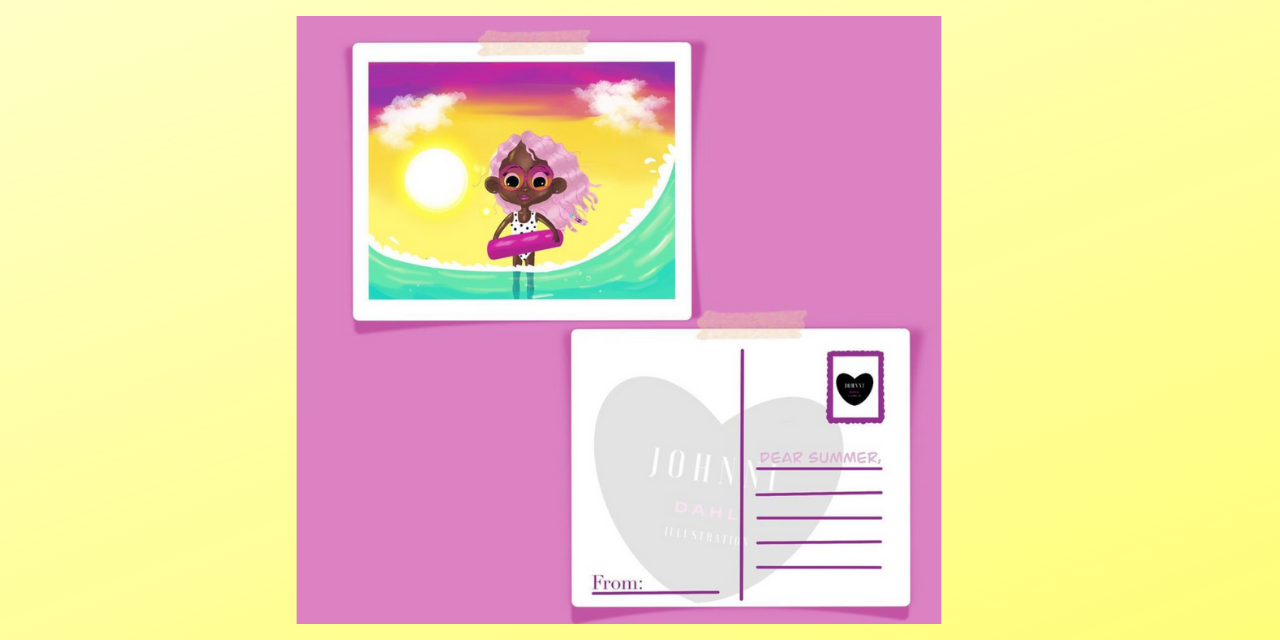
About this activity
Design and draw a colorful digital postcard using Procreate, add stickers and handwritten text, then export or share your finished artwork.
What you need
Step by step
- 1
Step 1
Open the Procreate app on your iPad.
- 2
Step 2
Create a new canvas sized 6 inches wide by 4 inches tall at 300 DPI.
- 3
Step 3
Pick a bright background color from the Color menu.
- 4
Step 4
Fill the whole canvas with that background color by dragging the color onto the canvas.
- 5
Step 5
Add a new layer for your sketch by tapping the Layers icon and pressing the + button.
- 6
Step 6
Lightly sketch your postcard idea on the sketch layer using a pencil-style brush.
- 7
Step 7
Add a new layer above the sketch layer for clean lines.
- 8
Step 8
Trace over your sketch with a clean ink or pen brush on the line-art layer.
- 9
Step 9
Create a layer beneath the line-art and color your drawing using solid brushes.
- 10
Step 10
Insert fun stickers by using the Actions menu > Add > Insert a photo or file and place the sticker where you like.
- 11
Step 11
Add a new layer and write your handwritten message with a script or brush tool.
- 12
Step 12
Add small shadows or highlights on a new layer to make your drawing pop.
- 13
Step 13
Export your postcard by tapping Actions > Share and choosing PNG or JPEG to save your image.
- 14
Step 14
Share your finished creation on DIY.org.
Fun facts
How do I create a digital postcard in Procreate?
Start a new canvas at postcard size (for example 5x7 inches at 300 DPI). Sketch your layout on a separate layer, add color on layers beneath the line art, and use textured brushes for background interest. Import or create sticker PNGs on individual layers and place them where you like. Handwrite a message with a calligraphy or monoline brush on a top layer. Adjust opacity and blend modes, then export as PNG or JPEG to share via AirDrop, email, or social media.
What materials do I need to make a Procreate digital postcard?
You need an iPad that runs Procreate and the Procreate app installed, plus an Apple Pencil or compatible stylus (optional but helpful). Have a variety of brushes, reference images, and any sticker PNGs or sticker brush packs you want to use. A charger and screen protector/case are useful. For sharing or printing, set up AirDrop, email, or cloud storage. No paper is required unless you plan to print the final design.
What ages is this Procreate postcard activity suitable for?
This activity works for many ages: children around 6–8 can create simple postcards with adult guidance; kids 9–12 can manage layers, brushes, and export with moderate independence; teens can explore advanced techniques like custom brushes and typography. Younger children (3–5) can still participate using pre-made stickers and guided tracing while supervised. Adjust complexity, time, and instructions to match each child’s skill and attention span.
What are the benefits, safety tips, and fun variations for digital postcard making?
Making digital postcards builds creativity, fine motor skills, composition sense, and digital literacy. Safety tips: set screen-time limits, supervise purchases and sharing, avoid posting personal details, and back up artwork to iCloud or Dropbox. Variations include themed postcards (holidays, travel), photo-collage postcards using photos, and short animated postcards using Procreate’s Animation Assist to add moving stickers or a hand-written message.
Watch & Learn
Need help?
What can we use if we don't have an iPad or the Procreate app?
If you don't have an iPad or Procreate, use Procreate Pocket on an iPhone or other drawing apps like Autodesk SketchBook or Adobe Fresco to create a 6x4-inch 300 DPI canvas, or draw on paper and import a photo via Actions > Add > Insert a photo or file.
The background color won't fill when I drag it onto the canvas—what should we check?
If the color won't fill, make sure you're on the bottom/background layer (not locked or alpha-locked), then drag the color onto the canvas and hold while sliding to adjust the ColorDrop threshold until the whole canvas fills.
How can we modify this activity for younger kids or challenge older kids?
For younger kids, simplify to a single background plus one sketch layer and use large pre-made stickers from Actions > Add, while older kids can keep the 6x4 300 DPI canvas, add multiple layers for line-art, color, shadows/highlights, and use fine ink brushes for detail.
What are some ways to extend or personalize our digital postcard after finishing the basic steps?
To extend the project, add animated details on a new layer with Procreate's Animation Assist, use custom photos as stickers via Actions > Add > Insert a photo or file, and export with Actions > Share as PNG/JPEG to print or share on DIY.org.