Create Kawai Art on Procreate.
Create kawaii style digital characters on Procreate using simple shapes, bright colors, layers, and brushes to learn drawing, coloring, and digital art skills.
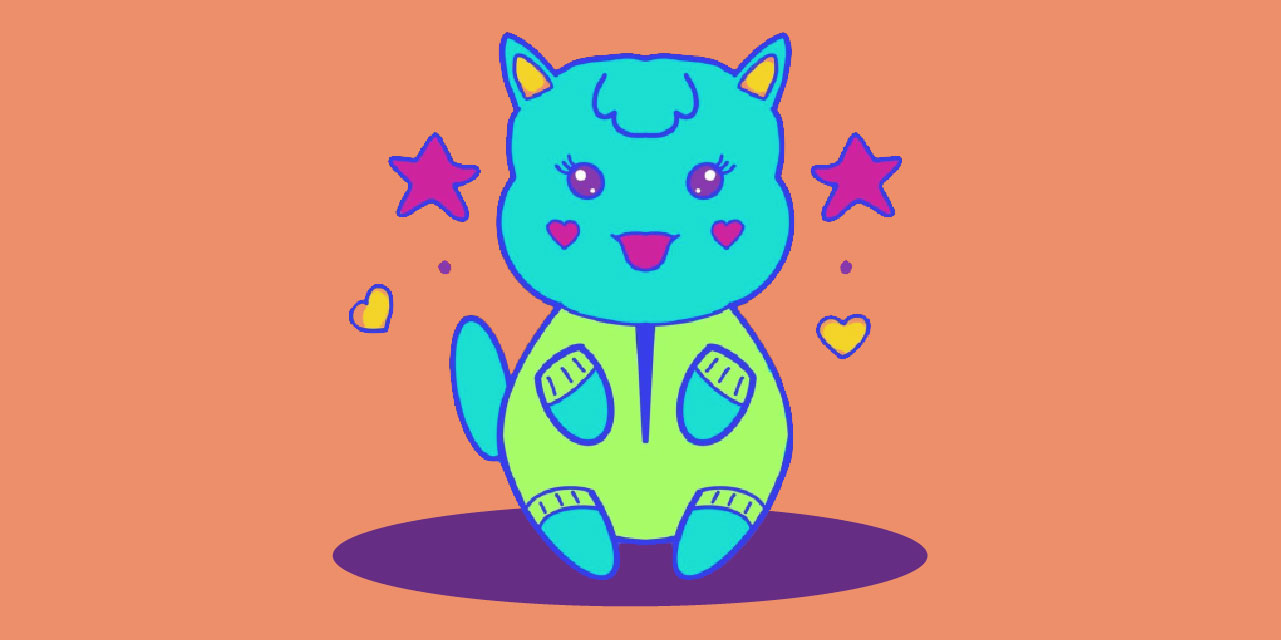
About this activity
Create kawaii style digital characters on Procreate using simple shapes, bright colors, layers, and brushes to learn drawing, coloring, and digital art skills.
What you need
Step by step
- 1
Step 1
Open Procreate and create a new canvas in a size you like.
- 2
Step 2
Tap the color panel and pick 4–6 bright candy or pastel colors for your palette.
- 3
Step 3
Make a new layer and choose a light sketching brush.
- 4
Step 4
Sketch the character’s body and head using simple shapes like circles and ovals.
- 5
Step 5
Draw big rounded eyes a tiny nose and a small smiling mouth to make a kawaii face.
- 6
Step 6
Lower the sketch layer opacity and add a fresh layer above it for clean lines.
- 7
Step 7
Trace neat outlines over your sketch using a smooth inking brush.
- 8
Step 8
Create a layer beneath the ink layer to hold your flat colors.
- 9
Step 9
Fill each area with flat color from your palette using the color fill or a brush.
- 10
Step 10
Add small blush spots and bright white eye highlights on tiny new layers.
- 11
Step 11
Create a new layer set to Multiply and add simple soft shading with low opacity.
- 12
Step 12
Make a bright simple background with shapes or a gradient on the bottom layer.
- 13
Step 13
Hide the sketch layer and look for any tiny fixes to lines or color.
- 14
Step 14
Export your finished image to Photos or Files so it’s ready to share.
- 15
Step 15
Share your finished kawaii character on DIY.org
Fun facts
How do you create kawaii art on Procreate?
Begin by opening Procreate and creating a square canvas (e.g., 2048×2048). Sketch simple shapes (circles, ovals, rounded rectangles) on a sketch layer to block out your kawaii character. Add a new layer for clean line art using a monoline or ink brush. Create separate color layers under the line art and fill with bright, flat colors. Use soft brushes for blush and highlights, adjust opacity, and group layers. Export as PNG when finished.
What materials do I need to create kawaii art on Procreate?
You'll need an iPad or iPad Air with Procreate installed and a pressure-sensitive stylus like an Apple Pencil for best results. Procreate's built-in brushes and color palettes are enough, but you can download kawaii brush packs or custom palettes. Optional items: reference images, a protective case or stand, charger, and cloud backup set up. If you don't have an Apple Pencil, compatible styluses can work but may limit pressure control.
What ages is creating kawaii art on Procreate suitable for?
Creating kawaii art on Procreate suits children roughly ages 6 and up. Younger kids (6–7) can enjoy simple shapes and coloring with adult supervision for device handling. Ages 8–12 can follow step-by-step tutorials and manage layers with guidance. Teens can explore advanced brushes, shading, and exporting for print or stickers. Always set screen-time limits, supervise purchases, and ensure ergonomic posture for longer sessions.
What are the benefits and safety tips for kids making kawaii art on Procreate?
Benefits include improved fine motor control, color theory basics, creativity, layering logic, and digital workflow skills useful for future art or design. For safety, set screen-time limits, enforce breaks, check age settings and in-app purchases, and teach safe sharing of exported images. Variations: try animated GIF frames in Procreate, design sticker sheets, or limit palette to pastel colors for a classic kawaii look.
Watch & Learn
Need help?
What if we don't have Procreate or an Apple Pencil—what can we use instead?
If you don't have Procreate or an Apple Pencil you can follow the same steps (new canvas, pick colors, layers, sketch, ink, fill, shade, background, export) in a free app like ibisPaint X or Autodesk SketchBook and use your finger or a generic stylus.
The color fill is leaking outside my lines—how do I fix it?
When filling colors on the flat-color layer, increase the color-fill threshold or close tiny gaps in your sketch/ink with the smooth inking brush before refilling so the flood-fill stays inside the shapes.
How can I adapt this project for different ages?
For younger kids simplify by using 3 big candy colors, basic circle/oval sketches, and letting them color inside outlines, while older kids can add the Multiply shading layer, detailed highlights, background gradients, and export high-resolution images to Photos or Files.
How can we make the kawaii character more unique or advanced?
Personalize the character by adding patterned clothes or accessories on new layers, use the Multiply layer for textured shading, try Animation Assist for a blinking highlight, and export multiple poses to share on DIY.org.