Create Digital Scratch Art on Procreate
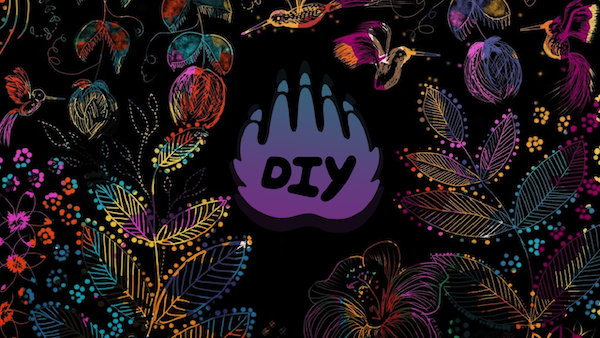
Make colorful digital scratch art in Procreate by layering bright colors, covering with a dark layer, then scratching away with a stylus to reveal designs.


Step-by-step guide to create digital scratch art on Procreate
Step 1
Open Procreate and create a new square canvas.
Step 2
Tap the Layers icon and add a new layer for your bright base colors.
Step 3
Choose a bright color from the Color panel and paint a big patch on the canvas.
Step 4
Pick more bright colors and paint additional patches until the canvas is mostly colorful.
Step 5
Use the Smudge tool or a soft brush to gently blend any edges if you want smoother joins.
Step 6
Add a new layer above your colors and fill it completely with a dark color by dragging the color circle onto the canvas.
Step 7
Tap the Eraser tool and choose a textured or scratchy eraser brush you like.
Step 8
Erase on the dark layer with your stylus to scratch away shapes and reveal the bright colors beneath.
Step 9
Switch to a smaller eraser size and add fine lines dots or tiny details to your design.
Step 10
Tap Actions then Share and export your artwork as a PNG to save it.
Step 11
Share your finished creation on DIY.org
Help!?
What can we use if we don't have an Apple Pencil or a stylus for this Procreate scratch art?
You can use your finger or a rubber-tipped third-party stylus (or Procreate Pocket on iPhone) to paint the bright patches and erase the dark layer just like with an Apple Pencil.
Why do my erases not reveal the bright colors underneath?
Check that you're erasing on the dark layer above the color layer by tapping Layers to select the dark layer, because erasing on the color layer or the wrong layer won't show the underlying colors.
How can I adapt this activity for younger or older children?
For younger kids use larger brushes, fewer bright color patches, and let them erase big simple shapes with a finger, while older kids can add more layers, use textured eraser brushes, and switch to a smaller eraser size for fine lines and details.
How can we extend or personalize the finished scratch art?
Add a new layer for handwritten text or imported photos, experiment with blend modes and different textured eraser brushes for unique scratch patterns, then export as a PNG to print, make stickers, or share on DIY.org.
Watch videos on how to create digital scratch art on Procreate
Learn Procreate FAST: A Guide for Beginners in 2025
3 Videos
Learn Procreate FAST: A Guide for Beginners in 2025

Procreate Beginners Series: Part One | The Fundamentals
Procreate for Kids Tutorial // How to Use Procreate for Kids!
Facts about digital art for kids
🎨 Procreate is a hugely popular iPad art app used by kids and professional artists alike because it packs brushes, layers, and animation tools into one place.
✏️ Traditional scratchboard art uses a white clay-coated board covered with black ink that artists scrape away to reveal bright lines — digital scratch art copies this clever idea.
🖊️ A stylus like the Apple Pencil senses both pressure and tilt, so you can make thin, thick, or textured 'scratches' just by changing how you hold it.
🧩 Layers let you stack vivid color layers under a single dark layer so scratching reveals surprises without destroying your original artwork.
🔁 Digital scratch art makes experimenting safe and fun: you can undo, redo, and try wild color combinations without worry.
How do I make digital scratch art in Procreate?
What materials and tools do I need to make digital scratch art on Procreate?
What ages is digital scratch art in Procreate suitable for?
What are the benefits of making digital scratch art with my child?
