Create a new Minecraft skin
Design and create your own Minecraft skin using a skin editor or drawing tools, customize colors and patterns, then test it in the game.


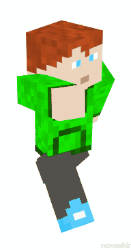
Step-by-step guide to create a new Minecraft skin
Step 1
Decide if you will use an online skin editor or a printable skin template.
Step 2
Open the online skin editor in your browser or print the blank printable template.
Step 3
Choose one base color for the character body.
Step 4
Fill the main body area with your chosen base color in the editor or on the template.
Step 5
Pick colors for the head and draw or color the face features on the head area.
Step 6
Add clothing shapes and patterns to the torso arms and legs.
Step 7
Add small finishing details like pockets buttons belts or shoes.
Step 8
Add simple shading or highlights to make your skin look more 3D.
Step 9
Save export or scan your finished skin as a PNG image file.
Step 10
Upload the PNG skin to your Minecraft profile or game skin settings.
Step 11
Apply the skin to your character and open or join a world to test how it looks.
Step 12
Take a screenshot or photo of your character and share your finished creation on DIY.org
Help!?
What can we use instead of a printer or an online skin editor if those are unavailable?
If you don't have a printer or browser editor, draw the skin on plain or graph paper with colored pencils, photograph or scan it, then crop and save the image as a PNG to complete the 'scan your finished skin as a PNG image file' step.
My skin looks stretched or parts are in the wrong place after uploading—what should I check?
If the skin looks stretched or misaligned after you upload the PNG to your Minecraft profile, reopen the online skin editor and make sure you filled the correct head, torso, arms, and legs areas and then re-export a properly aligned PNG before applying it.
How can I adapt this activity for different age groups?
For younger kids, use a printed template with one base color and big, simple face features, while older kids can use an online editor to add detailed clothing patterns, small finishing details, and shading before exporting the PNG.
What are some ways to extend or personalize the Minecraft skin project?
To enhance the project, create matching accessories or a themed set of skins, add extra shading and highlights in the editor for a 3D look, upload each exported PNG to Minecraft, and take screenshots to share on DIY.org.
Watch videos on how to create a new Minecraft skin
How To Make A Minecraft Skin - Full Guide
4 Videos
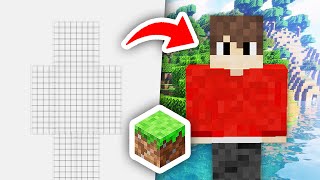
How To Make A Minecraft Skin - Full Guide
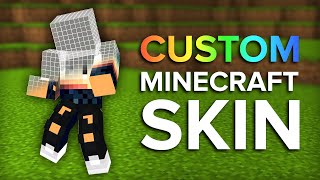
How To Make a Custom Minecraft Skin For Java and Bedrock
How to make your own Minecraft skin || easy tutorial ||
How to MAKE a SKIN in Minecraft ✅ CUSTOM Skin GUIDE 2025 | CREATE Your OWN Skin on Minecraft
Facts about pixel art
🟩 Minecraft has sold over 200 million copies, making it the best‑selling video game ever.
🧑🎨 Modern Minecraft skins use a tiny 64×64 pixel canvas—every pixel can change your whole look!
🖥️ Popular skin editors like The Skindex and Nova Skin let you paint, preview in 3D, and download your skin as a PNG.
📁 Minecraft skins are just PNG image files you upload to your account to wear in-game.
🧢 Skins support an extra outer layer (for hats, jackets, and accessories) so you can add 3D-style details.
How do I design a Minecraft skin step-by-step?
What materials or tools do I need to create a custom Minecraft skin?
What ages is creating Minecraft skins suitable for?
What are the benefits of making custom Minecraft skins?
