Create a graphical videogame
Design and build a simple graphical video game using Scratch or similar, creating sprites, backgrounds, and rules, then test and share it with friends.
About this tutorial
Design and build a simple graphical video game using Scratch or similar, creating sprites, backgrounds, and rules, then test and share it with friends.
What you need
Step by step
- 1
Step 1
Pick a simple game idea and one clear goal like "collect stars" or "avoid enemies."
- 2
Step 2
Draw a quick sketch of the player the background and one rule on your paper.
- 3
Step 3
Open Scratch or a similar block-based editor and start a new project.
- 4
Step 4
Use the backdrop editor to make or choose a background for your game.
- 5
Step 5
Create or pick a main player sprite from the library or draw your own.
- 6
Step 6
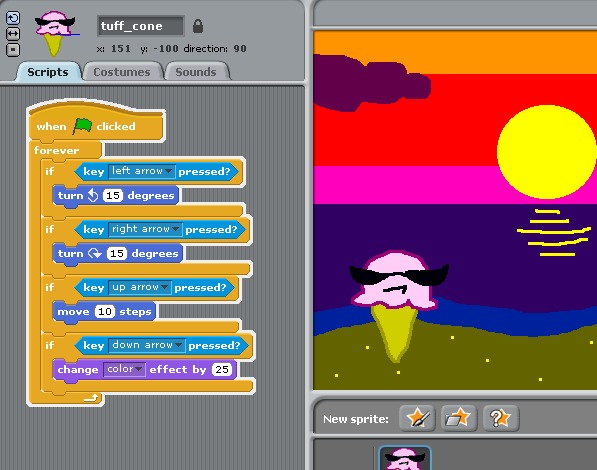
Add movement scripts so the player can move with arrow keys or WASD keys.
- 7
Step 7
Create another sprite to be an enemy or a collectible item.
- 8
Step 8
Add scripts so the enemy or collectible moves or appears where you want it.
- 9
Step 9
Make a score variable for the player in the Variables section.
- 10
Step 10
Add code so the score changes when the player touches a collectible or loses points when hit.
- 11
Step 11
Add at least one sound effect that plays when the player collects or gets hit.
- 12
Step 12
Add a start message and a game-over or win message using broadcast or say blocks.
- 13
Step 13
Click the green flag and play your game two times to look for problems or fun tweaks.
- 14
Step 14
Fix at least one problem you found during testing.
- 15
Step 15
Share your finished creation on DIY.org
Fun facts
How do I design and build a simple graphical video game with Scratch?
Start by planning a simple idea and rules on paper. Open Scratch (or a similar block-based editor) and create a new project. Make or pick sprites, draw backgrounds, and add movement using motion blocks. Use events (when green flag clicked), control blocks, and variables to build scoring and rules. Test often, fix bugs, add sound, then click Share and send the project link to friends for feedback and playtesting.
What materials and tools do I need to make a simple graphical video game?
You'll need a computer or tablet with internet access and a modern browser, plus a free Scratch account (or a similar block-coding app). Also useful: a mouse and keyboard, headphones for sound, and paper and pencil for sketching ideas. Optional tools include a camera or scanner to import drawings, a microphone for voice effects, and parental controls or a supervised account for younger creators.
What ages is designing a basic graphical video game with Scratch suitable for?
Designing basic graphical games is great for ages 6–12: kids 6–8 can follow templates and create simple sprite movement with adult help; ages 8–10 work independently on stories, scoring, and collisions; 11–12 can add variables, clones, and more complex logic. Teens and adults can expand games with external tools. Match tasks to attention span and provide supervision for publishing and online interactions.
How can I keep my child safe when they create and share their Scratch games online?
Supervise sharing: preview projects and comments before posting, remove personal details from names or sprites, and use a child-safe username. Use platform privacy settings where available, restrict links to trusted friends, and teach your child not to share personal information. Turn on moderated or parent-approved accounts if provided, limit online time, and encourage reporting or blocking if strangers behave inappropriately.
Watch & Learn
Need help?
What can we use if Scratch or a block-based editor is hard to get or install?
If Scratch isn't available you can use Scratch Desktop, Microsoft MakeCode, Tynker, or instead draw the player and background on paper or a paint app and import those images into any block editor as your backdrop and sprites.
The score doesn't change when the player touches a collectible—what should we check?
Check that your collectible and player sprites are the correct size and positioned so the 'if touching [collectible]' block inside a forever loop runs, and confirm the score variable change block is attached to that condition.
How can we adapt the project for younger or older kids?
For younger kids simplify steps 5–8 to one large movable player and a single collectible with a big sound effect and easy win message, while older kids can add enemy AI, multiple levels, extra variables like lives and timers, and more complex scripts.
What are simple ways to extend or personalize the game after the basic version works?
Personalize art in the backdrop editor and sprite costumes, add power-up sprites that modify the score variable, use broadcast blocks to create level transitions or menus, and record custom sounds before sharing on DIY.org.