Create a 3D Custom Engraved Ring Using Tinkercad
Design and customize a 3D engraved ring in Tinkercad, add text or shapes, check dimensions for fit, and export for 3D printing.
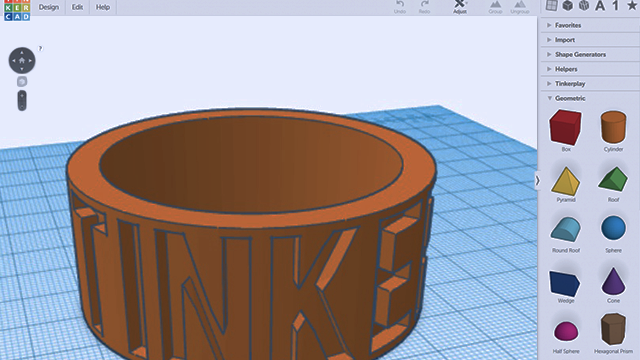
About this activity
Design and customize a 3D engraved ring in Tinkercad, add text or shapes, check dimensions for fit, and export for 3D printing.
What you need
Step by step
- 1
Step 1
Open Tinkercad and start a new design to get a fresh workplane ready.
- 2
Step 2
Measure your finger or an existing ring and write down the inner diameter in millimeters.
- 3
Step 3
Pick a wall thickness you like (for example 2 mm) and add twice that thickness to your inner diameter to get the outer diameter.
- 4
Step 4
Drag a solid cylinder onto the workplane and set its diameter to the outer diameter and its height to the band height you want.
- 5
Step 5
Create a second cylinder configured as a hole and set its diameter to your measured inner diameter and its height to match the band height.
- 6
Step 6
Use the Align tool to center the hole cylinder inside the solid cylinder.
- 7
Step 7
Group the aligned cylinders to form the ring base.
- 8
Step 8
Drag the Text shape onto the workplane and type the letters or symbol you want engraved.
- 9
Step 9
Resize and position the text so it sits on the outer face of the ring where you want the engraving.
- 10
Step 10
Convert the text to a hole and set its depth so it cuts slightly into the ring surface for an engraved look.
- 11
Step 11
Align the text hole to the ring face exactly where you want the engraving.
- 12
Step 12
Group the ring and the text hole to apply the engraving to your ring.
- 13
Step 13
Use the Ruler tool to check the ring's inner diameter and wall thickness and adjust sizes if anything feels off.
- 14
Step 14
Save your design export it as an STL and with adult help send the STL to your 3D printer or a 3D printing service to print your ring.
- 15
Step 15
Share your finished 3D engraved ring creation on DIY.org.
Fun facts
How do I design and customize a 3D engraved ring in Tinkercad?
Start in Tinkercad: create a new design, add a solid cylinder for the outer band and a slightly smaller cylinder set as a hole for the inner opening; align and group to form the ring. Add text or shape elements, position them on the band and make them holes (for engraving) or solids (for embossing). Check inner diameter against a measured finger size, ensure wall thickness at least 1.5–2 mm, then export as STL and prepare it with slicer settings for 3D printing.
What materials and tools do I need to create a 3D engraved ring using Tinkercad?
You’ll need a computer or tablet with internet and a free Tinkercad account, a mouse for easier control, and a way to measure finger size (calipers or printable sizer). For printing: a 3D printer or a printing service, filament (PLA or PETG) or resin if using SLA, and slicer software. Post-processing tools like fine sandpaper, files, and safety gear (gloves, mask) are helpful, plus adult supervision for printing and finishing steps.
What ages is designing and 3D printing a custom engraved ring appropriate for?
Tinkercad is kid-friendly and suitable for children around 8 years and up with guidance. Ages 8–11 can design simple rings with adult help; ages 12+ can usually manage more detailed work and exporting. Because 3D printers, hot parts, and chemical resins can be hazardous, an adult should handle printing and post-processing; younger children can participate in design and decoration under supervision.
What safety precautions should I follow when making a 3D engraved ring?
Supervise children during printing—printers have hot nozzles and moving parts. Use good ventilation for fumes (especially resin), wear gloves and a mask for sanding or handling uncured resin, and goggles for post-processing. Make sure the ring’s inner diameter fits correctly to avoid circulation issues and avoid very thin walls. Keep small printed pieces away from toddlers to prevent choking, and let an adult handle any adhesives or finishing chemicals.
Watch & Learn
Need help?
What can we use if we don't have a 3D printer at home?
Export your design as an STL (step: Save your design export it as an STL) and send that STL to an online 3D printing service, local library, or maker space to print the ring.
Why doesn't the engraving appear on my printed ring and how do I fix it?
Make sure you converted the Text shape to a hole, set its depth to cut slightly into the ring surface, aligned the text hole to the ring face, and grouped the ring and text hole before exporting the STL.
How can I change this activity for younger or older kids?
For younger kids use pre-set cylinder sizes and have an adult open Tinkercad and export the STL, while older kids can measure their finger, choose wall thickness, place and size the Text shape, use the Ruler tool to fine-tune dimensions, and export the STL themselves.
How can we personalize or enhance the engraved ring design?
Add extra Text shapes or symbols, try using solid text instead of holes for raised lettering, experiment with different font sizes and hole depths before grouping, and consider printing in colored filament or using a finishing service after printing.