Build with digital LEGO® bricks
Design and build a virtual LEGO model using a digital bricks app, experimenting with shapes, colors, and functions while learning 3D design basics.
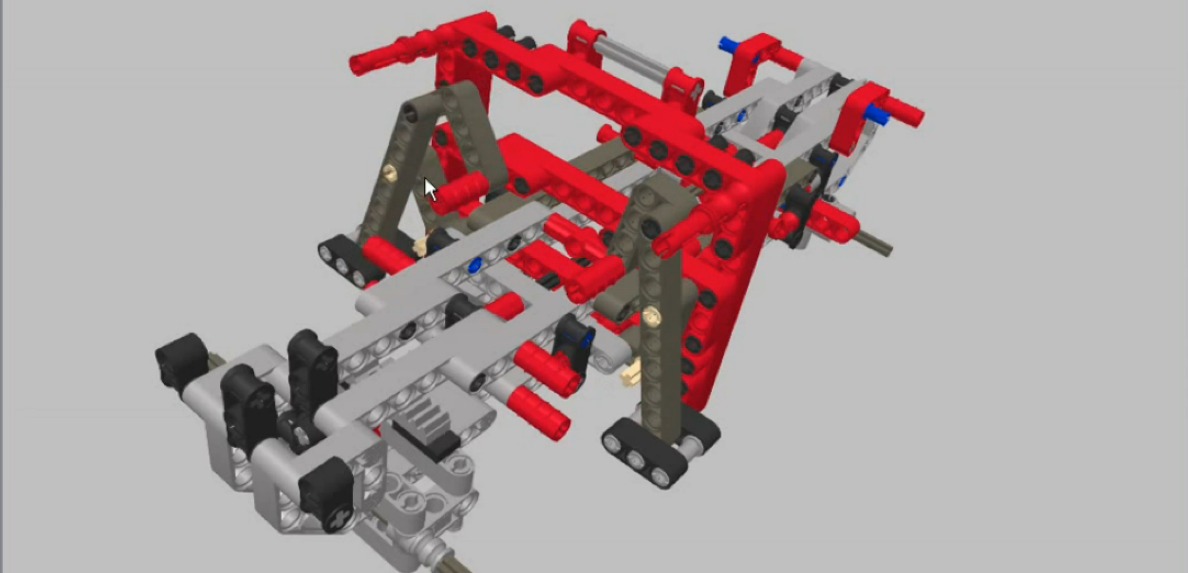
About this activity
Design and build a virtual LEGO model using a digital bricks app, experimenting with shapes, colors, and functions while learning 3D design basics.
What you need
Step by step
- 1
Step 1
Open the digital bricks app.
- 2
Step 2
Sign in or create an account in the app.
- 3
Step 3
Tap "New Project" to start a blank build.
- 4
Step 4
Pick a baseplate or blank workspace for your model.
- 5
Step 5
Choose five different brick shapes to experiment with.
- 6
Step 6
Place bricks onto the baseplate to form a simple structure.
- 7
Step 7
Change the color of each brick to create a fun palette.
- 8
Step 8
Use the rotate and zoom tools to view your model from all sides.
- 9
Step 9
Add one moving part like a door wheel or hinge to give it function.
- 10
Step 10
Test the moving part to make sure it moves smoothly.
- 11
Step 11
Save your project in the app.
- 12
Step 12
Export a screenshot or image of your finished model.
- 13
Step 13
Upload the image and share your finished creation on DIY.org.
Fun facts
How do you design and build a virtual LEGO model using a digital bricks app?
Start by opening the digital-bricks app and creating a new project or choosing a baseplate. Pick bricks from the palette and use drag-and-drop, rotate, and snap tools to join pieces. Change colors and sizes, add hinges or wheels for moving functions, and switch camera views to inspect the model in 3D. Save versions, test animations if available, and encourage kids to iterate—rebuilding parts helps them learn design thinking and problem-solving.
What materials or tools do I need to build with digital LEGO bricks?
You need a compatible device (tablet, Chromebook, laptop, or desktop) and a digital-bricks app—official or third-party. A reliable internet connection helps for downloads, sign-in, and cloud saves. Optional extras: a stylus for precise control, a mouse and keyboard for detailed work, and a parent account to manage purchases and privacy. No physical bricks are required, so it’s a tidy, portable activity.
What ages is this activity suitable for?
This activity fits a wide age range. Children around 5–7 can enjoy simple builds with adult guidance and templates. Ages 8–11 can work more independently, learning basic 3D ideas and multi-step builds. Teens (12+) can create complex models, mechanisms, and custom techniques. Adjust complexity, time, and supervision to match each child's attention span, fine motor skills, and interest level.
What are the benefits of building with digital LEGO bricks?
Digital LEGO building strengthens spatial reasoning, creativity, and basic 3D design skills. Kids practice planning, sequencing, and problem-solving as they iterate on models. The app lets them experiment and undo mistakes without wasting materials, reducing frustration. Older children gain early CAD and engineering concepts, while group projects support communication and teamwork. It’s a low-mess STEAM activity that complements hands-on play.
Watch & Learn
Need help?
What can we use if the 'digital bricks' app or an account isn't available?
If the 'digital bricks' app or account is unavailable, use free alternatives like LEGO Digital Designer or BrickLink Studio (or build with real LEGO on a physical baseplate and photograph it) to complete steps like choosing a baseplate, placing bricks, and exporting an image.
The door/wheel/hinge we added doesn't move smoothly—what should we try?
If the moving part (door, wheel, or hinge) is glitchy, reposition the connected bricks so the hinge studs are not overlapping, use the rotate tool to precisely align the joint, test the movement again, and then save when it moves smoothly.
How can we adapt this project for different ages or skill levels?
For younger kids, simplify by choosing only 3 large brick shapes and a small baseplate with parent help for signing in and exporting, while older kids can experiment with five or more brick types, complex moving parts, and advanced color schemes before exporting and uploading to DIY.org.
How can we extend or personalize our finished digital LEGO model?
Extend the project by adding extra moving parts, creating a themed color palette when you 'change the color of each brick,' building a mini scene on the baseplate, exporting the screenshot to add text or background, and including that story when you upload to DIY.org.