Bios Facts For Kids
BIOS is an essential piece of firmware that starts up your computer and communicates with its hardware components to get everything ready for the operating system.
Select reading age

Bios Facts For Kids
Videos & Quizzesincluded
About this topic
Hey there, tech explorers! 🌟Have you ever wondered how your computer wakes up and gets ready to play? That’s where something called BIOS (Basic Input/Output System) comes in! BIOS is like the superhero of your computer’s starting process. It helps your computer wake up and check if everything, like the keyboard and screen, is working. Without BIOS, your computer wouldn’t know how to start! Think of BIOS as the road map that gets your computer from asleep to awake and ready to go! 🖥️⚡
Explore with ChatDinoKey Points
You might hear about UEFI, which stands for Unified Extensible Firmware Interface.
There are a few different types of BIOS!
Sometimes, it’s important to update BIOS, just like getting the latest game updates!
BIOS is a special kind of software stored on a tiny chip in your computer.
When you press the power button on your computer, BIOS springs into action!
The first version of BIOS was created way back in 1975 by a team led by Gary Kildall!
BIOS has a special menu called the BIOS Setup Utility.
Inside the BIOS Setup Utility, you can find lots of options.
The future looks bright for BIOS technology!
If your computer doesn’t start up properly, it might be a BIOS issue!
Photos of Bios

BIOS chips in a Dell 310 that were updated by replacing the chips

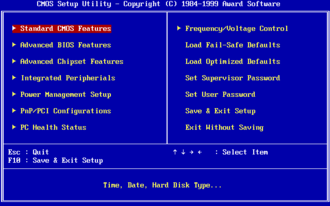
Award BIOS setup utility on a standard PC

BIOS replacement kit for a Dell 310 from the late 1980s. Included are two chips, a plastic holder for the chips, and a IC extractor.

American Megatrends BIOS 686. This BIOS chip is housed in a PLCC package in a socket.

Compaq Portable 386 BIOS

Gigabyte DualBIOS PLCC32

A detached BIOS chip
🕹️ Bios Vs. Uefi
You might hear about UEFI, which stands for Unified Extensible Firmware Interface. 🕹️ It’s like the cool cousin of BIOS! UEFI has more features, can start up faster, and supports larger hard drives. While BIOS can only handle older systems and 2TB drives, UEFI supports much larger sizes! UEFI also has a fancy graphical user interface, making it easier to navigate. Think of BIOS as an old-school black-and-white movie, while UEFI is a colorful, modern film! 🎥🌈
Go deeper📦 Types Of Bios
There are a few different types of BIOS! The two popular types include ROM BIOS and Flash BIOS. 📦ROM BIOS is installed on a chip and doesn’t change much. Flash BIOS can be updated easily, like downloading a new game! 🌟Another newer type is UEFI (Unified Extensible Firmware Interface), which is faster and has more features than traditional BIOS. Think of these types like different flavors of ice cream—each one brings something special to your computer! 🍦💻
Go deeper🎮 Updating Bios
Sometimes, it’s important to update BIOS, just like getting the latest game updates! 🎮Manufacturers make updates to fix bugs or add new features. To update BIOS, you usually need to download the new version from the manufacturer's website and follow instructions carefully. But be cautious! 🤔Updating BIOS incorrectly can cause problems, so it's essential to follow steps provided by trusted sources or ask an adult to help you. Keeping BIOS updated can make your computer even better!
Go deeper🌟 What Is Bios?
BIOS is a special kind of software stored on a tiny chip in your computer. 🌟It stands for Basic Input/Output System. When you turn on your computer, BIOS loads first and helps the computer recognize all its parts, like the memory (RAM) and hard drive. It's kind of like a coach who organizes the team before the big game! 🏅Without BIOS, the computer wouldn’t know how to find everything or use it properly, which is super important for running your favorite games or apps!
Go deeper🌈 How Bios Works
When you press the power button on your computer, BIOS springs into action! 🌈First, it runs a quick test called POST (Power-On Self-Test) to make sure everything is working. Then, it finds the operating system, like Windows or macOS, and helps it load. Think of BIOS as a helpful librarian who knows exactly where each book is and helps you find them super fast! Once everything is checked, it gives control to the operating system so you can start playing your games or browsing the internet! 📚🎮
Go deeper🕵️♂️ History Of Bios
The first version of BIOS was created way back in 1975 by a team led by Gary Kildall! 🕵️♂️ It was part of a computer called the CP/M. Over time, BIOS got better and better. In 1981, IBM introduced a special type of BIOS for the IBM PC. Over the years, other companies created their own versions, improving how BIOS works. Now, BIOS is found in almost every computer, helping users all around the world enjoy technology. How cool is that? 🌍✨
Go deeper📜 Bios Setup Utility
BIOS has a special menu called the BIOS Setup Utility. 📜You can access it by pressing a key, often "F2" or "Delete," when your computer starts. In this menu, you can see all the settings for your computer's hardware! You can change things like boot order (which part starts first) and set passwords to keep your computer safe. 🚀It’s a bit like a treasure chest filled with secret keys to make your computer run even better! But be careful—not all changes are good, so always ask a trusted adult!
Go deeper🚀 Common Bios Settings
Inside the BIOS Setup Utility, you can find lots of options. 🚀Some common settings include boot options, date and time, and hardware settings like fan speeds. You can decide which device to start first, such as your hard drive or USB! You can even control features like virtualization, which allows you to run other operating systems (like Linux). Learning these settings can give you the power to customize your computer just the way you like it! 🌟📅
Go deeper🌟 Future Of Bios Technology
The future looks bright for BIOS technology! 🌟With more people using computers, BIOS and UEFI are evolving to be even faster and more user-friendly. New features are being developed to help with security, like protecting against viruses when starting up. Imagine a superhero computer that can defend itself right from the start! 🦸♂️ And as technology advances, we might see even more cool innovations that make our computers work better than ever. It’s an exciting time to be curious about technology! 💻✨
Go deeper⚠️ Troubleshooting Bios Issues
If your computer doesn’t start up properly, it might be a BIOS issue! ⚠️ Some common problems are a computer that won’t boot or beeping sounds when you turn it on. These beeps are like secret signals from your computer, telling you what might be wrong! 📣If you find an issue, you can enter the BIOS Setup Utility to make adjustments or reset settings. If you’re unsure, asking for help from an adult is always a good idea! Together, you can solve the mystery of the computer! 🕵️♀️💻
Go deeper