CapCut & VN for Kids: The Calm, Safe Way to Edit on Phones and iPads
Use CapCut and VN safely on iPhone, iPad, and Android kid settings, calm editing tips, age-appropriate defaults, and a short parent checklist.
Three quick toggles make mobile editing safe for young creators: turn off uploads, block purchases, and filter content so kids can learn privately, calmly, and at their own pace.
Want a calm research helper for school projects? Try DIY’s AI Homework Helper. It drafts outlines and citations you can review together.
What Is CapCut & VN?
CapCut and VN (VlogNow) are free, beginner-friendly mobile video editors used on iPhone, iPad, and Android. Both let kids trim clips, add music, text, filters, and export short videos for school projects or creative posts without needing a computer.
CapCut
What it is: A full-featured editor popular for shorts/reels.
Why kids like it: Ready-made templates, trendy effects, auto captions, quick exports.
Core tools: Trim/split, speed, keyframes, filters, stickers, text, audio library, auto-captions.
Good for: Fast edits, social-style videos, class promos, simple montages.
VN (VlogNow)
What it is: A clean, timeline-based editor with precise controls.
Why kids like it: Minimal interface, multi-track timeline, easy fine-tuning.
Core tools: Trim/split, overlays, speed ramping, filters, text, audio markers, keyframes.
Good for: Storytelling, vlogs, project videos, more deliberate pacing.
CapCut vs. VN at a glance
Feature | CapCut | VN |
Learning curve | Very easy (templates) | Easy (clean timeline) |
Best for | Quick social edits, effects | Structured edits, vlogs |
Key strengths | Templates, auto-captions, effects | Precise cuts, multi-track control |
Platforms | iOS, iPadOS, Android | iOS, iPadOS, Android |
Cost | Free (optional extras) | Free (optional extras) |
Calm & Safe Editing Tips for Kids
Encourage quiet, simple edits start with clean trims, add clear titles, then layer music at a low volume. Keep projects private by exporting locally and sharing only with a teacher or parent when needed. Timebox editing sessions into short bursts to support focus and prevent overwhelm. Finally, always credit media properly by using royalty-free music and original clips.
What parents mean by “safe editing”
Create first, post later. Start with device-only drafts.
Ad-light/ad-free experience; no surprise purchases.
Private exports to the camera roll or family album.
Device-level limits for content and time.
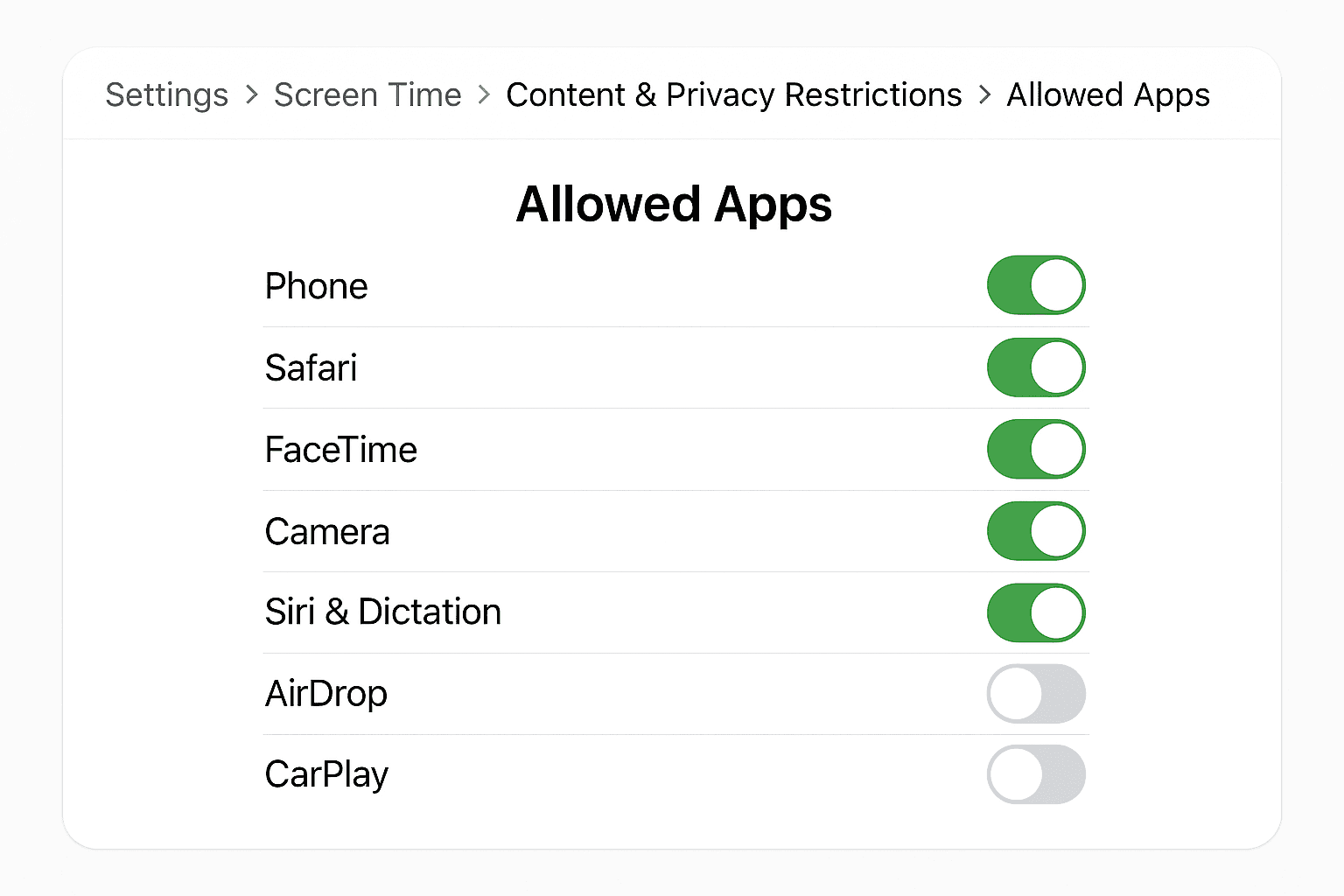
iOS Screen Time → Content & Privacy Restrictions → Allowed Apps
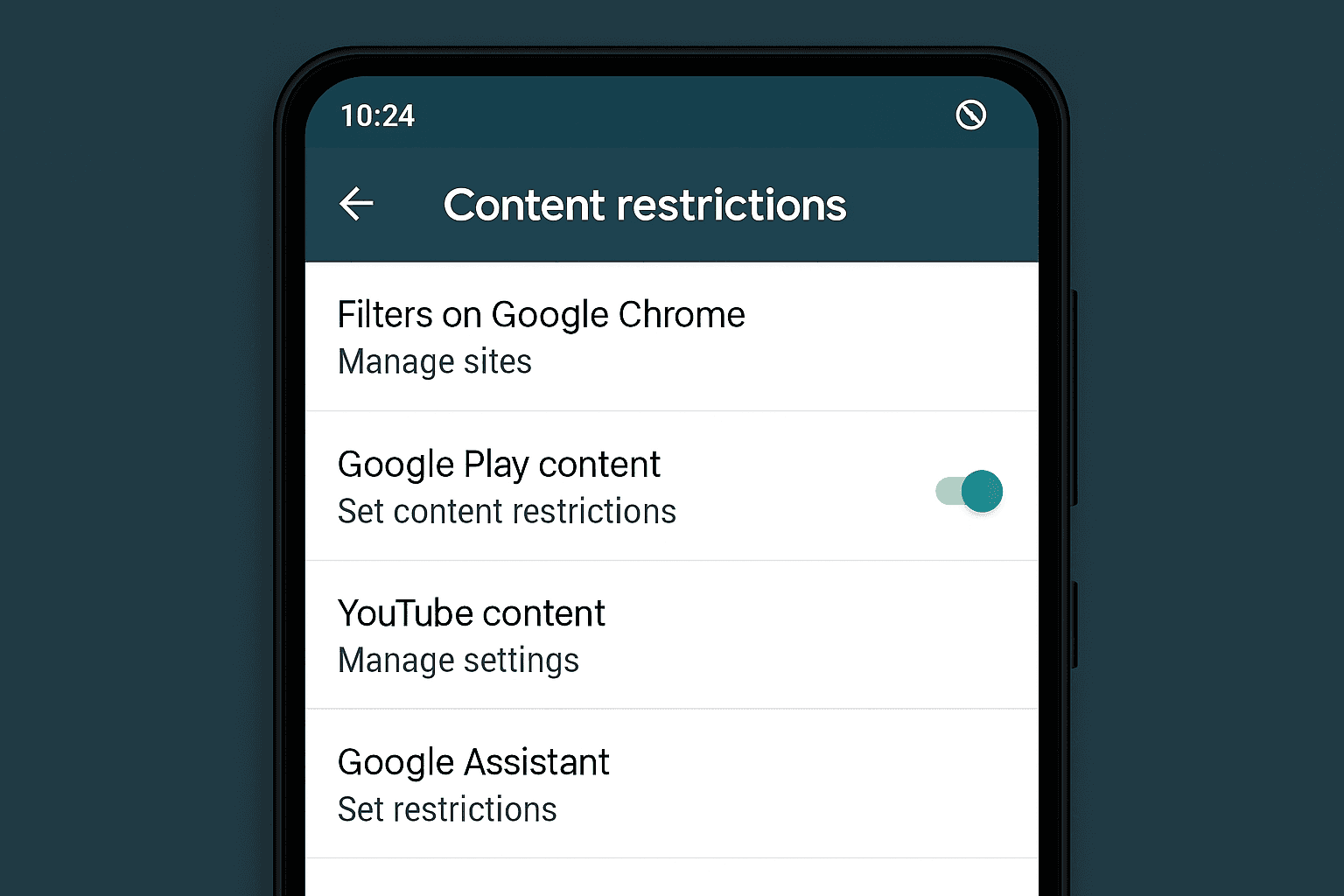
Android → Family Link → Content restrictions
Quick start: 3 toggles that fix most problems (iOS & Android)
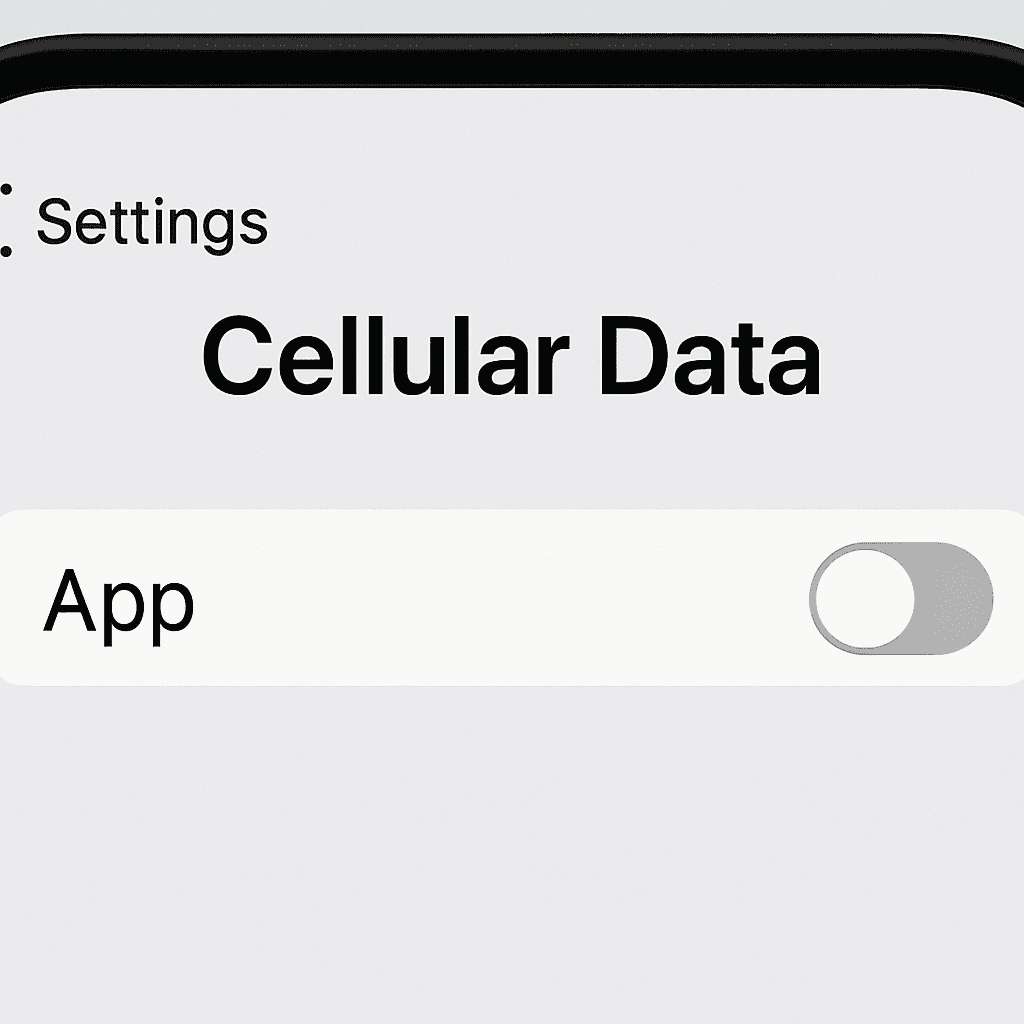
1. Turn off uploads during sessions
iOS: Settings → Cellular → toggle off for CapCut/VN.
Android: Settings → Network & Internet → disable mobile data for the app.
2. Block in-app purchases
iOS: Screen Time → Content & Privacy → iTunes & App Store Purchases → Don’t Allow.
Android: Play Store → Settings → Authentication → Require for purchases.
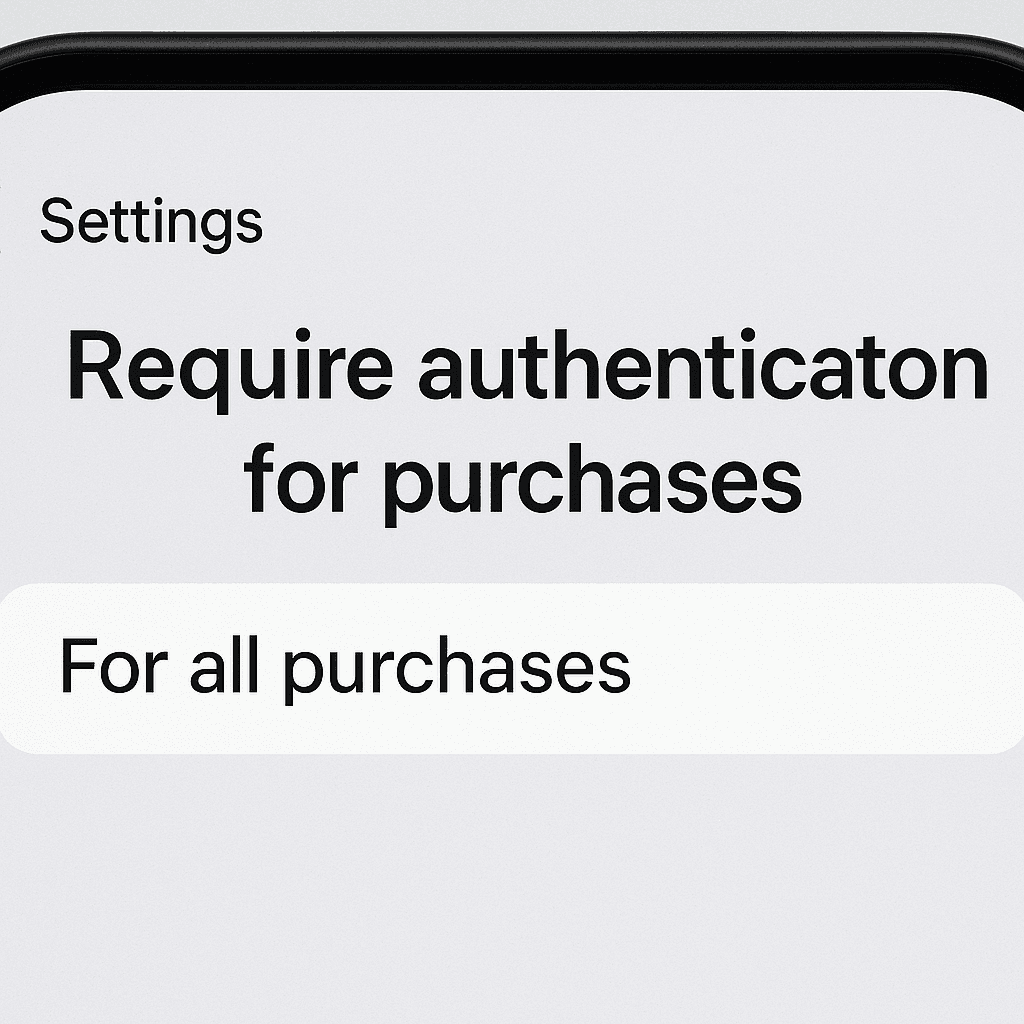
3. Set content filters
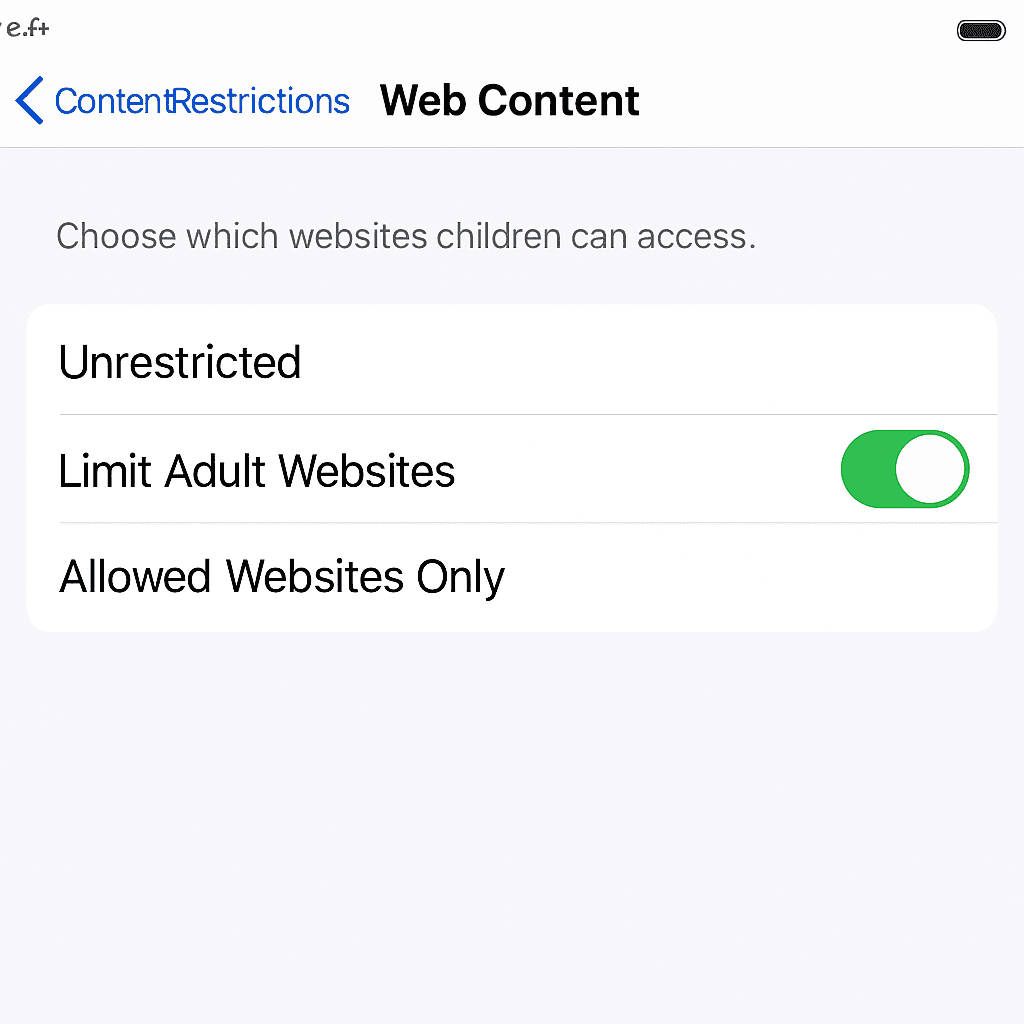
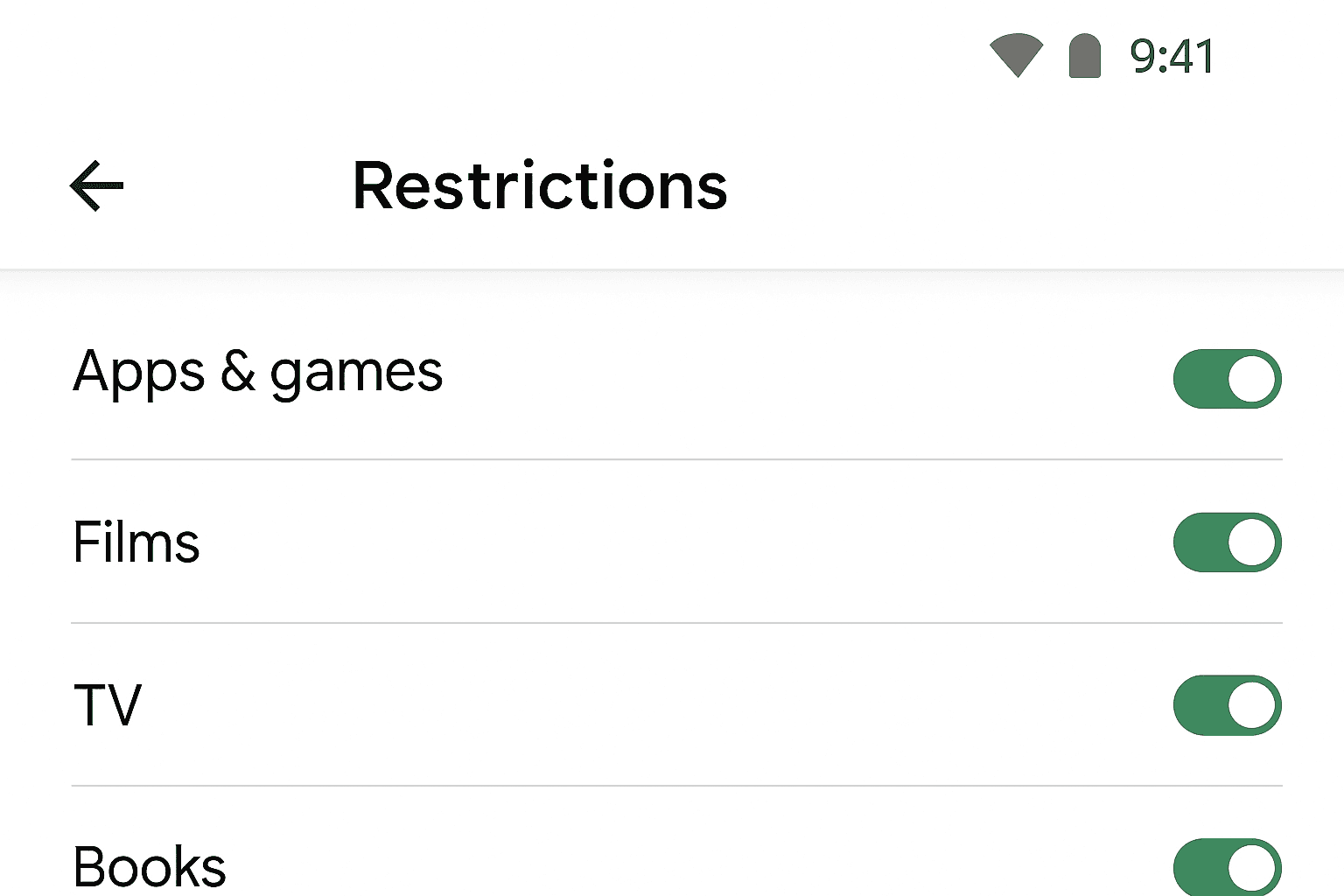
iOS: Screen Time → Content Restrictions → set Apps, Music, TV, Web Content. Android: Family Link → Content restrictions → set for Apps, Movies, Web.
→ Turn ideas into scripts ethically. Sketch a 3-shot plan with AI Homework Helper, then edit privately in VN/CapCut.
CapCut for kids private, calm setup
Install & first run
Use a child profile on the device; skip social sign-in.
Pre-download fonts/stickers/templates so it works in airplane mode.
Turn down the noise
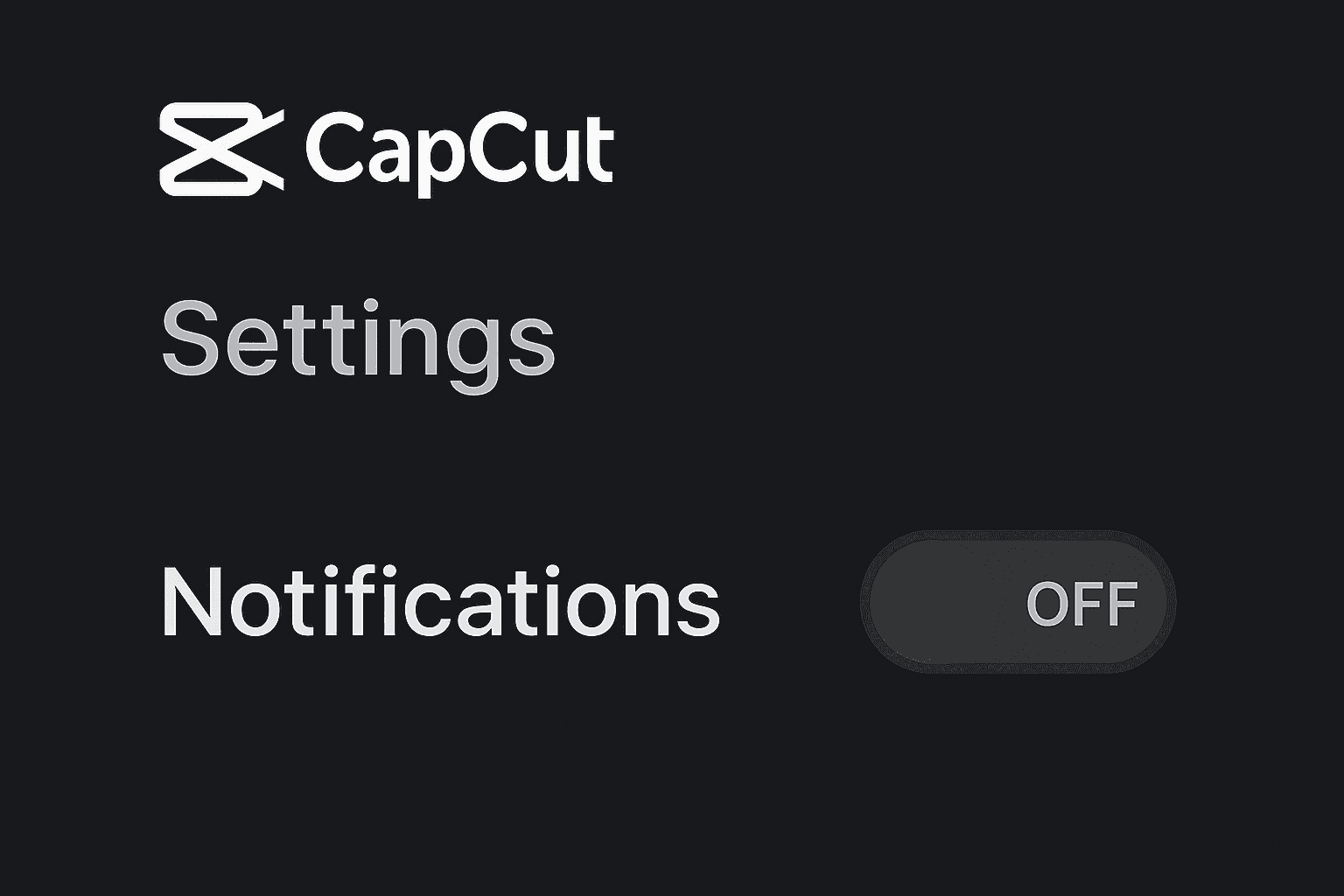
Disable push notifications.
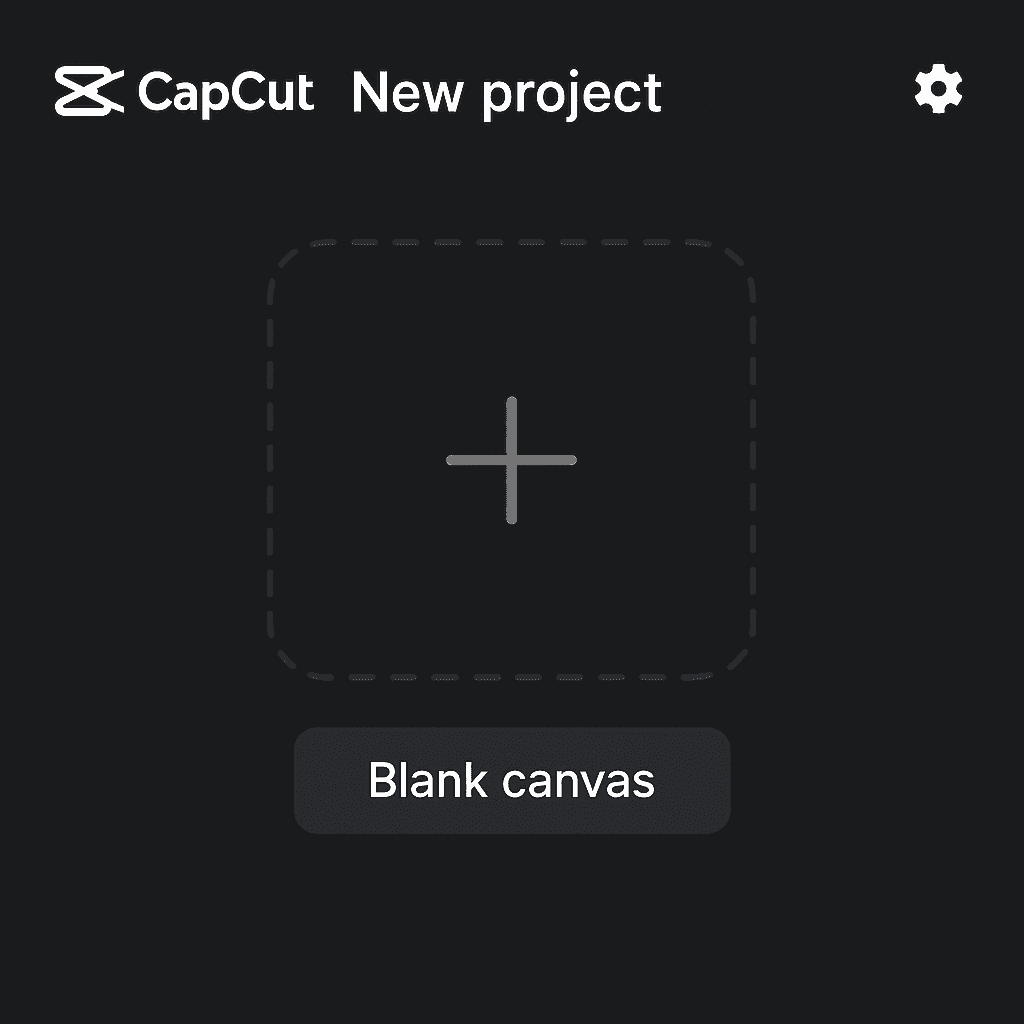
Hide/ignore community template feeds; start from Blank canvas.
Pin the basics
Keep only cut, split, captions, audio ducking in view; archive extras.
Export safely
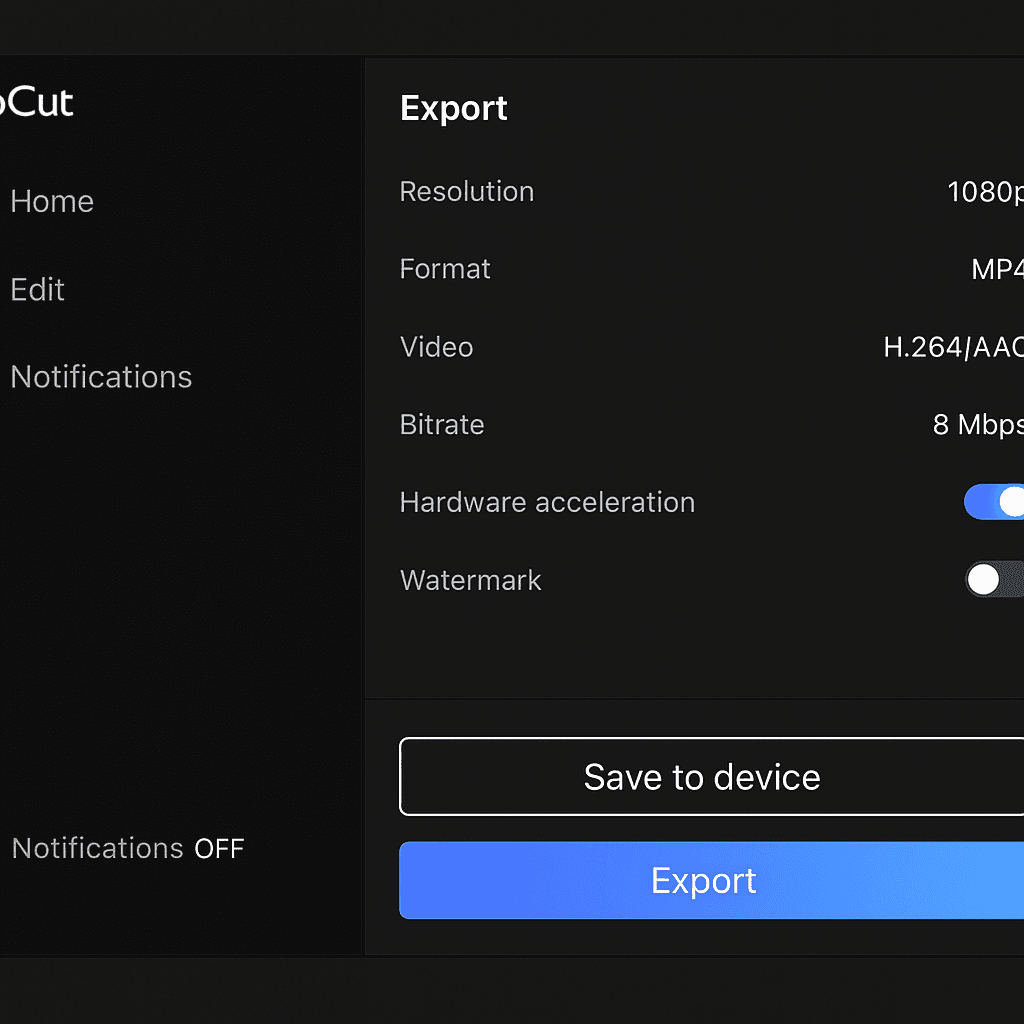
Default to Save to device (camera roll/family album). Review together before posting.
Common slip-ups
Accidentally posting to social media from within the export flow. Fix: only use local export; post later from a parent account if needed.
VN (VlogNow) simple, no-account flow
Quiet toolbelt
No account required; work device-local at first.
Create a Kids preset: 9:16 vertical, 24/30 fps, captions on, music at −10 dB.
Three-step edit
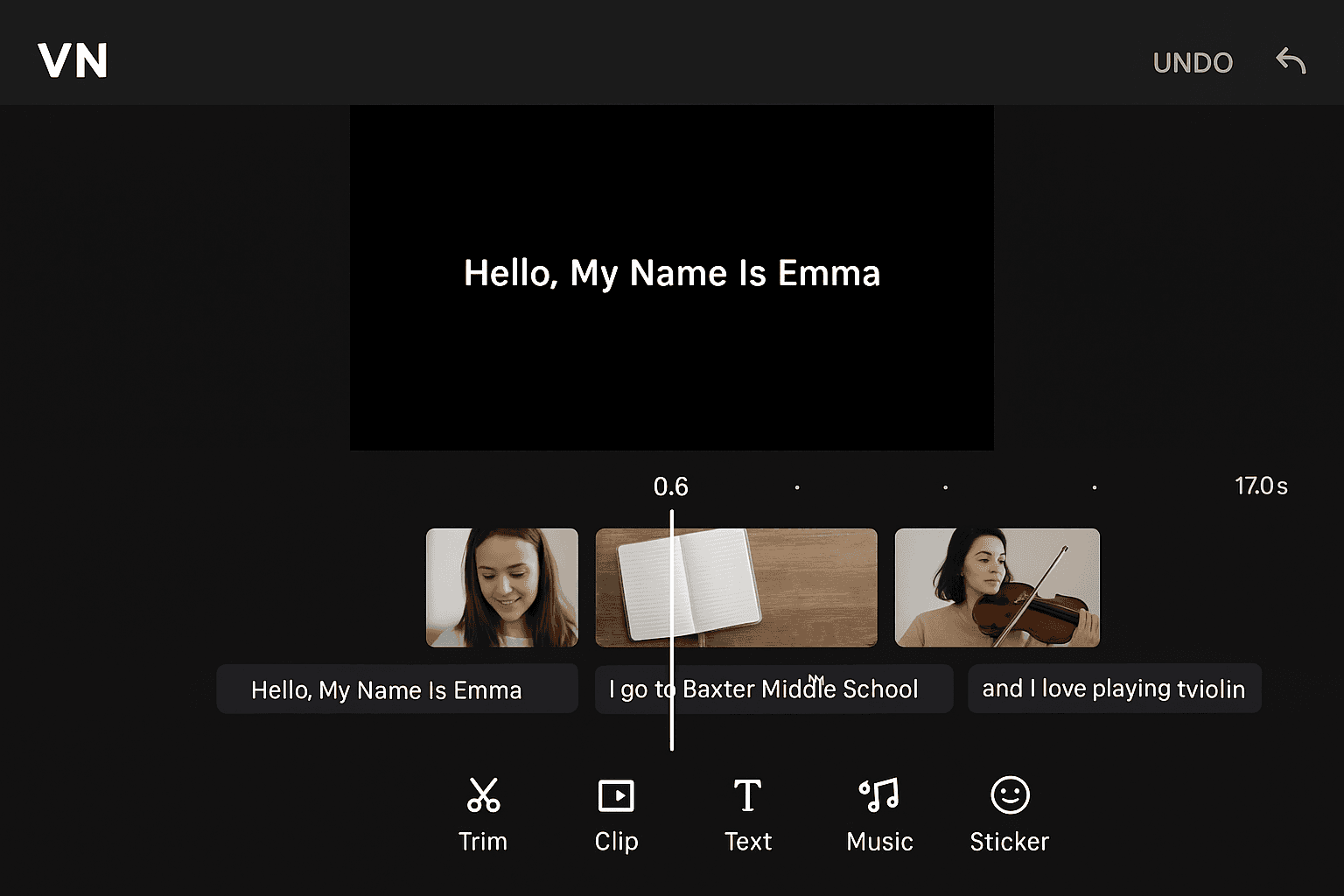
Trim, add captions, lay a soft music bed.
Keep on-screen text high-contrast and short (5–7 words per line).
Export
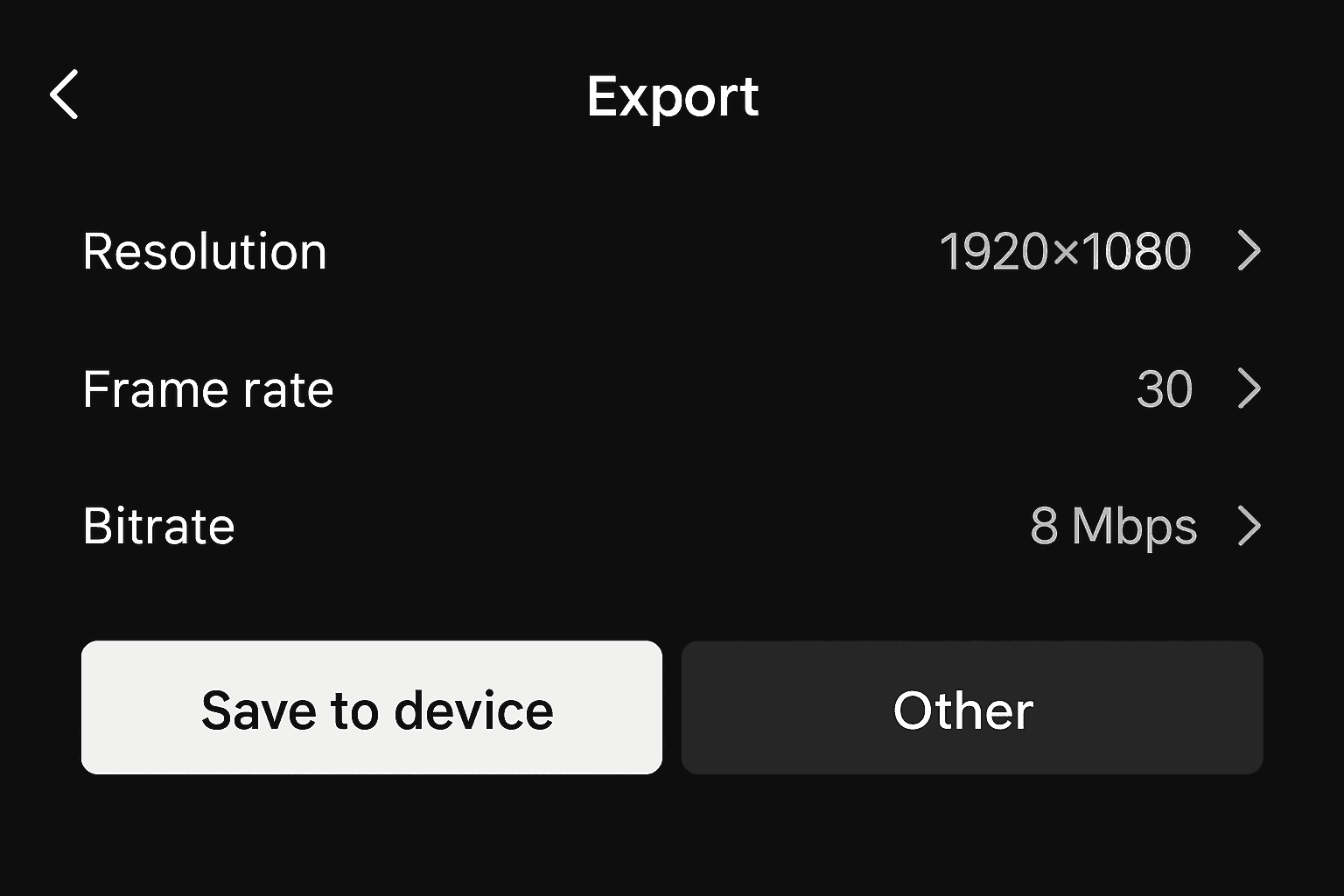
Save to camera roll; parent/child review; decide if it stays offline or gets posted later.
→Make research easier (not lazier). Use AI Homework Helper to outline, then your child records the voiceover in-app.
Device-level settings that matter more than the app
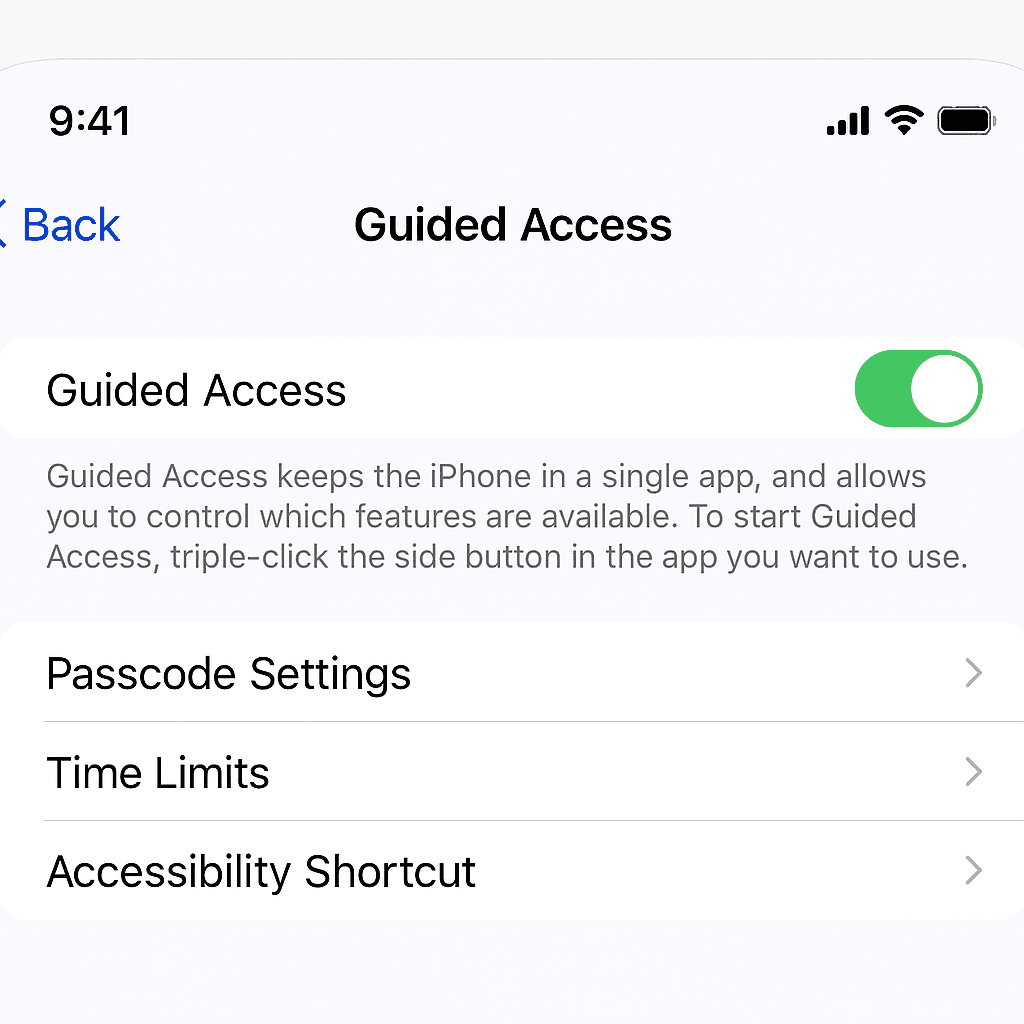
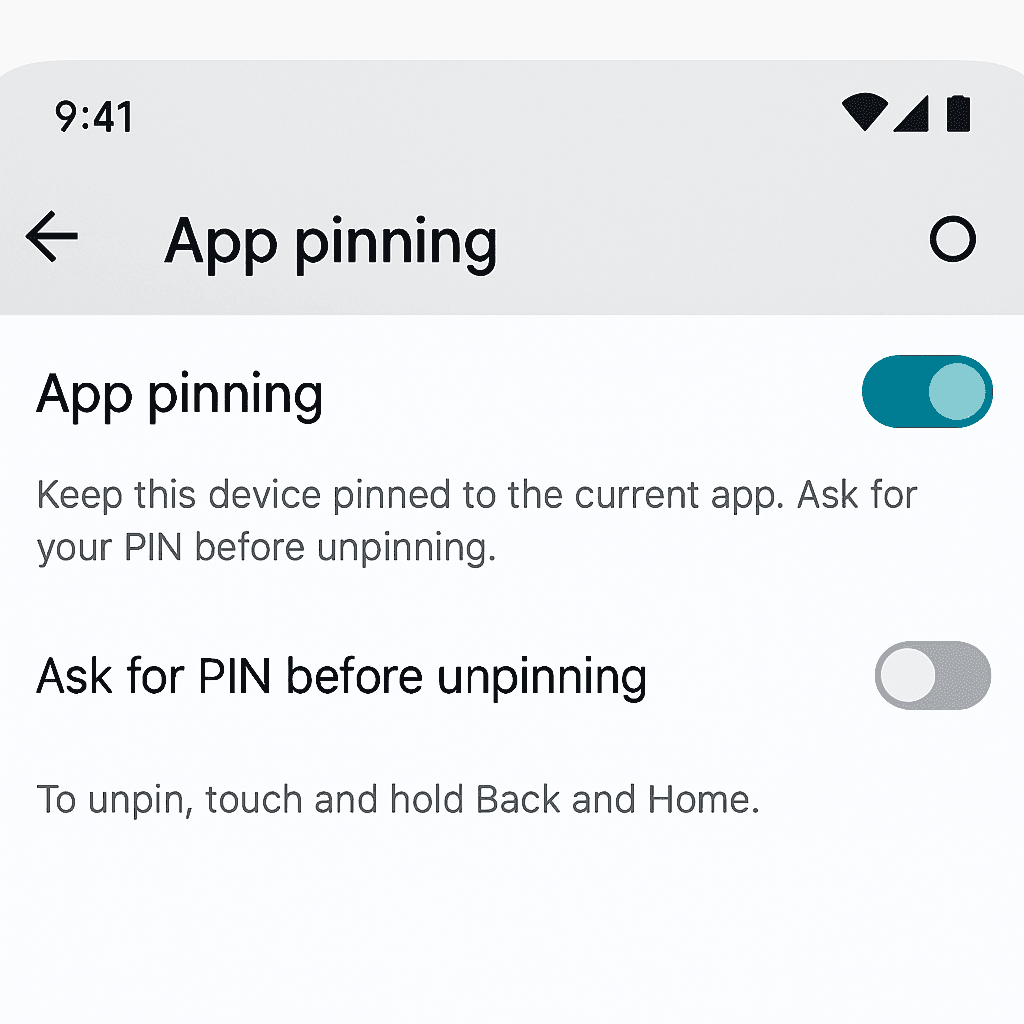
Guided Access (iOS) or App Pinning (Android) to prevent app-hopping.
Lower system volume, turn off haptics for a calmer feel.
Family charging station outside bedrooms; labeled “Calm Corner.”
A calm beginner workflow (works for Shorts/TikTok/Reels)
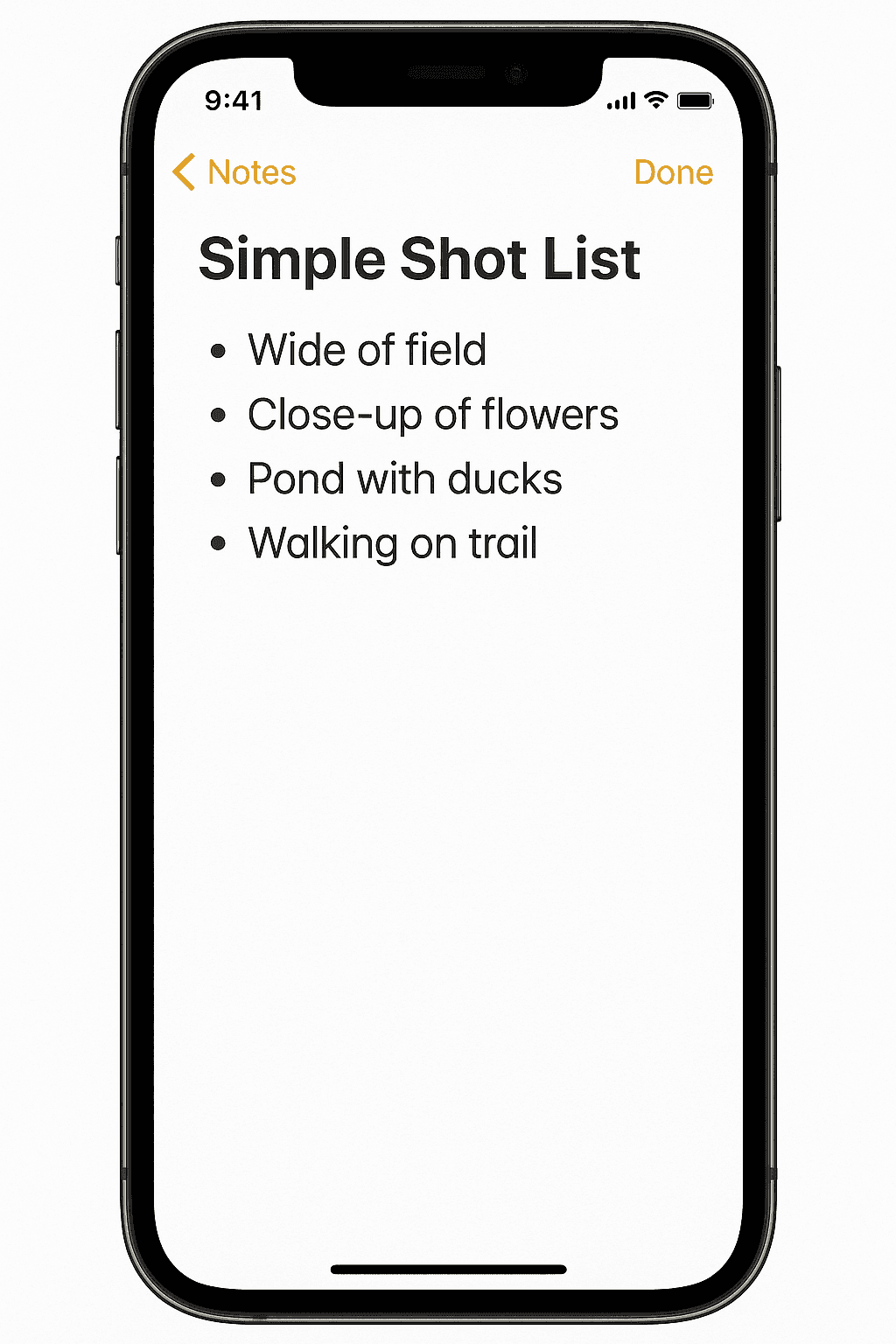
Plan a 3-shot story: Hook → Action → Result (15–30 sec total).
Film vertical, steady, in natural light.
Edit: trim → captions → soft music → export to device.
Quality check: faces/IDs/school logos ok to show? If unsure, blur or crop.
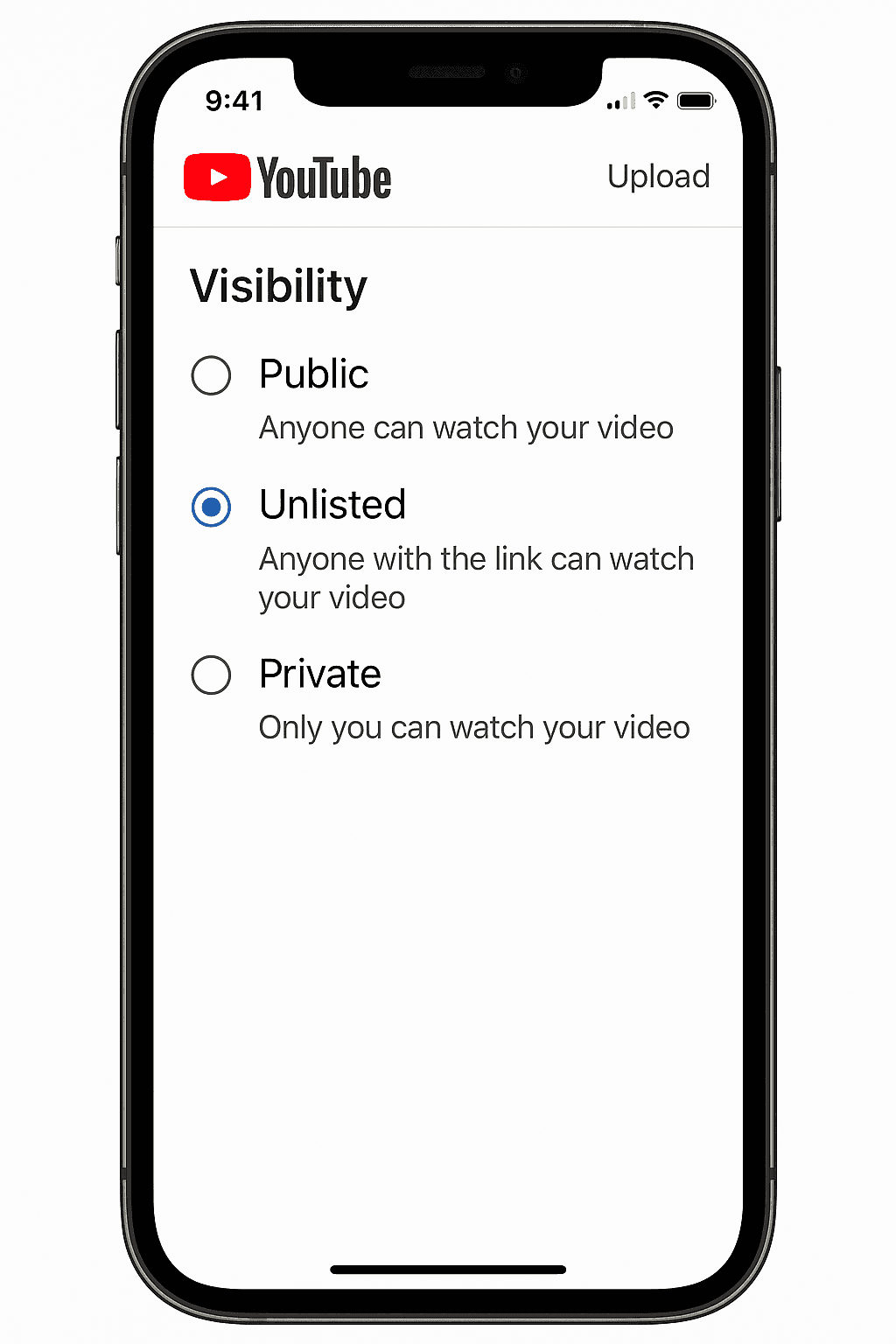
Optional posting (later): Upload as Unlisted/limited audience, comments off for kid content where available.
Copyright & credit (kid-sized)
Prefer original audio or royalty-free packs.
Keep a tiny credit note in the end card: “Music by ___ | Art by me.”
Reuse a saved end screen template.
Troubleshooting (keep it chill)
Glitchy export → lower bitrate or frame rate.
Laggy app → close background apps; try Airplane Mode while editing.
Choice overload → hide extras; pin only five tools.
Over-stimulated kid → switch to coloring/reading and return later.
FAQs
Is CapCut safe for kids?
Yes when used offline/privately with device controls. Start with blank projects and local exports.
Best free mobile editor for kids on iPhone/iPad?
CapCut and VN; iMovie for ultra-simple timelines.
How do we keep videos private on YouTube?
Export locally, upload as Unlisted, review channel settings, and disable comments for kid content.
Related DIY Challenges
More blogs you might like
Ready to start creating?
Join hundreds of thousands of kids already building cool stuff.
Get started for freeYour first game is on us.
Describe a game below - no sign-up needed to try.
Powered by AstroSafe
Make real games - not just chat